In this article, you'll learn what the CRM phone is and where each part of it lives. Your business numbers are built right into the CRM, so calls and texts with customers sit next to their jobs, estimates and invoices.
There's nothing to switch on in Features. The phone is part of the CRM.
To open your phone settings:
- In the menu, click Phone.
On the web, that opens Settings › Phone numbers. In the phone app, Phone in the menu opens a keypad and a list of your recent texts and calls instead. The settings are under Settings › Phone numbers in the app.
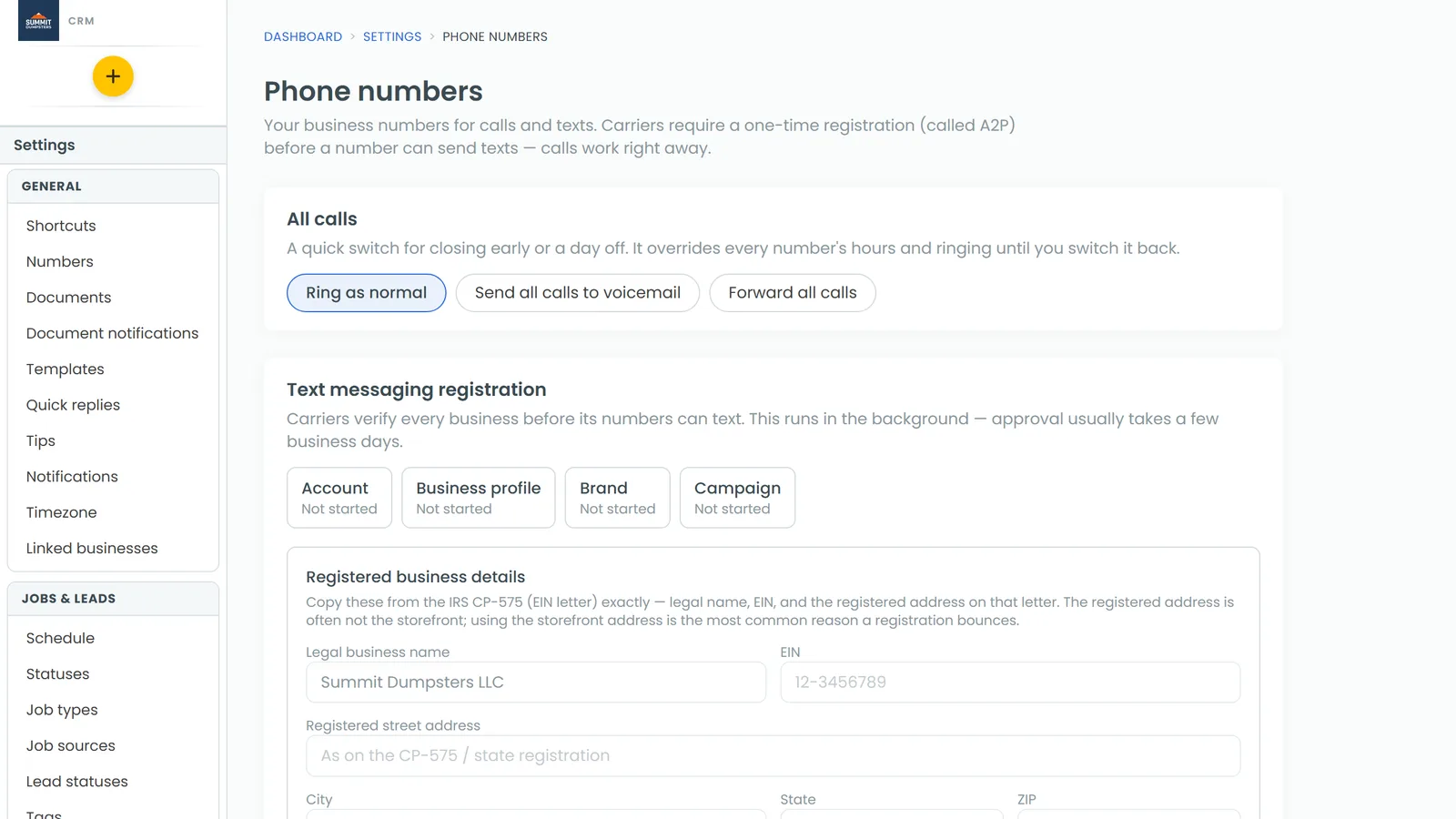
Your numbers
The Phone numbers page lists your lines by what they're for:
- CRM number is your main line. Its calls and texts come into the CRM.
- Review requests is the line review requests go out from. Its calls aren't answered, and they never ring anyone.
- Other numbers holds anything else, like tracking numbers.
Each number shows its status and whether it's registered for texting. Carriers require a one-time registration (A2P) before a number can send texts. Calls work right away. The star marks the number your calls and texts go out from by default. Click an empty star to make a different number the default.
To get another line, click Buy a number. To keep a number you already have, click Bring a number you already have.
Calls and texts land in Conversations
Every call, voicemail and text with a customer shows up in Conversations, grouped by who you were talking to. The Voicemail tab collects your voicemails in one place.
When a number records and transcribes calls, each call shows a short summary under the playback controls. Click View transcript to read the whole conversation.
Making and answering calls
You can call from your web browser or the phone app, and the call always goes out on your business number.
- On the web, open Conversations and click Dialer, or click the call button on a client, job or thread.
- When a call comes in on the web, you'll see Answer and Decline.
- In the phone app, use Phone in the menu or the Dialer tab in Conversations.
Ringing, hours, voicemail and recording
Click Edit next to a number to set how it behaves. The window has five tabs:
- Basic – the number's name, Record calls, an optional recording notice, and Transcribe recorded calls. Transcription needs recording on.
- Ringing & forwarding – who Calls go to, who else rings, the ring order, call forwarding, and what happens If nobody answers.
- Hours – your business hours and what happens After hours.
- Phone menu – a "press 1 for…" menu before the call rings.
- Advanced – what the screen shows when this line rings, and a text back when a call is missed.
Company-wide phone settings
Further down the same page, you'll find settings that apply to every line:
- All calls – send every call to voicemail or forward them all, for a day off or an emergency.
- Voicemail greetings – what callers hear when nobody picks up.
- Who's taking calls – who's available to ring right now.
- Closed days – holidays when every line answers with the after-hours greeting.
- Voicemail alerts – who hears about new voicemails.
- Spam filtering – screening for suspected spam calls.
Blocked callers have their own page. There's a link to Settings › Blocked callers at the foot of the Phone numbers page.
Related articles
- Setting up your CRM phone
- Making and answering calls on the web
- Making and answering calls on the phone app
- Conversations overview
- Choosing who your calls ring