In this article, you'll learn how to choose which Google reviews get answered for you automatically. Happy customers get a quick thank-you without you doing anything, and the tougher reviews wait so you can answer them yourself.
This is a step in your onboarding on the web. You'll see it if your plan includes reviews. It sits in the Reviews group, right after Facebook & Instagram and before Contacts.
To open the step during onboarding:
- Work through the steps until you reach the screen titled Which reviews get an automatic reply?
To open it from your dashboard:
- In the dashboard menu, click Settings. Its sub-items slide open underneath it.
- Click Onboarding. The list of steps appears under it.
- Click Review Replies.
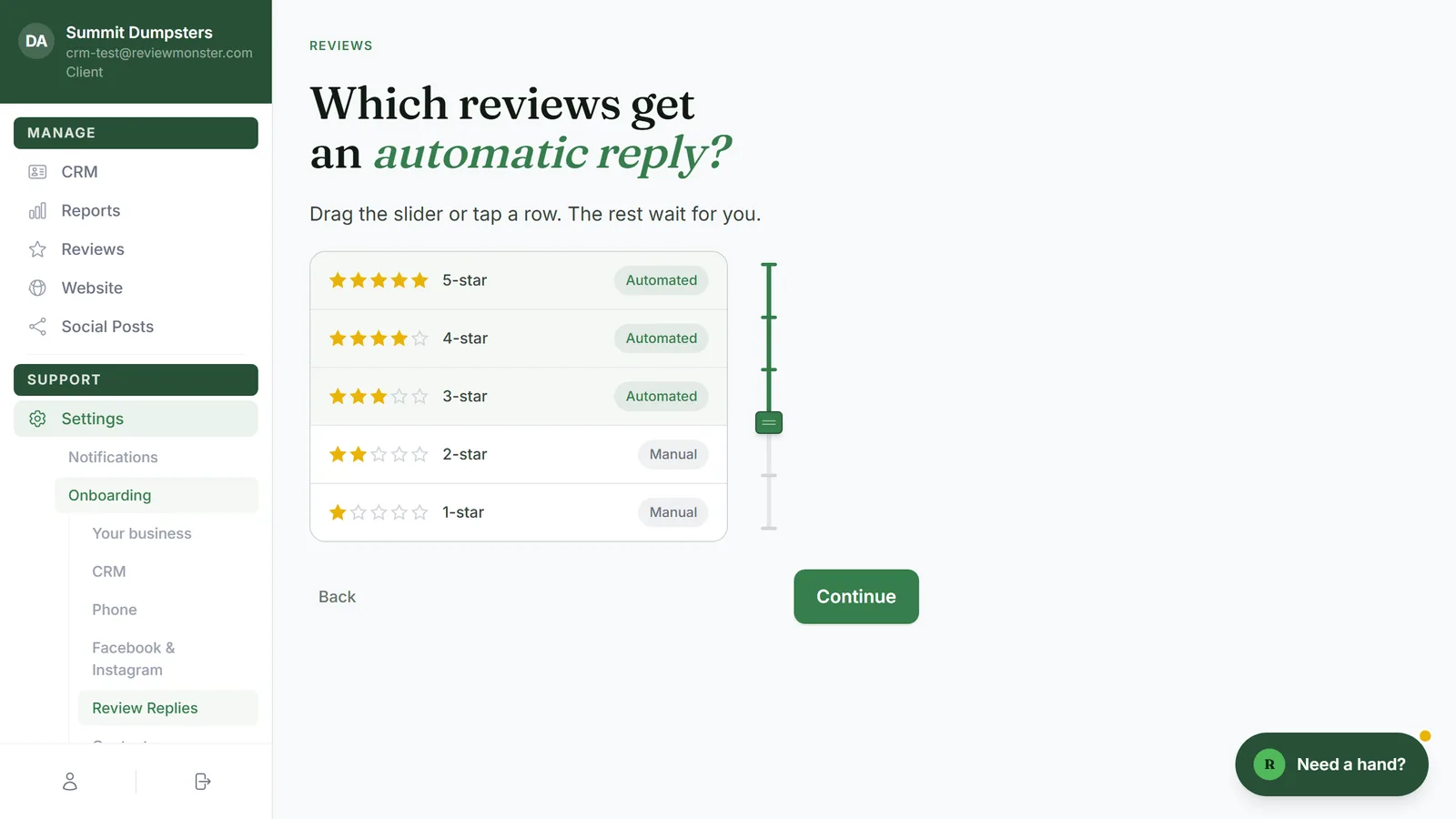
How the rows work
You'll see five rows, from 5-star at the top down to 1-star at the bottom. Each row has a tag on the right:
- Automated means a review with that rating gets a reply written and posted for you.
- Manual means a review with that rating waits for you to answer it yourself.
Automated always fills from the top down. If 3-star reviews are automated, 4-star and 5-star are too. You can't automate 2-star reviews while leaving 4-star ones manual.
When you first open the step, 5-star, 4-star and 3-star are Automated, and 2-star and 1-star are Manual.
Tap a row to set the cutoff
- Tap the lowest rating you want answered for you. For example, tap 4-star.
- That row and every row above it switch to Automated. Every row below it switches to Manual.
Tap 1-star if you want every review answered for you.
Use the slider
The slider runs down the right side of the rows.
- Drag the handle down to automate more star levels, or up to automate fewer.
- Each notch down adds the next rating to Automated.
- To answer every review yourself, drag the handle all the way to the top. Every row shows Manual.
Save your choice
- Click Continue to save and move on to the Contacts step.
- Click Back if you'd rather return to the previous step.
When replies start going out
Automatic replies only go out once your Google account is connected. You connect it with Connect Google on the Your business step. Until then, nothing is posted, and your cutoff waits. Only Google reviews are answered.