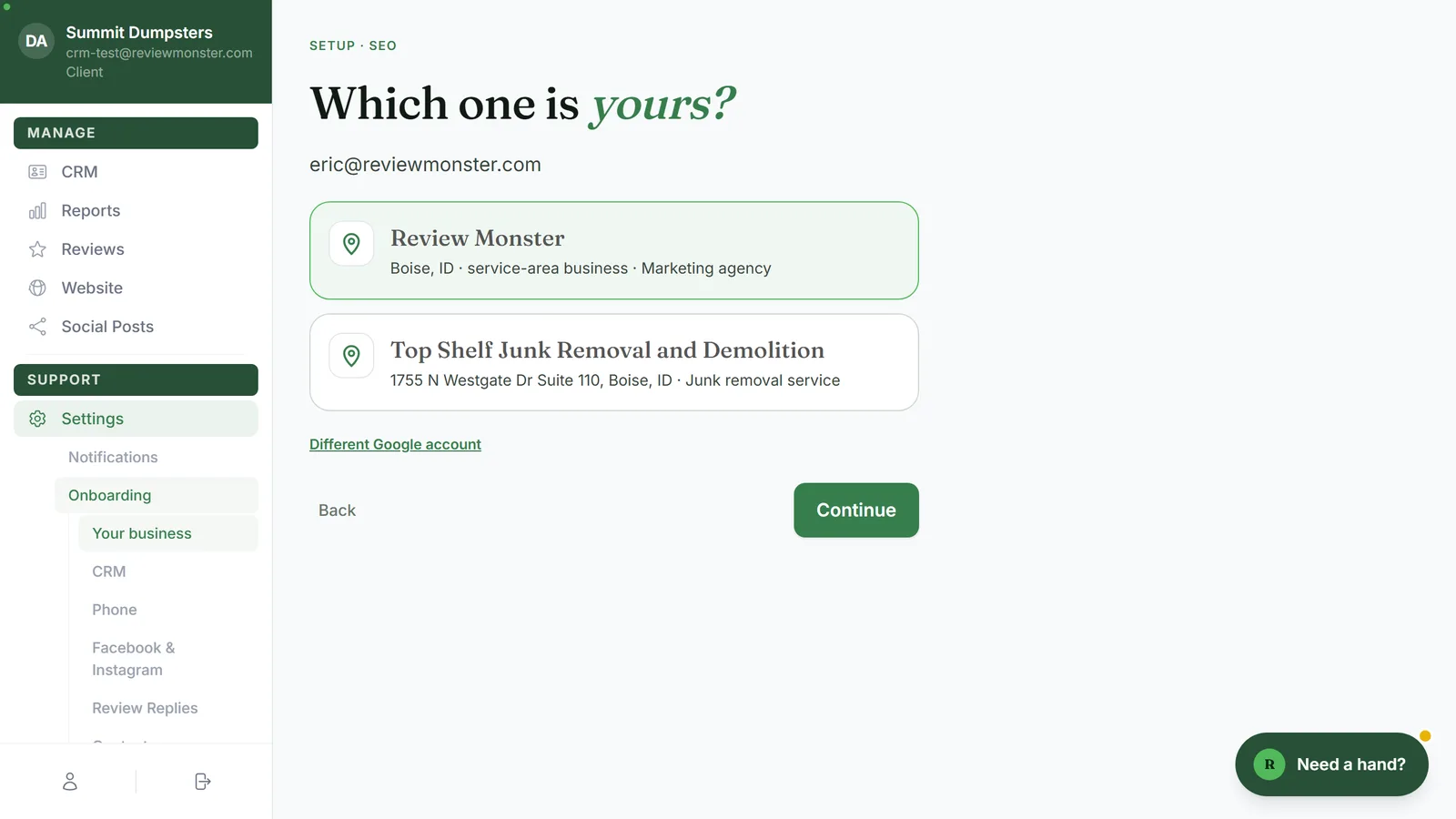
In this article, you'll learn what happens when you reach the last screen of onboarding, which of your answers get copied to your account, and where you land the next time you log in. Knowing what's already done helps you get more out of your onboarding call.
Onboarding happens on the web, at reviewmonster.com. It's for paid plans. If you're on the free CRM, there's no onboarding, and this address just takes you to the CRM.
To reach the end of onboarding:
- On the welcome screen, click Let's go.
- Work through each step, starting with Your business.
- On Onboarding call, pick a time and click Book. The button then changes to Continue. Click it to open the last step, Done, which is the thank-you screen.
There's no button to press at the end. Opening the thank-you screen finishes setup for you in the background.
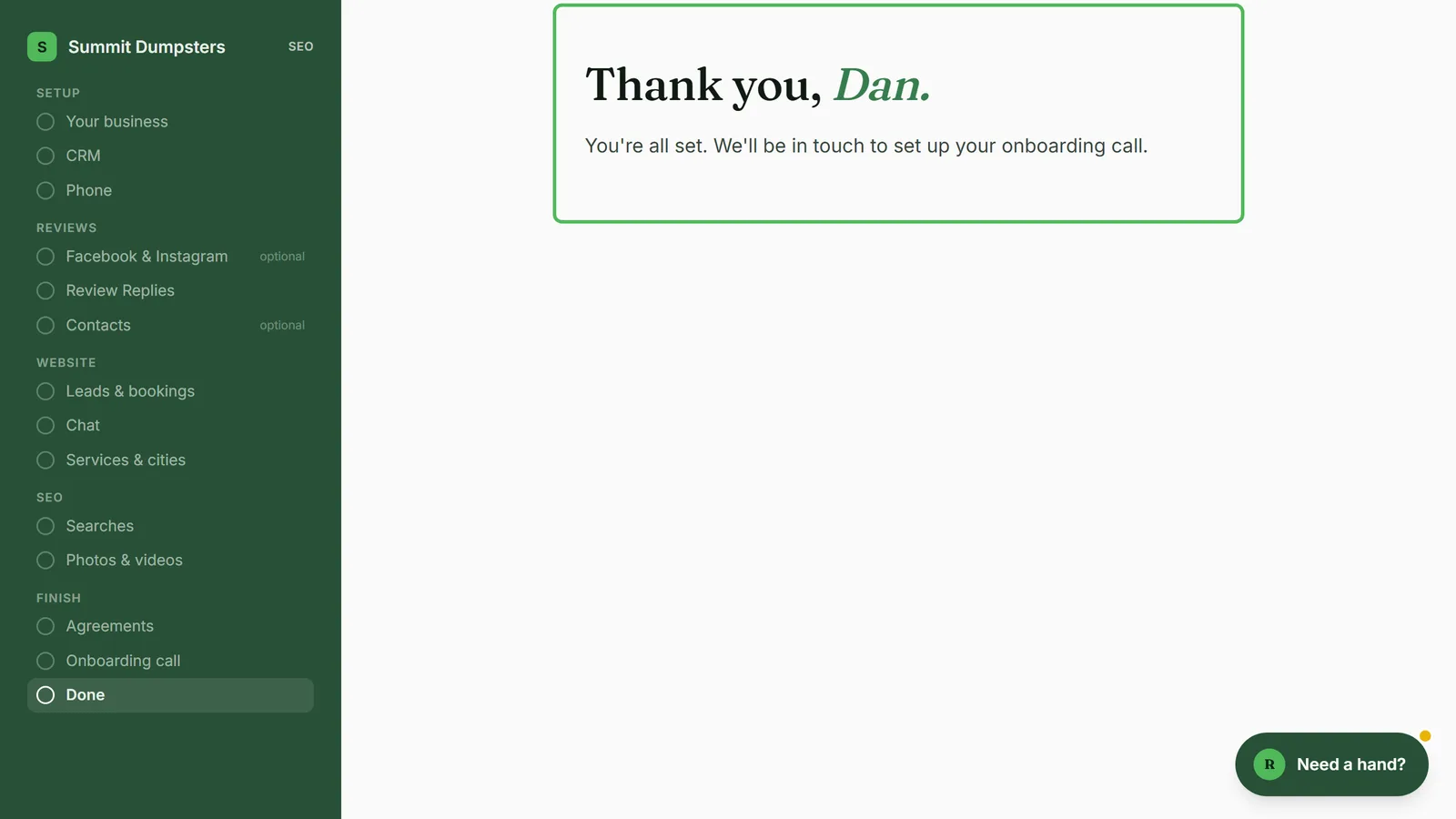
The thank-you screen
The screen says Thank you with your first name, then one of two messages:
- If you booked your onboarding call, it shows the day and time of the call in your own time zone. It also tells you where the Zoom link is: either it's already in your confirmation email, or it's on its way by email.
- If you didn't book a call, it says Review Monster will be in touch to set up your onboarding call.
There's no button on this screen. Your dashboard opens the next time you log in, which is covered below.
What gets copied to your account
When the thank-you screen opens, your onboarding answers are copied into your account, where the rest of Review Monster reads them, including your website build and your texting registration. Only what you answered is copied. If you skipped something, whatever was already on your account stays as it was.
Which steps you saw depends on your plan, so some of these may not apply to you. Here's what gets copied:
- Your business details: business name, legal name, EIN, website, address, caller ID name, your name, mobile number, job title, number of employees, daily call volume and time zone.
- Your Google listing, if you picked one: its name, primary and secondary categories, phone number and Google Maps link.
- Your CRM answer: whether you'd like to use the CRM and what you use today. The CRM is on for everyone either way, so this is just recorded.
- Your phone choice: which number customers see. If you chose the CRM number, that's the number your website and legal pages show. Otherwise they show the number you gave, or your mobile if you didn't give one.
- Who gets notified: the email and mobile number you gave for website leads become the first people on your company's notification list. That one list is used for lead, booking, chat, voicemail and document alerts. A mobile number you gave for chat (and an email, if you picked AI chat) is added to the same list.
- Your booking link, if you gave one.
- Your chat setting: live chat by text, AI chat, or no chat. If you picked live chat by text but there's no mobile number on the notification list, chat stays off, since there'd be nobody to text.
- Your services and cities, which your website's pages are built from.
- Your searches: up to five searches you want to win.
- Your review reply setting: which star ratings get an automatic reply.
- Daily Facebook and Instagram posts, but only if a Facebook Page is actually connected. Instagram is switched on only if an Instagram account is connected too.
- Your business hours. Nobody asks for these. If your Google listing shows opening hours, they're copied onto your CRM phone line.
Where you land the next time you log in
Once you've reached the thank-you screen, logging in takes you to your dashboard. While Review Monster is still setting you up, it opens on the Setup page, which is also at the top of your menu. Once Setup leaves your menu, logging in opens Reports instead.
If you log out before you reach the thank-you screen, logging in takes you back into onboarding at the first step you hadn't finished. Anything you'd typed on a step is kept as you go, so a refresh doesn't lose it.
Looking at your answers later
Your onboarding steps are still there in the dashboard.
To open your onboarding steps:
- In the dashboard menu, click Settings.
- Click Onboarding. It opens on Your business, and the menu lists the other steps under it.
- Click the step you want to see.