In this article, you'll learn how the onboarding screens work: what's on the page, which steps your plan shows, how to move between them and how to pick up where you left off. Once you know how it fits together, most people get through setup in one sitting.
To open onboarding:
- Log in to your dashboard.
- If you've started setup and haven't reached Done, the dashboard sends you straight to onboarding. You can also go to /onboarding yourself.
The welcome screen
The first time you open onboarding, you'll see a short welcome: "Hi (your name), let's get (your business) set up." It also tells you nothing here is set in stone. Every setting can be changed any time from your dashboard, so don't worry about getting it perfect today.
- Click Let's go to open the first step.
The welcome only shows until you've finished the Your business step. After that, onboarding opens straight on a step.
Finding your way around
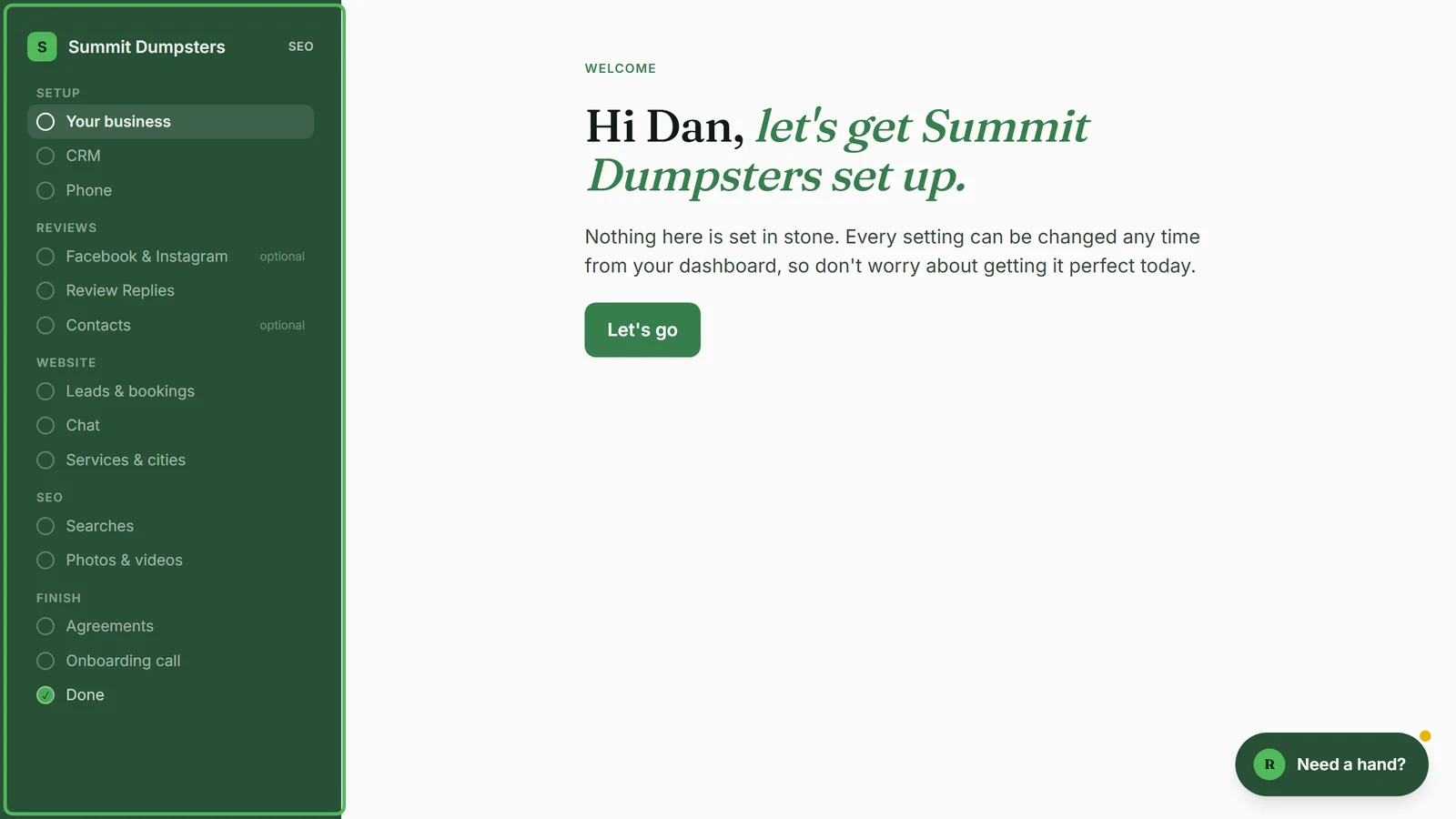
On a computer, a dark panel runs down the left side. Your business name sits at the top next to its first letter, with your plan on the right. Below that, the steps are grouped into sections:
- Setup
- Reviews
- Website
- SEO
- Finish
You only see the sections your plan uses (more on that below).
As you work through the list:
- The step you're on is highlighted.
- A step you've finished gets a green tick.
- Steps you don't have to fill in say optional on the right.
- You can click any step in the list to jump straight to it.
On a phone
On a narrow screen the left panel is hidden. You get a bar across the top instead, with the name of the step you're on, where you are (for example, "3 of 9"), and a progress bar that fills as you go.
Which steps your plan shows
Everyone gets the Setup steps (Your business, CRM and Phone) and the Finish steps (Agreements, Onboarding call and Done). What comes in between depends on your plan:
- Review Automation: the Reviews steps, which are Facebook & Instagram (optional), Review Replies and Contacts (optional).
- Website: the Website steps, which are Leads & bookings, Chat and Services & cities.
- Reviews + Website: both the Reviews and Website steps.
- SEO: the Reviews and Website steps, plus the SEO steps, Searches and Photos & videos.
Moving through the steps
Most steps have the same buttons at the bottom:
- Fill in the step.
- Click Continue to save it and move on. Continue stays grayed out until the step has what it needs.
- To go back a step, click Back.
A few steps work a little differently:
- On Contacts, the button counts the people you've added, for example Continue (3 added). If you haven't added anyone, use Skip for now.
- On Facebook & Instagram, Continue only lights up once Facebook is connected. Otherwise, click Not now.
- On Onboarding call, the main button books the time you picked. It reads Book followed by the time, and Continue shows up once you've booked.
- Done is the last screen. It thanks you and confirms your call time, and there's nothing to click. Reaching it is what finishes your setup.
Three optional steps have a skip link next to Continue: Not now on Facebook & Instagram, Skip for now on Contacts, and Later on Photos & videos. Use it if you'd rather come back to that step another time.
Coming back later
You don't have to finish in one go. Close the page whenever you like. Until you reach Done, the dashboard brings you back to onboarding each time you log in. It opens on the first step you haven't finished, with everything you already saved still filled in.
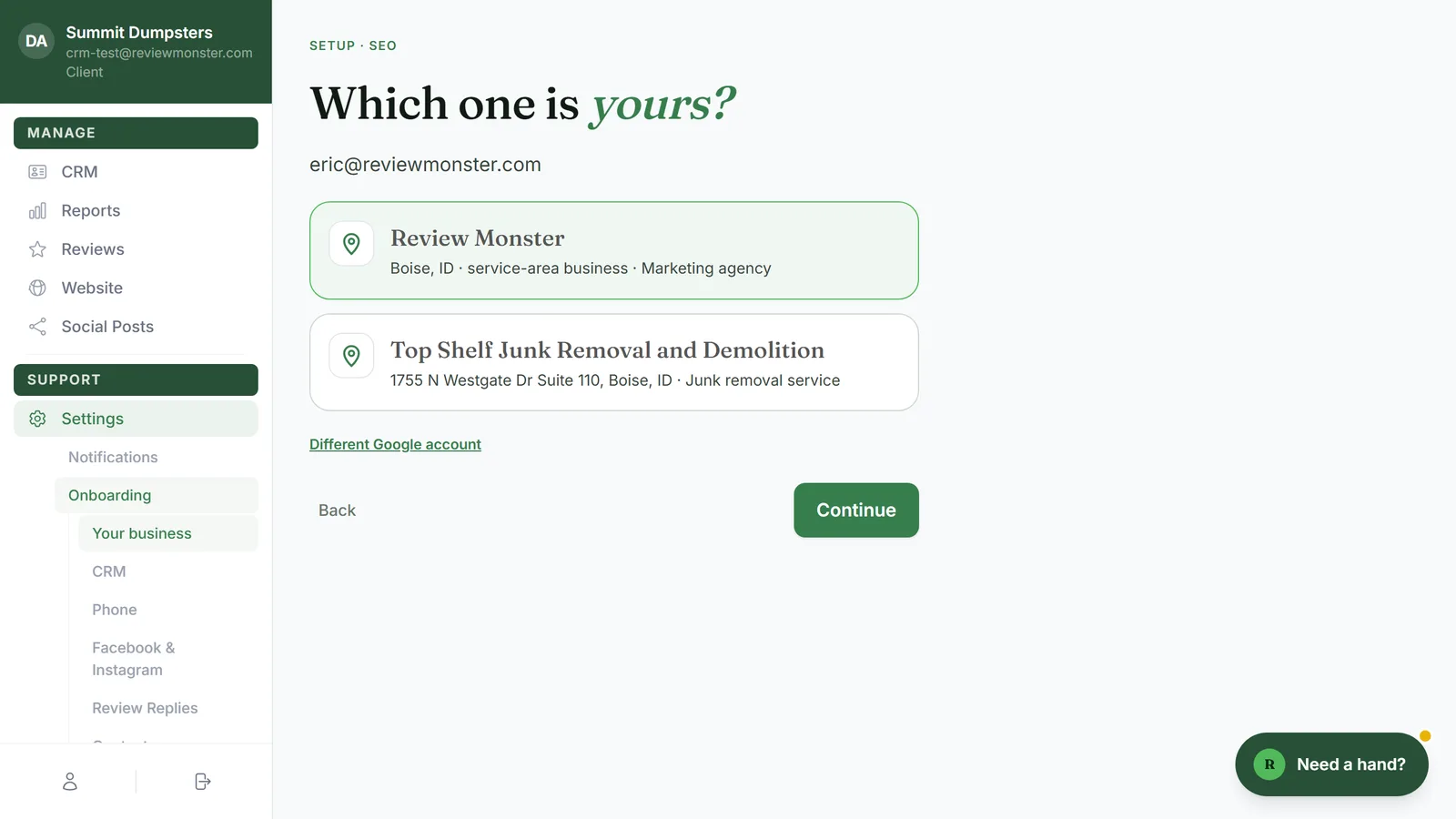
Once you're finished, you can still reopen any step from your dashboard. In the menu, under Settings, click Onboarding. Each step opens as its own page, with the step list in the sidebar instead of the dark panel, and no welcome screen. See Reopening your onboarding steps from Settings.
Getting help with the setup guide
There's a Need a hand? button in the bottom-right corner of every step. Each time you move to a new step, the guide leaves a short note about that step, and a small gold dot appears on the button until you open it.
- Click Need a hand? to open the Setup guide.
- Click one of the suggested questions under the chat, or type your own in the box.
- Click Send.
- To close the guide, click the × at the top or the Close button in the corner.
The guide knows which step you're on, which steps you've finished and what's in your business details so far. It can explain what a field is for, why we ask for it, where a filled-in value came from, or what happens next. Its replies start with "AI assistant:" so you always know it's the guide talking.