In this article, you'll learn how to connect your Google Business Profile during onboarding and pick the listing that's yours. It's the first thing setup asks for, because your listing fills in most of your business details, so you type less and what we have matches what customers already see on Google.
This is done on the web, in your Review Monster dashboard. The phone app doesn't have an onboarding or Google connect screen. If your listing isn't linked yet, the app's Ranking report just asks you to reach out so we can get it connected.
To open the Google screen:
- Start onboarding. The first time, a welcome screen opens. Click Let's go.
- The first step, Your business, opens on a screen headed Start with Google.
- If you've already moved past it, click Settings in the menu, then Onboarding. It opens on Your business, and the steps are listed under it in the menu. There's no welcome screen this way.
Connect your Google account
- Click Connect Google. A Google window opens on top of the page.
- Sign in with the Google account that manages your Business Profile.
- When Google asks for permission, leave the Business Profile permission ticked and choose Allow.
- The window closes by itself and the button reads Reading your Google account… while we look up your listings.
When we find at least one listing, the screen moves on by itself. Continue stays greyed out until then.
If you closed the Google window or didn't choose Allow, you'll see "Google access wasn't granted. Click Connect and choose Allow." If you unticked the Business Profile permission on Google's screen, the message says so and asks you to tick it this time. Click the button and try again.
Pick your listing
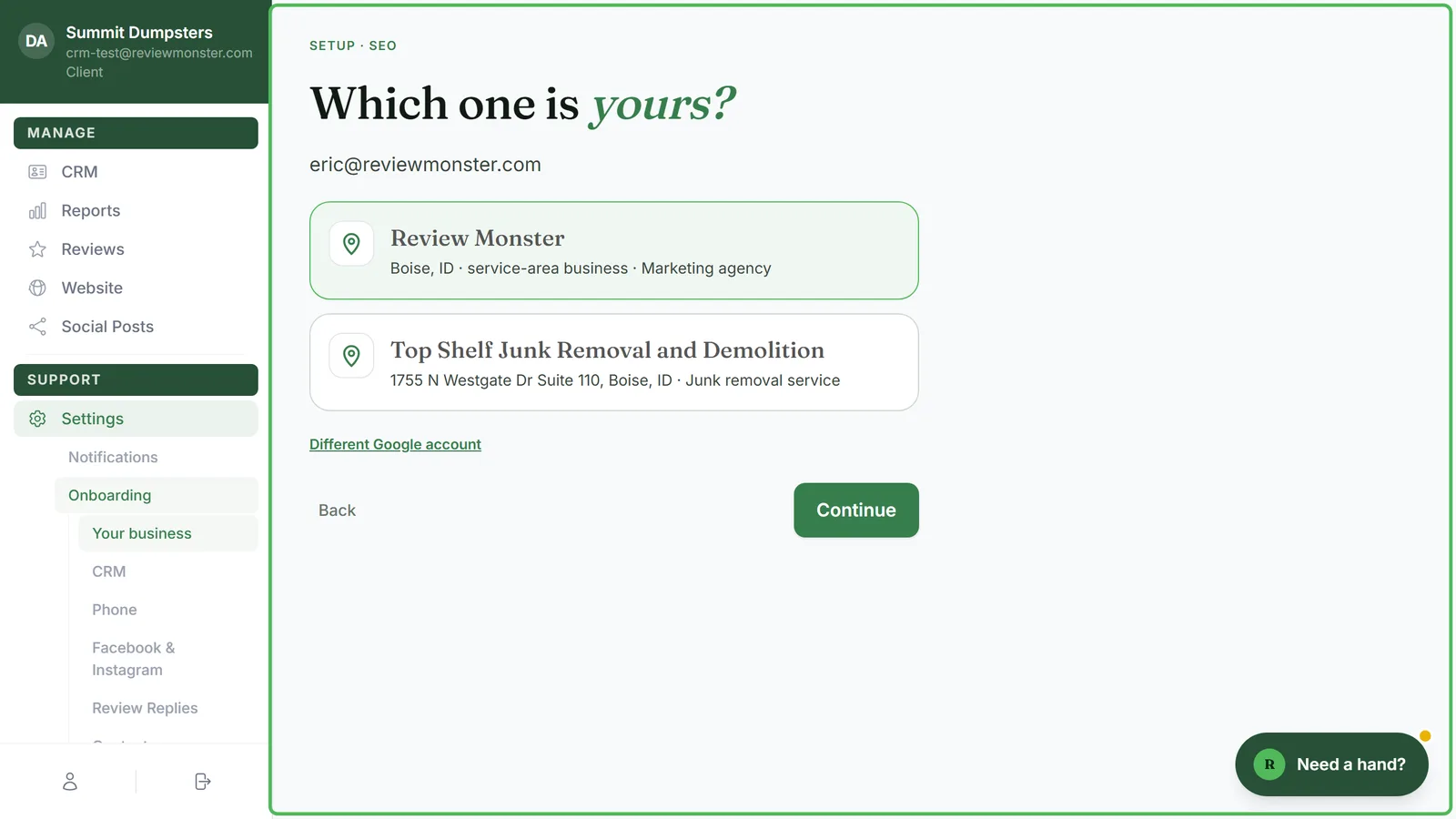
Once you're connected, the Google account's email shows at the top, with the listings it manages below it.
- One listing: the heading says Found your listing.
- Several: it says Which one is yours?
Each card shows the listing's name, its address (or its city and "service-area business" when it shows no address), and its main category. A card marked matches your account is the listing we already had on file for you, and it's picked for you.
- Click the listing that's yours.
- Click Continue. The button reads Reading your listing and your state filing…, then the Check it over sheet opens with your details filled in.
If the list isn't right, click Different Google account under it to sign in with another account. Back returns you to the Start with Google screen.
For what to do on the sheet itself, see Checking your business details.
If your account has no Business Profile
If the account you signed in with doesn't manage a listing, you stay on the Start with Google screen with a message like "you@example.com manages no Business Profile." It suggests trying the account that gets your review emails. That's usually the one that owns the listing.
- Click Connect a different Google account.
- Sign in with the other account and choose Allow.
If the message says the Google connection expired, connect again the same way.
What the connection is used for
- Filling in your details. Your business name and website come from the listing, and so does your address if the listing shows one. Your time zone comes from the listing's map pin. Each of those fields on the sheet is tagged Google so you know where it came from.
- Your listing on file. When you connect, we read your listing and fill in anything blank on your account: its name, phone, address, categories, Place ID and Maps link. That happens right away when the account has one listing or we already know which is yours. Otherwise the listing you pick is saved to your account when you finish onboarding.
- Your hours. When you finish onboarding, the hours on your listing become the business hours for your CRM phone line.
- Replies and posts. The same connection lets us reply to your reviews, and on plans with Google posts, post photos and updates to your listing. See Turning on daily Google Business Profile posts.