In this article, you'll learn how to find a recorded call and play it back on the web or the phone app. It's useful when you need to check what a customer asked for, settle a price question or coach someone on your team.
Calls are only recorded on numbers that have recording turned on. If a number doesn't record, its calls still show up, just with nothing to play. To turn recording on, see How to turn on call recording.
To find a call recording:
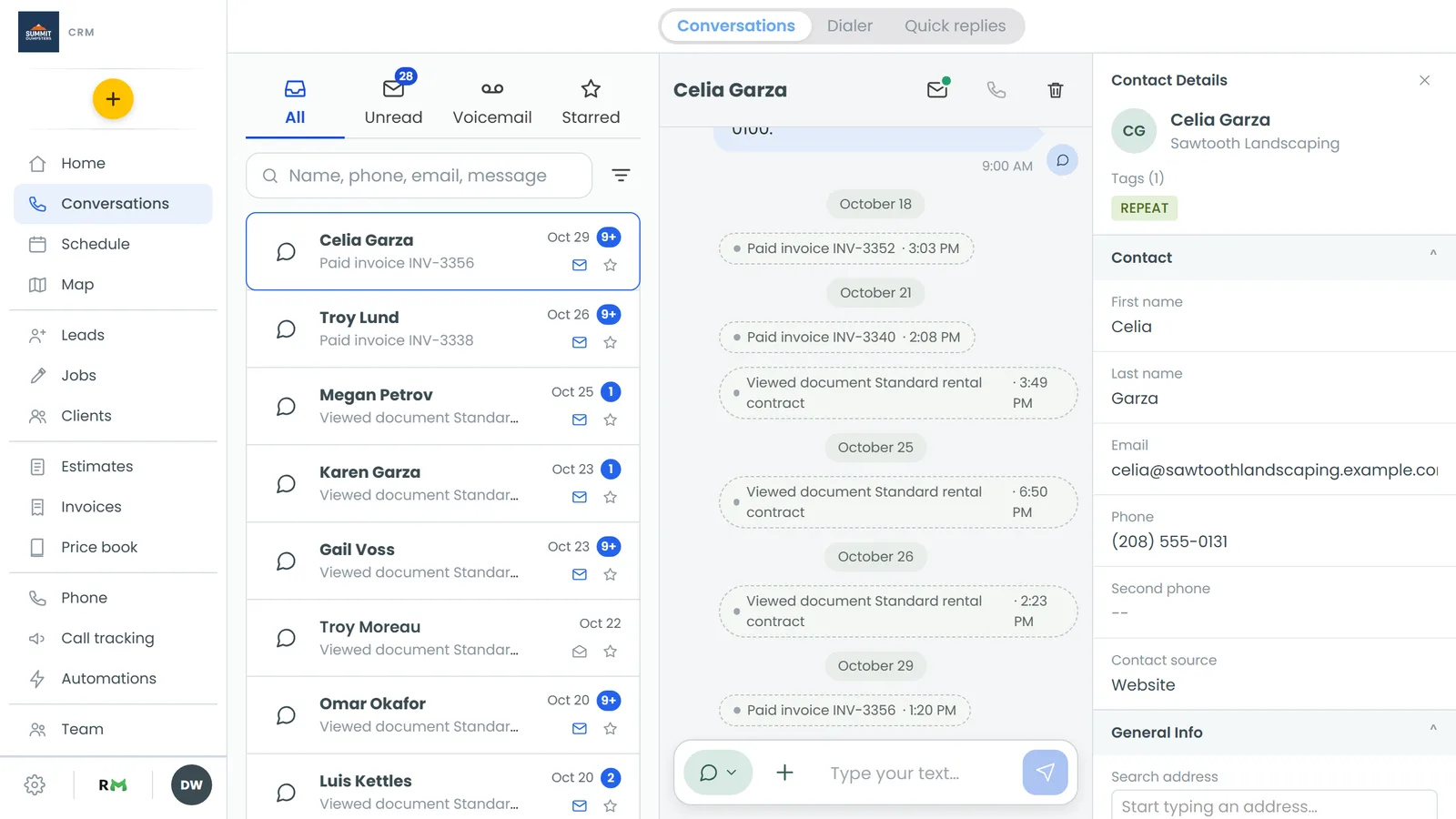
- In the menu, click Conversations.
- Open the customer's thread.
- Scroll to the call. Every call sits in the thread as a tile alongside the texts and emails.
What's on a call tile
The first line of the tile tells you what kind of call it was and how long it lasted, such as Incoming call (1 Min 12 Sec), Outgoing call, Missed call or Voicemail. If the spam filter sent the call straight to voicemail, the line starts with Suspected spam.
If the call has a recording, you'll also see:
- An audio player under that first line
- A short summary of the call under the player, if the number transcribes calls
- View transcript, which opens the full conversation, line by line
The time of the call is under the tile.
Listening on the web
- Open the customer's thread in Conversations.
- On the call tile, click play on the player.
- Drag along the bar to skip ahead or back.
- To read along, click View transcript. You'll see the summary first, then each line labelled with who spoke. Click Hide transcript to close it.
The ⋮ (More options) on the tile gives you Forward by text, Forward by email and Download. Download saves the audio file to your computer.
From a client's page
On the web, the client's Calls tab lists every call with that customer: date, direction, status, duration, and the from and to numbers. The list doesn't play anything. To listen, click the message icon next to the phone number, or History at the right edge of the page. Either one opens the customer's whole thread with the call tiles in it.
Listening on the phone app
- Tap Conversations and open the customer's thread. From a client's page, tap the chat icon next to their phone number instead.
- On the call tile, tap ▶ to play. Tap it again to pause.
- Tap or drag along the bar to skip around.
The row of buttons under the player does the rest:
- Speed: tap 1X to switch to 1.5X, then 2X, then back to 1X.
- Output: recordings start on the speaker, and the icon is filled while they're playing there. Tap it to switch to the phone's earpiece, then tap again to go back to the speaker. If you have a Bluetooth headset connected, tapping it opens a list instead. On an iPhone, that's the iPhone's own audio menu. On Android, you can pick Phone, Speaker or your headset.
- Transcript: if the call was transcribed, tap the transcript icon to show the summary and the full transcript. Tap it again to hide them.
- Forward: sends the recording to someone by text or email.
Calls to tracking numbers
The Call tracking page doesn't keep its own call log. If a tracking number is set to ring The CRM, its calls are ordinary CRM calls. They show up in the customer's thread in Conversations, recordings and all. Calls to a tracking number set to Forward to a number don't show up in Conversations.
Good to know
- You can't delete a recording from the CRM. You can forward it or download it, but it stays on the call.
- Forwarding a recording sends a link that works for seven days, and nobody needs a login to open it. For more, see Forwarding a call recording or voicemail.