In this article, you'll learn where your calls live in the CRM, how to spot missed calls and voicemails, and how to get back to a caller fast. There's no separate call log to dig through. Every call lands in Conversations, in the same thread as that person's texts and emails, so you see the whole history in one place.
To open your calls:
- In the menu, click Conversations.
- Click the filter icon to the right of the search box.
- Click Calls.
Reading the call list
With Calls picked, the list shows only the threads that have calls in them. Each row tells you a lot at a glance:
- The handset icon is green for a call that went through and red for a missed one. A missed call also turns the name and the line under it red, so they're hard to overlook.
- A tape icon (two circles joined by a line) means the caller left a voicemail.
- Under the name you'll see the time of the call and how long it lasted, like "10:04 am, 1 Min 12 Sec". If you transcribe your calls, a short summary of what was said follows it.
- On the right is the date, and a blue count when something in the thread is unread.
The same filter also offers SMS, Email, Facebook and AI chat. Pick All to go back to everything.
Finding voicemails
Click the Voicemail tab at the top of the list. It shows every call that left a message, newest first, with the caller's name or number, the time and the message length. Unread voicemails have a bold name and a blue dot, and the tab carries a count of them. Opening one marks it read.
If a voicemail's been dealt with, you can hide it. On a computer, hover over the row and click Hide. On a touch screen, swipe the row left. Hidden voicemails leave the list and the count, but nothing is deleted. To see them again, open the filter and tick Hidden, then hover or swipe and pick Unhide.
Opening a call
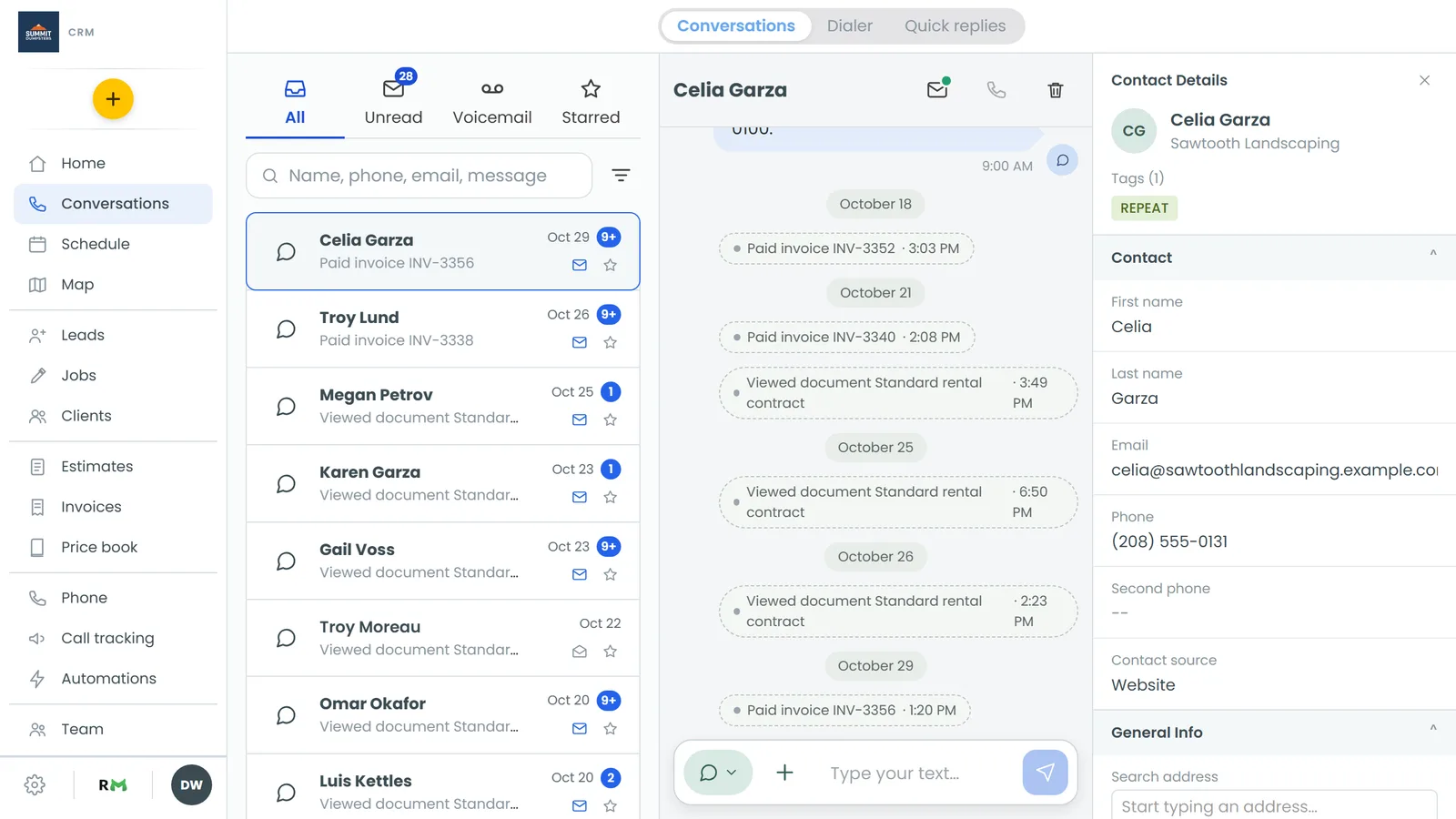
Click any row to open the thread. Each call shows up as its own tile between the texts:
- The label says what happened: Incoming call, Outgoing call, Missed call or Voicemail, with the length in brackets, like "Incoming call (45 Sec)". Missed calls are in red.
- If the call was recorded or left a voicemail, there's a player right on the tile.
- The call's summary sits under the player. Click View transcript to read the whole conversation, and Hide transcript to fold it away.
- The ⋮ on a recorded call lets you Forward by text, Forward by email or Download it.
Getting back to a caller
From an open thread you can do any of these:
- Call back: click the phone icon at the top of the thread. The call goes out from your business line.
- Text back: type in the message box at the bottom and send. It goes to the same number.
- Book the work: if you're on a live call, you can fill in the job while you talk. See Scheduling a job from a live call.
Seeing a client's calls
When the caller is a saved client, their page keeps a list too.
- In the menu, click Clients and open the client.
- Click the Calls tab.
You'll see each call's date, direction, status, length, and the numbers it went from and to. The tabs are on the computer layout; on a phone-sized screen the client page is laid out differently.
Calls in the phone app
Calls show up in the app's Conversations the same way, with the same All, Unread, Voicemail and Starred tabs. The app's channel filter has Everything, Calls, SMS, Email and Facebook.
The app also has a Phone page:
- Open the menu and tap Phone.
- At the top, pick Call or Text. That decides what the keypad does: the green button places a call, or a message box appears with a blue send button.
- Below the keypad, switch between the Texts and Calls lists. The Calls list shows each call as incoming or outgoing, its status and length, with missed calls in red.
- Tap a row to load that number into the keypad, then call or text it. For a saved client, the arrow at the right of the row opens their history.
Related articles
- Conversations overview
- Transcribing and summarizing your calls
- Scheduling a job from a live call
- Listening to call recordings
- Making and answering calls on the phone app