In this article, you'll learn how to stop an automation rule from sending, either by turning it off or by deleting it. Turning a rule off is usually the better choice. You can turn it back on later, and it keeps its history.
To open your automations:
- In the menu, click Automations. In the phone app, tap the lightning bolt at the top of the Home screen, or open the menu and tap Automations.
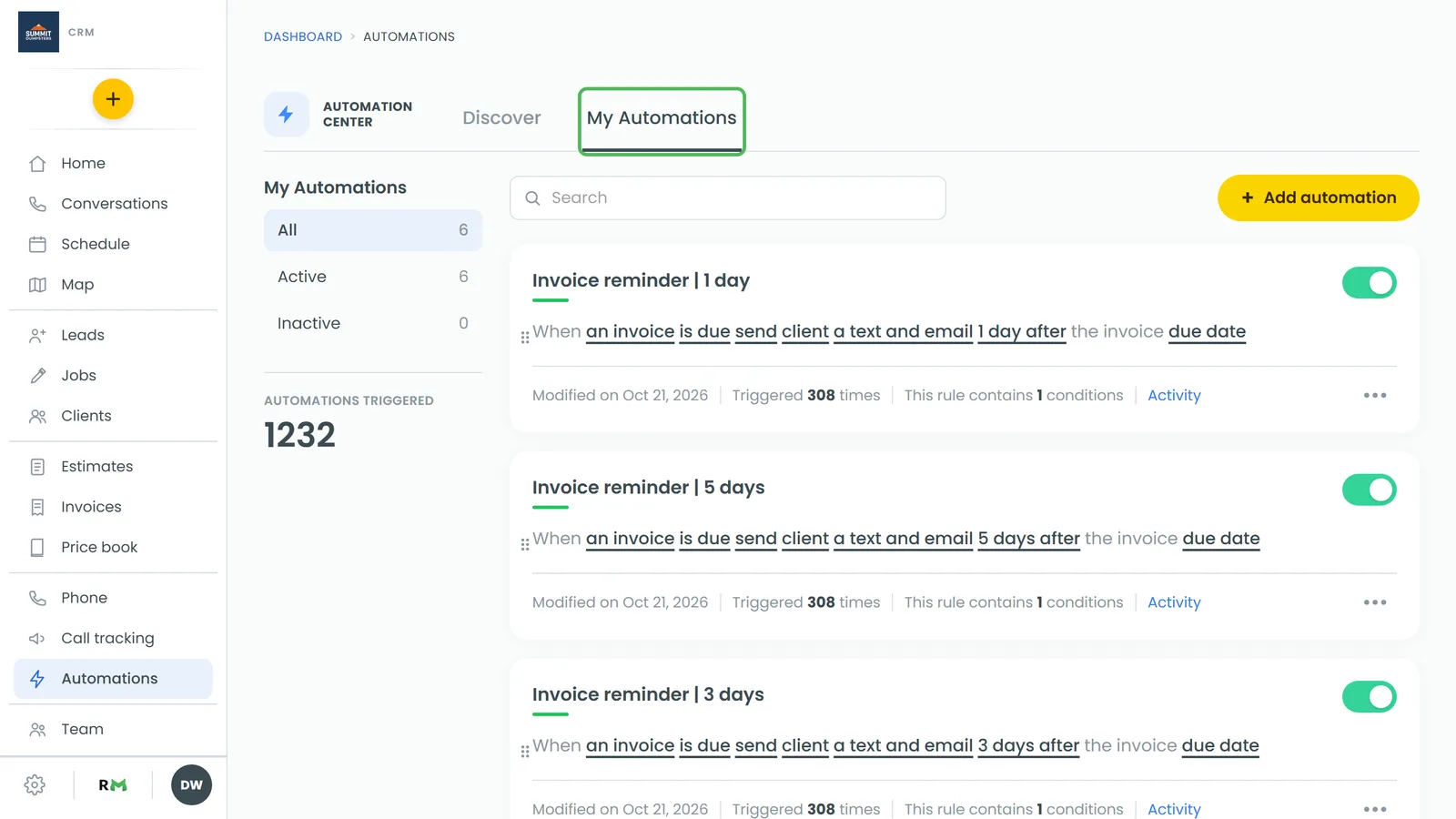
- Click the My Automations tab.
Turning a rule off (recommended)
Each rule card has a switch at its top right. That switch is the only on/off a rule has. When it's on, the rule sends. When it's off, it doesn't.
- On the My Automations tab, find the rule you want to stop.
- Click the switch on its card so it turns off.
That's it. There's nothing else to save. The rule stays on your list with everything you set up, along with its Triggered count and its Activity log. To start it again, flip the switch back on.
Finding rules that are on or off
The list on the left of My Automations sorts your rules three ways, with a count beside each:
- All: every rule you have
- Active: rules that are switched on
- Inactive: rules that are switched off
Click Inactive to see everything you've paused. The Search box above your rules finds one by name. The phone app has the same three filters and the same search.
What happens to messages already scheduled
A rule that sends later, like "1 day after the invoice due date", lines its messages up ahead of time. Right before each one goes out, the CRM checks whether the rule is still on. If you've turned it off, that message isn't sent, and it shows as Skipped in the rule's Activity. If you turn the rule back on before a scheduled message is due, it still goes out on time.
Deleting a rule
Deleting removes the rule for good. There's no undo, and its Activity goes with it. If you might want the rule again, turn it off instead.
- On the My Automations tab, find the rule you want to remove.
- Click the ••• at the bottom right of its card.
- Click Delete.
- When the CRM asks Delete this automation?, click Delete.
Anything that rule had lined up to send later is dropped too. It won't go out.
Turning off review requests
New companies start with a built-in rule that asks customers for a review when a job is marked Done. Its card reads "When a job is marked Done, send the customer a review request."
To stop those review requests, turn that rule's switch off. Turn it back on whenever you want them to start again.