In this article, you'll learn how to make a copy of an automation rule you already have. It's the quickest way to build a second rule that's close to the first, like the same reminder for a different job type, without setting up the trigger, conditions and message again.
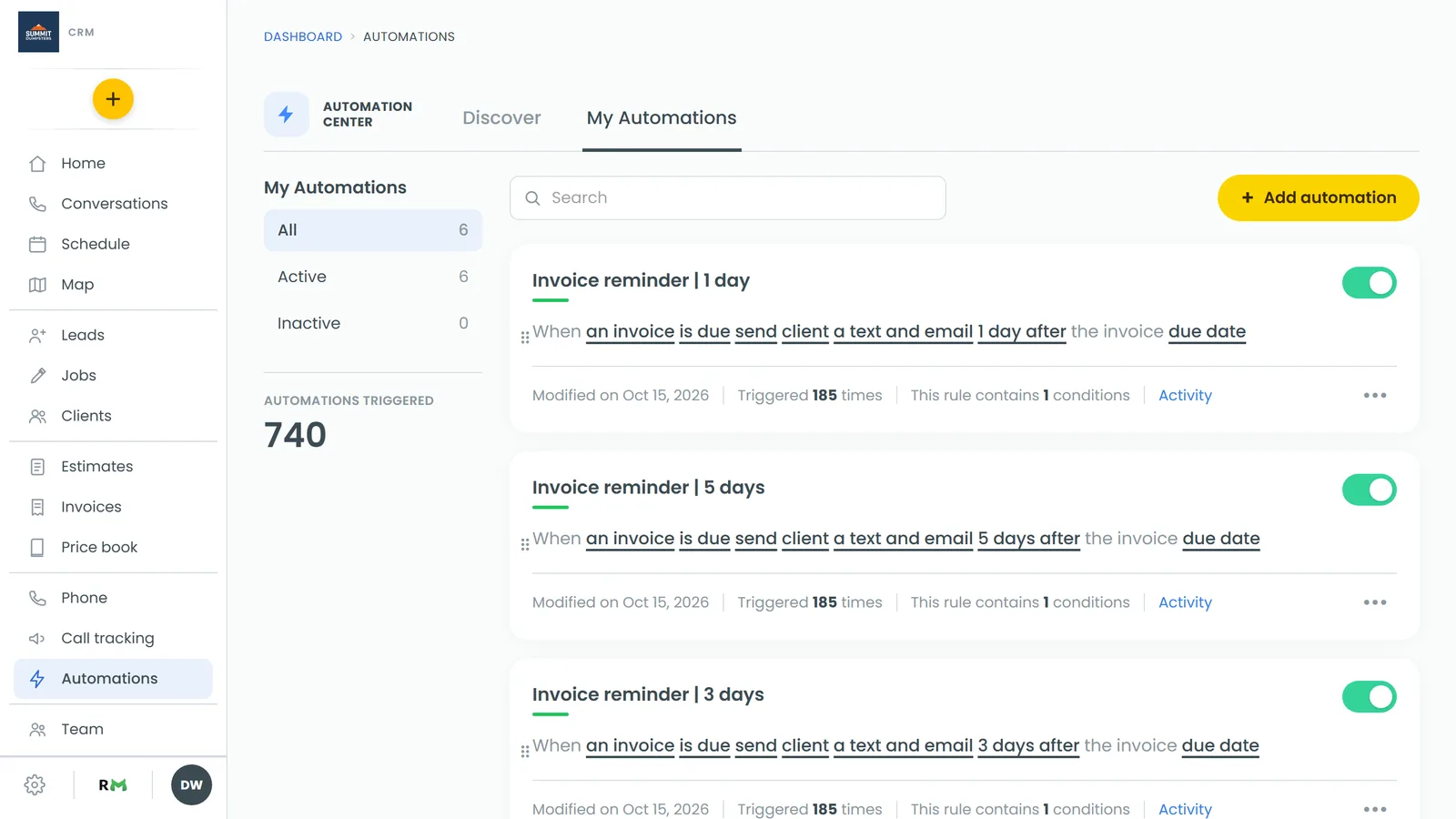
To open your automations:
- In the menu, click Automations.
- Click the My Automations tab.
On the phone app, open the menu and tap Automations, or tap the lightning bolt at the top of your Home screen.
Duplicating a rule
- On the My Automations tab, find the rule you want to copy. If you have a lot of them, type part of its name in the Search box.
- Click the ••• button at the bottom right of the rule's card.
- Click Duplicate.
The copy shows up at the top of your list, named after the original with (copy) on the end. It has the same trigger, conditions and message as the rule you copied.
Changing the copy and turning it on
- On the copy's card, click ••• and then Edit.
- Change whatever needs to be different: the trigger, a condition, who it goes to, or the message.
- Save your changes.
- To give it a better name, click ••• and then Rename, type the new name and confirm.
- When it's ready, flip the toggle at the top right of the card to turn it on.
Moving the copy in your list
Because the copy lands at the top, you may want to move it next to the rule it came from.
- On the web, grab the ⠿ handle on the left edge of the card and drag it where you want it.
- On the phone app, tap ••• on the card and choose Move up or Move down.
The new order is saved for everyone in your company.
On the phone app
Duplicating works the same way in the app. Tap ••• on the rule's card and you'll get Edit, Duplicate, Rename, Move up, Move down and Delete. Tap Duplicate, and the copy appears at the top of your list, turned off.
Related articles
- Creating custom automation rules
- Adding conditions to your automation rules
- Turning off and deleting automation rules
- Automations FAQ
- Automate your routine tasks with Automations