In this article, you'll learn how to set the hours an automation rule is allowed to send. It keeps a reminder that comes due at 2 in the morning from buzzing a customer's phone in the middle of the night.
Automations are part of every account, so there's nothing to switch on first.
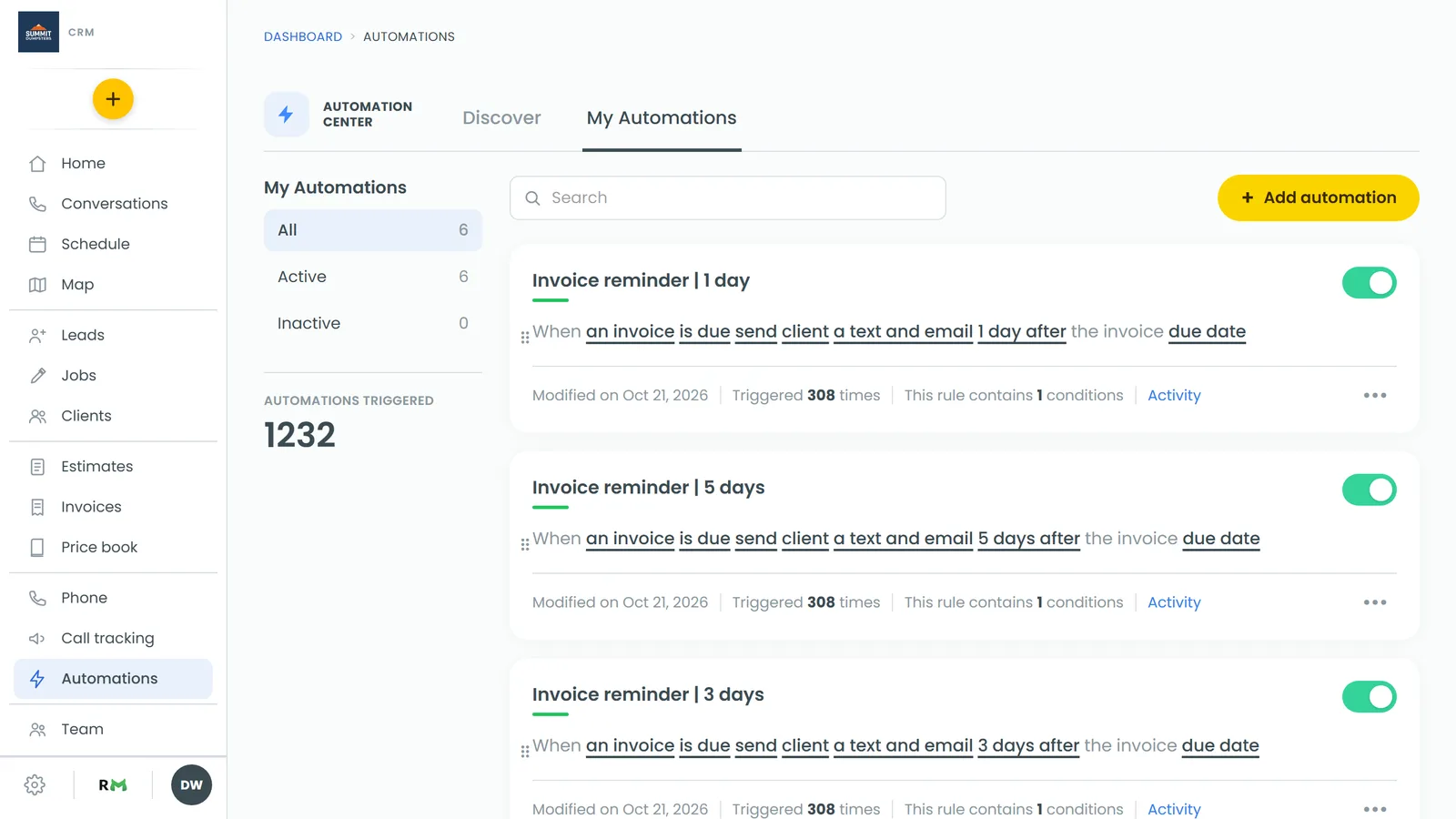
To open your automations:
- On the web, click Automations in the menu. In the phone app, tap the lightning bolt at the top of the Home screen, or open the menu and tap Automations.
- Stay on the My Automations tab to see your rules.
How the send window works
Every rule has its own send window. You'll find it at the bottom left of the rule editor: an Automation will be sent checkbox with a from time and an until time under it. New rules start with the box ticked and the window set to 9:00 AM to 9:00 PM.
While the box is ticked:
- Anything the rule would send inside the window goes out on schedule.
- Anything that would go out before the window opens waits until it opens that same day.
- Anything that would go out after it closes waits until it opens the next day.
That covers rules set to send immediately, delayed sends, and reminders that come due overnight. The times always use your business's own time zone, not the time zone of the person who set up the rule.
If you untick the box, the rule can send at any hour.
Changing a rule's send window
- On the rule's card, click •••, then click Edit. (You can also click any underlined word in the rule's sentence.)
- At the bottom left of the editor, make sure Automation will be sent is ticked.
- Set the first time to when sending should start and the second time to when it should stop.
- Click Update automation.
You set the window the same way when you're building a new rule. The button just says Add automation instead.
Letting a rule send at any hour
- Open the rule with ••• › Edit.
- Untick Automation will be sent. The times go grey to show they're not in use.
- Click Update automation.
This works well for messages to your own team, where a late-night heads-up might be exactly what you want.
Good to know
- The window has to open and close on the same day, with the start time earlier than the end time. If the end time is earlier than the start (say, 9:00 PM to 6:00 AM), the window isn't applied at all and the rule sends at any hour.
- If the start and end times are the same, the window isn't applied either.