In this article, you'll learn how to set up automatic reminders that go out before a job. They cut down on no-shows and "wait, was that today?" calls, and once a rule is on you don't have to think about it again.
Reminders are built in Automations, which every account has. You don't need to switch anything on in Features first.
To open Automations:
- On the web, click Automations in the main menu.
- On the phone app, tap the bolt at the top of the Home screen, next to search.
Picking a reminder template
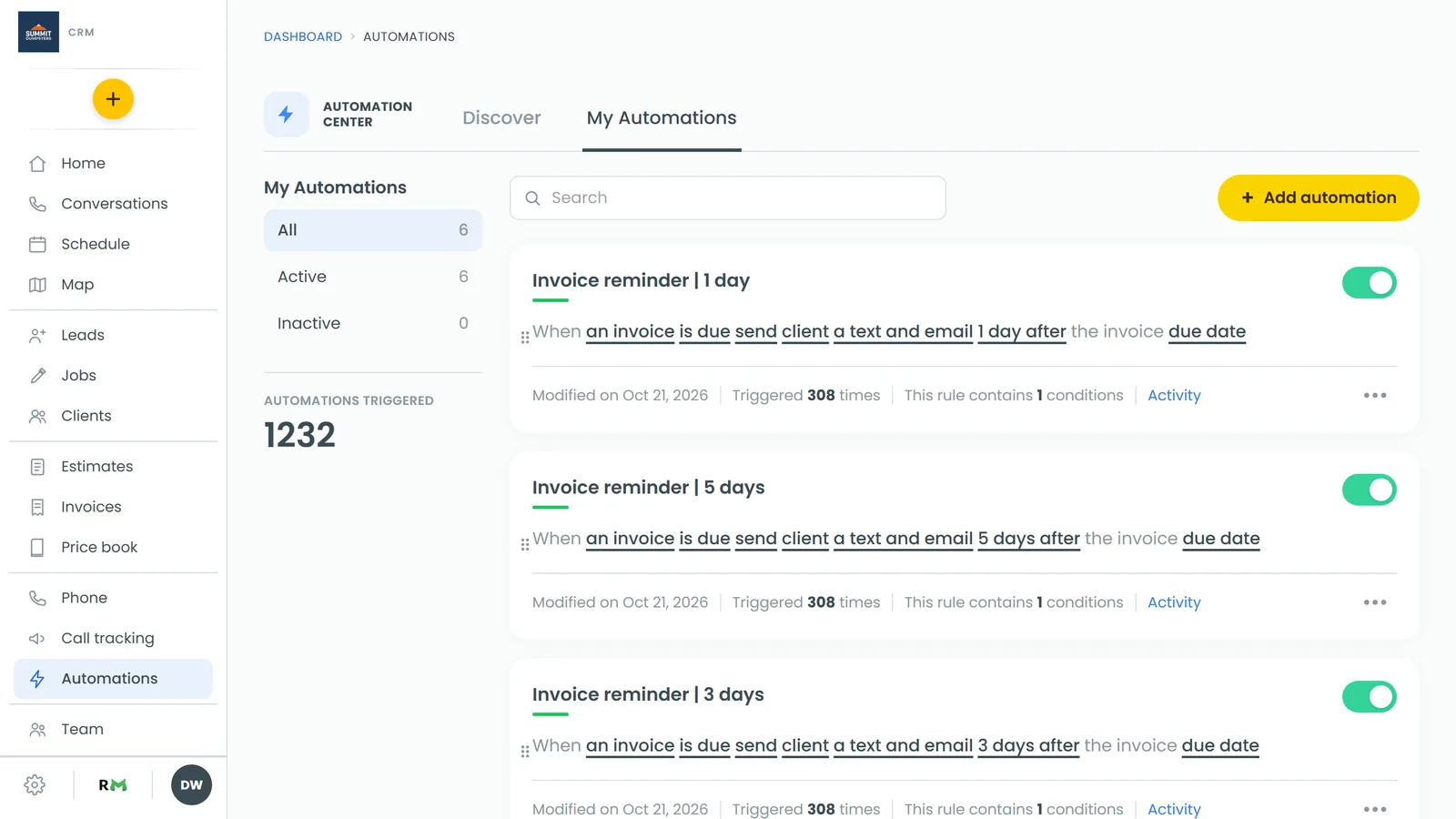
Automations opens on two tabs: Discover (ready-made templates) and My Automations (the rules you've already added). If you haven't added any rules yet, it opens on Discover.
- Click the Discover tab.
- Find the Reminders group. It has four templates:
- 1 Day Notice / Client Reminder emails the client one day before the job. It comes with a message already written, including the date, time, address, assigned tech and a link for the client to confirm.
- 4 Hours Notice / Client Reminder texts the client four hours before the job.
- Immediate Notice / Client Reminder texts the client as soon as the job is created.
- 2 Hours Notice / Tech Reminder texts your team two hours before the job.
- On the web, hover over the card you want and click Use. On a phone, tap the Use button under the card.
Adjusting the rule
The template opens in the rule editor, written as a sentence. Every underlined word is something you can change. Click it (or tap it on a phone) and pick a new value.
- Text or email: click the medium (for example an email) to choose a text message, an email, or a text and email.
- Who gets it: click client to switch to your team. When it goes to your team, pick the people under the sentence. If you don't pick anyone, it goes to the account owner.
- When it goes out: click the timing (for example 1 day ahead of) to change the number and whether it's minutes, hours or days. The words after it, schedule date or end date, set what the timing counts from.
- Only some jobs: click Add condition to limit the rule, for example only when the job type is a certain type.
At the bottom, Automation will be sent sets the hours a reminder is allowed to go out (9:00 AM to 9:00 PM unless you change it). A reminder that lands outside those hours waits until they open.
Writing the message
- Click Preview/edit message.
- Type the message in the box. Click any of the short codes under it, like client_first_name or job_date, to drop in that job's details.
- Click Save and close.
Saving and turning it on
- Click Add automation.
- The rule now lives under My Automations, with an on/off toggle on its card. It's on as soon as you add it.
To pause a reminder, flip its toggle off. To see what it has sent or has lined up, click Activity on the card.