In this article, you'll learn how to tie an item in your price book to the units you track in Asset Tracking, and how to make that item a rental rate.
A price book item on its own is just a name and a price. Once it's tied to a category of units, the price book shows how many of those units are in the yard, out on jobs and in total, so you can see what's free before you quote it.
To open your price book:
- In the menu, click Price book.
Tie an item to your units
- In the price book, click the item you want to link, or click Add New to make a new one.
- In the Tracked units (inventory) drop-down, pick the category of units this item stands for. The choices are the unit categories you already have in Asset Tracking.
- Under the drop-down you'll see the live count for that category: how many are in yard, how many are out and the total.
- Click Save.
To untie an item, set Tracked units (inventory) back to Not tracked and save.
There's no stock number to type. The count is the units themselves: when a unit goes out on a job the "in yard" number drops, and when it comes back it goes up again.
See stock in the price book
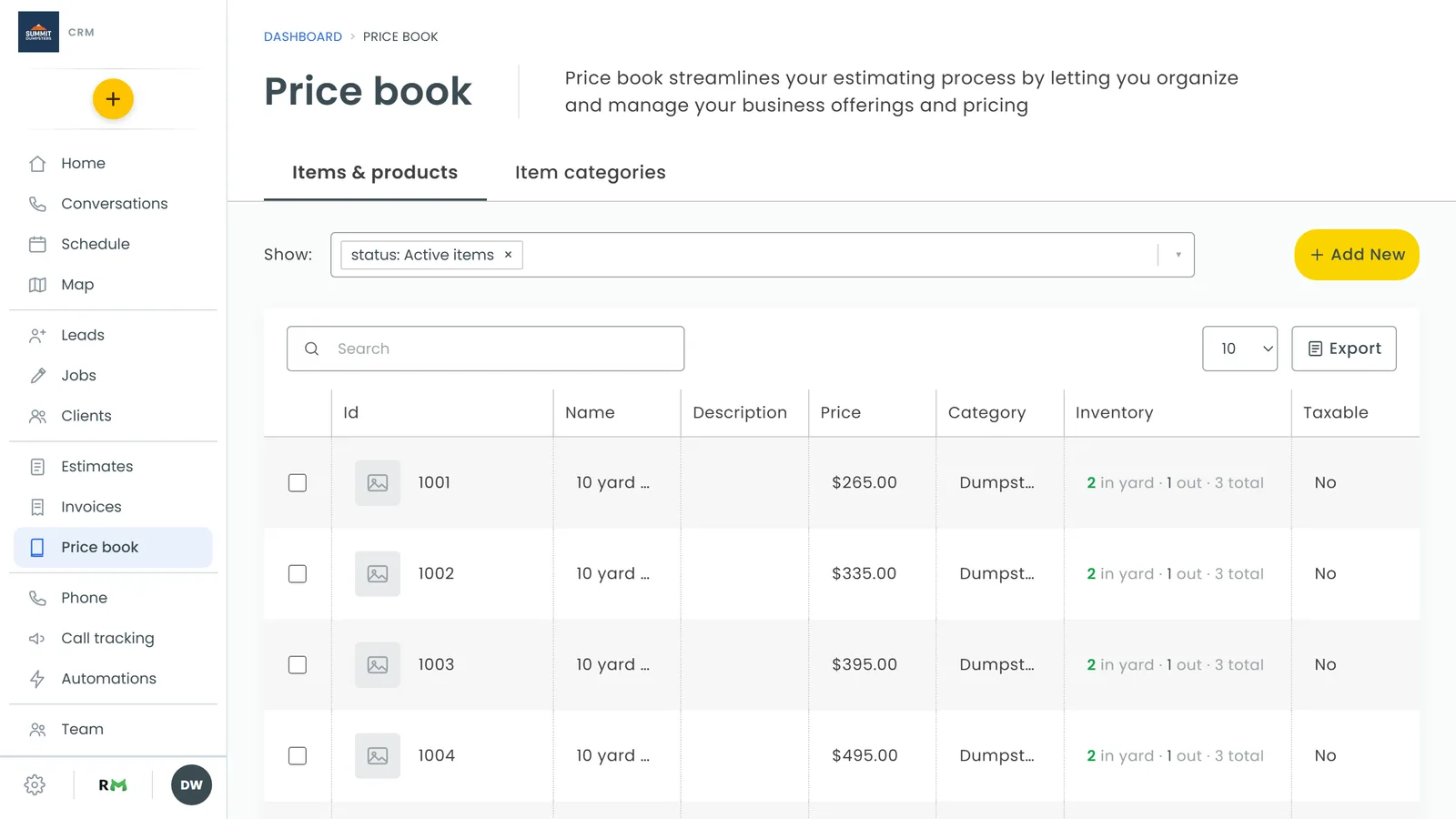
Linked items show their stock in the Inventory column of the price book, for example "3 in yard · 2 out · 5 total". The "in yard" number turns red when none are left. Items that aren't linked show a dash.
Make the item a rental rate
Once an item is tied to units, you can say what rental period its price covers.
- Open the item in the price book.
- Under Rental period this price covers, pick day(s), week(s) or month(s), then type how many (it starts at 1).
- In the drop-down that appears below it, choose what happens when the period is up:
- Nothing automatic
- Schedule the pickup
- Bill again, until the unit comes back
- Click Save.
To stop an item being a rental rate, set the period back to Not a rental rate.
One price, two places
Rental rates also show on the Pricing tab of Asset Tracking, in a grid of your items by rental period. Each box in that grid is the same price book item, so a price changed there is changed in the price book, and the other way round. The price book also sits under the grid on that tab.
On the phone app
The app's price book has the same fields. Open an item and you'll find Tracked units (inventory), the live count, Rental period this price covers and the end-of-period choice, as long as Asset Tracking is on and you have units.
Related articles
- Tracking your rental units with Asset Tracking
- How to add units to your inventory
- Putting a unit on a job
- How to create items and services
- Using your price book on the phone app