In this article, you'll learn how to bring older transactions into your books from a CSV file your bank gives you. When you first connect a bank, the connection only reaches back about 90 days, so your books start around the day you connected. A statement export fills in everything before that.
This is a one-time import, and it only works on the web CRM from a computer. If you open the page on a phone, it just tells you to use a desktop.
To open the history import:
- At the bottom of the menu, click the Settings gear.
- Under Money, click Bookkeeping.
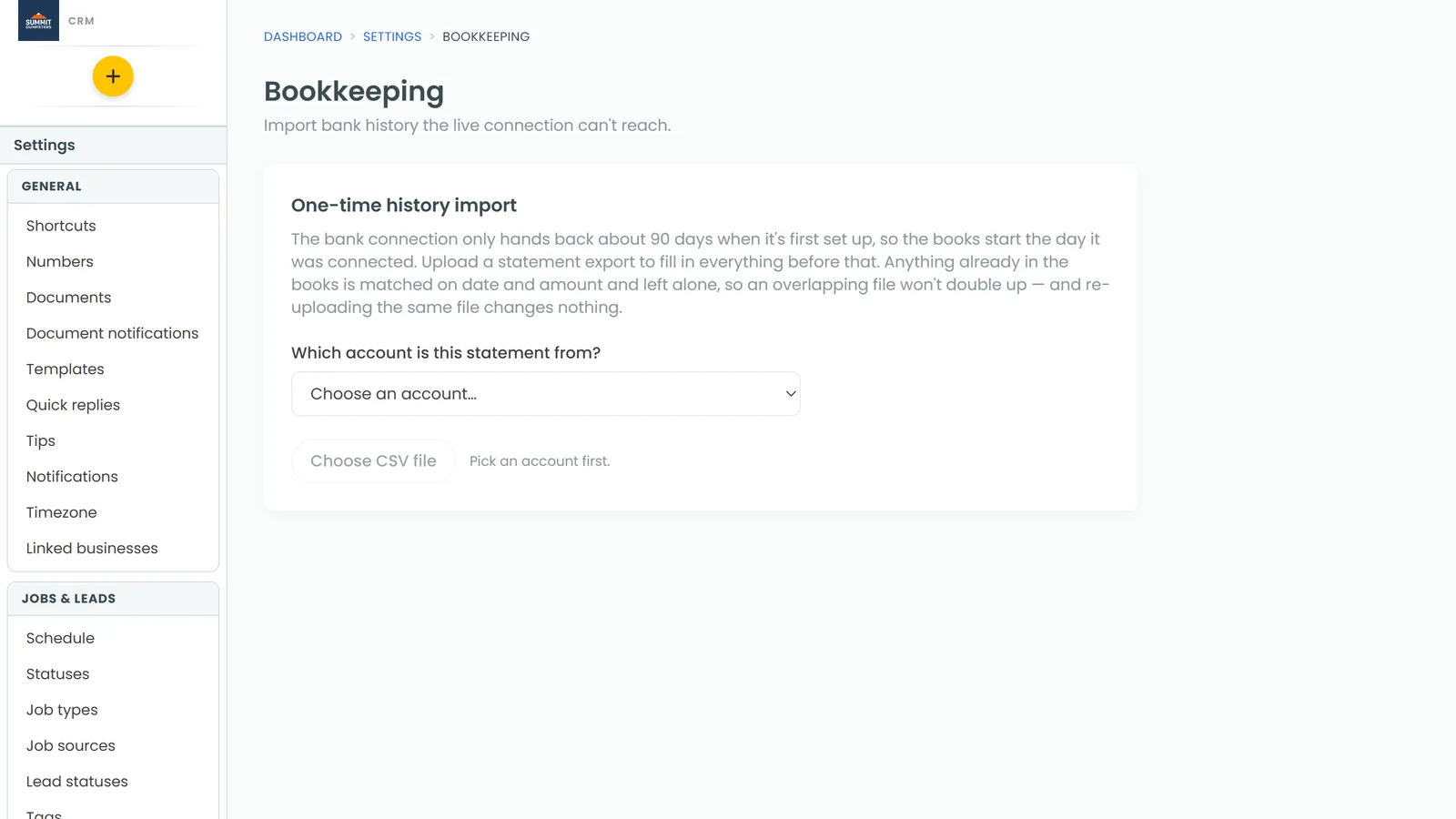
- Find the One-time history import card.
Before you start
The import only goes into bank accounts that are switched on in your books. If none are, the card says No accounts are switched on yet. Go to the Bookkeeping page, tick the business accounts that belong in the books, then come back.
Download a CSV export from your bank's website for the dates you're missing. One account per file.
Choose the account and the file
- Under Which account is this statement from?, pick the account. Once you do, the line under it shows how many transactions that account already holds and the date they start, so you can see how far back you need to go.
- Click Choose CSV file and pick the export from your computer.
The button stays greyed out until you've picked an account. If you chose the wrong file, click Clear and start again.
Check the columns
The CRM reads your file's headings and guesses what each column is. Under Check the columns you'll see a row for every column in your file, with:
- Column in your file: the heading from the CSV
- Sample value: the first real value in that column
- Import as: what the CRM will treat it as
Look down the sample values. If one is pointed at the wrong thing, change its Import as picker. The choices are Date, Description, Memo, Amount (signed), Money out, Money in, Debit/credit marker and Ignore this column.
You need a Date column, plus either Amount (signed) or Money out and Money in. Each choice can only belong to one column, so picking it on a new column takes it off the old one.
Check the numbers
Once the columns make sense, Check the numbers shows:
- How many transactions are in the file, and the first and last date
- Money in and Money out, each with a total and a count
- A preview of the first 6 rows
Banks don't all agree on which way round money goes. Card statements often list purchases as positive numbers, which would make your spending show up as money in. If the totals look backwards, tick Money in and out look backwards — flip the signs and check the totals again.
If any rows had no readable date or amount, you'll see a note saying how many were skipped.
Import the transactions
When the numbers look right, click Import N transactions (the button shows the actual count).
When it's done, a line under the card tells you how many were imported, how many were already in the books and left alone, and what your categorization rules did afterwards.
How it avoids doubling up
Your bank's export and the live connection describe the same charge differently, so the CRM matches on date and amount within the account. Anything already in your books is left alone. That means:
- A file that overlaps the dates your connection already pulled in won't double those transactions.
- Uploading the same file twice changes nothing.
- Two genuine charges for the same amount on the same day are both kept.
Rules run afterwards
After the import, your categorization rules run over everything that isn't filed yet, not just the rows you added. The result line says how many were filed and how many were suggested. Anything left over shows up for you to sort like any other transaction.