In this article, you'll learn how to switch on Bookkeeping, connect your business bank, and choose which accounts count. Once it's connected, your bank transactions come into the CRM on their own. You categorize and approve them there, so month end isn't a pile of statements anymore.
Turn on Bookkeeping
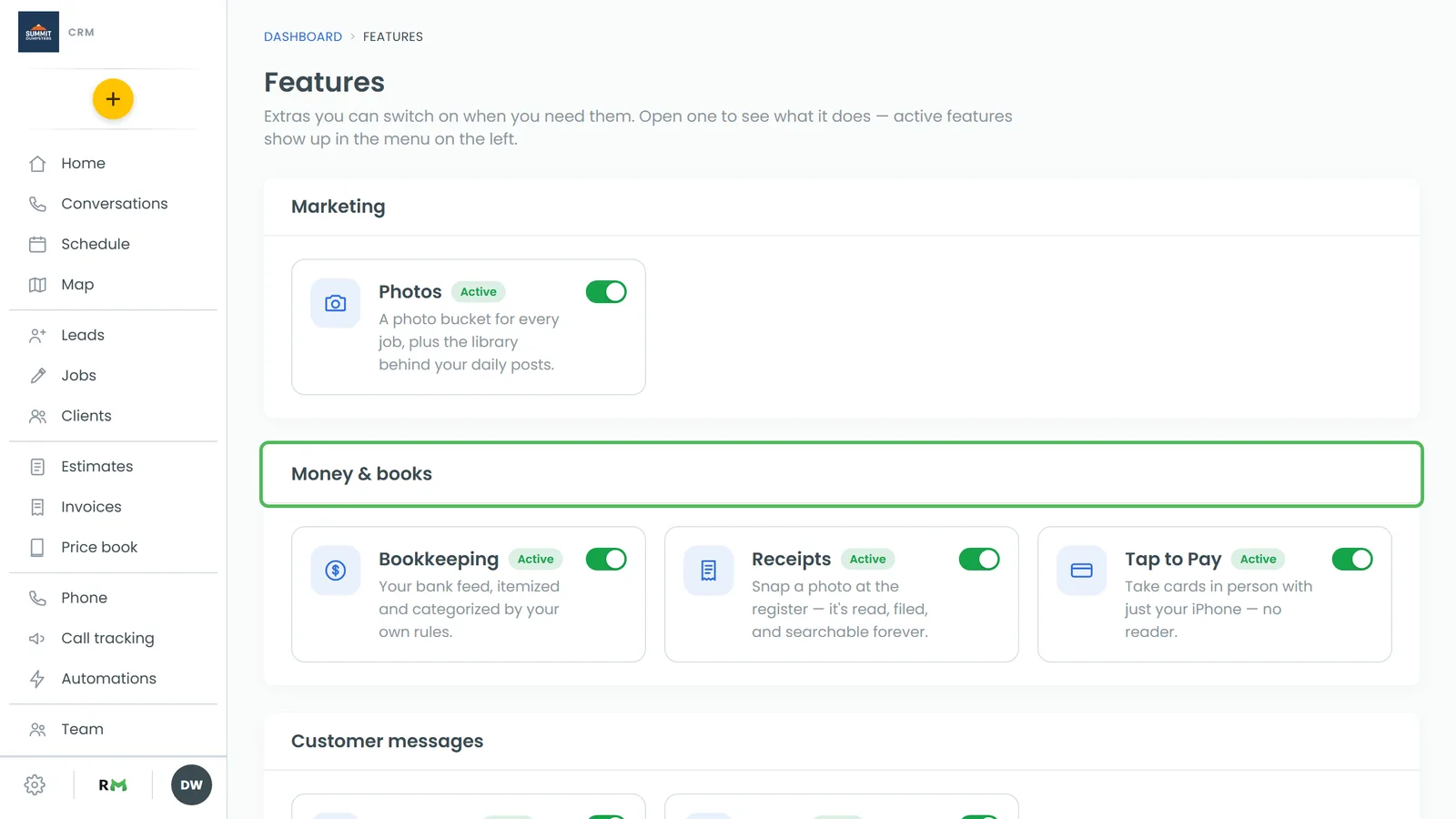
Bookkeeping is an add-on, so you switch it on in Features first.
To turn on Bookkeeping:
- In the menu on the left, click Features.
- Find Bookkeeping in the Money & books section.
- Click the switch on the Bookkeeping card.
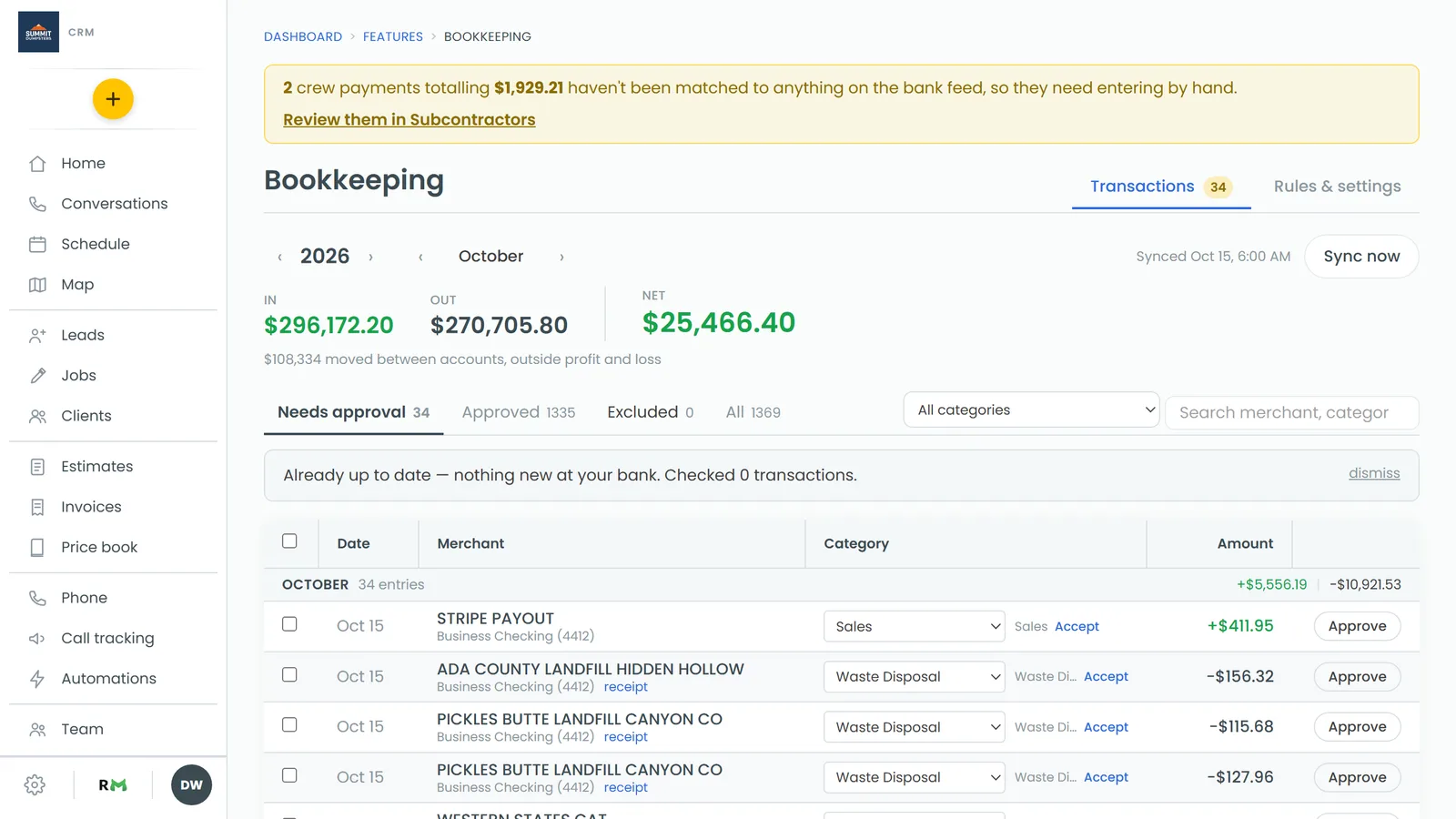
When it's on, the card says Active, Bookkeeping shows up in your menu, and the CRM takes you straight to the Bookkeeping page.
Connect your bank with SimpleFIN
The CRM reads your bank through SimpleFIN Bridge, a separate service that gives read-only access to your transactions. Until you've connected, the Bookkeeping page shows a setup guide with four steps. Setup takes about five minutes.
To connect your bank:
- Go to bridge.simplefin.org and sign up. It costs $1.50 a month, and it's read-only. It can never move money.
- In SimpleFIN, click Connect a bank and sign in to your bank. Connect your business checking and your business credit card.
- In SimpleFIN, open Apps / Connections and click New. You'll see a long code. That's your one-time Setup Token. Copy it.
- Back on the CRM's Bookkeeping page, paste the code into the SimpleFIN Setup Token box.
- Click Connect & complete setup.
The button reads Connecting… while it works, and the page reloads when it's done.
If the first read didn't finish
Sometimes the token gets used but the first read from your bank doesn't finish. When that happens, a yellow notice appears above the token box, saying the token is already spent. You don't need a new one, because the CRM still has the connection.
To finish connecting:
- Leave the SimpleFIN Setup Token box empty.
- Click Finish connecting.
What to expect from the bank feed
- Your bank data refreshes about once a day.
- Pending charges stay out until they post.
- Your first sync brings in the last few months, so you'll have some history from day one.
Choose which accounts belong in the books
Your SimpleFIN login can see every account at your bank, and that includes personal ones. So nothing gets imported until you say which accounts count. After you connect, the Bookkeeping page asks Which accounts belong in the books?
To choose your accounts:
- Look over the list. Every account starts unticked. Each one shows its name and the last four digits when the bank gives them.
- Tick only your business accounts.
- Click Import from N accounts. N is the number you ticked. The button stays greyed out until you tick at least one.
Nothing from an unticked account is ever imported, so your personal spending stays out of the books.
On the phone app
If you open Bookkeeping in the app before you've picked your accounts, you'll see Choose which accounts count and a note that nothing imports until you pick them on the web. Tap Open bookkeeping settings on the web to finish on a computer or in your browser.
Related articles
- Bookkeeping overview
- Categorizing and approving transactions
- Bookkeeping settings: accounts, automation and always approve
- Creating categorization rules
- Importing older bank history from a CSV