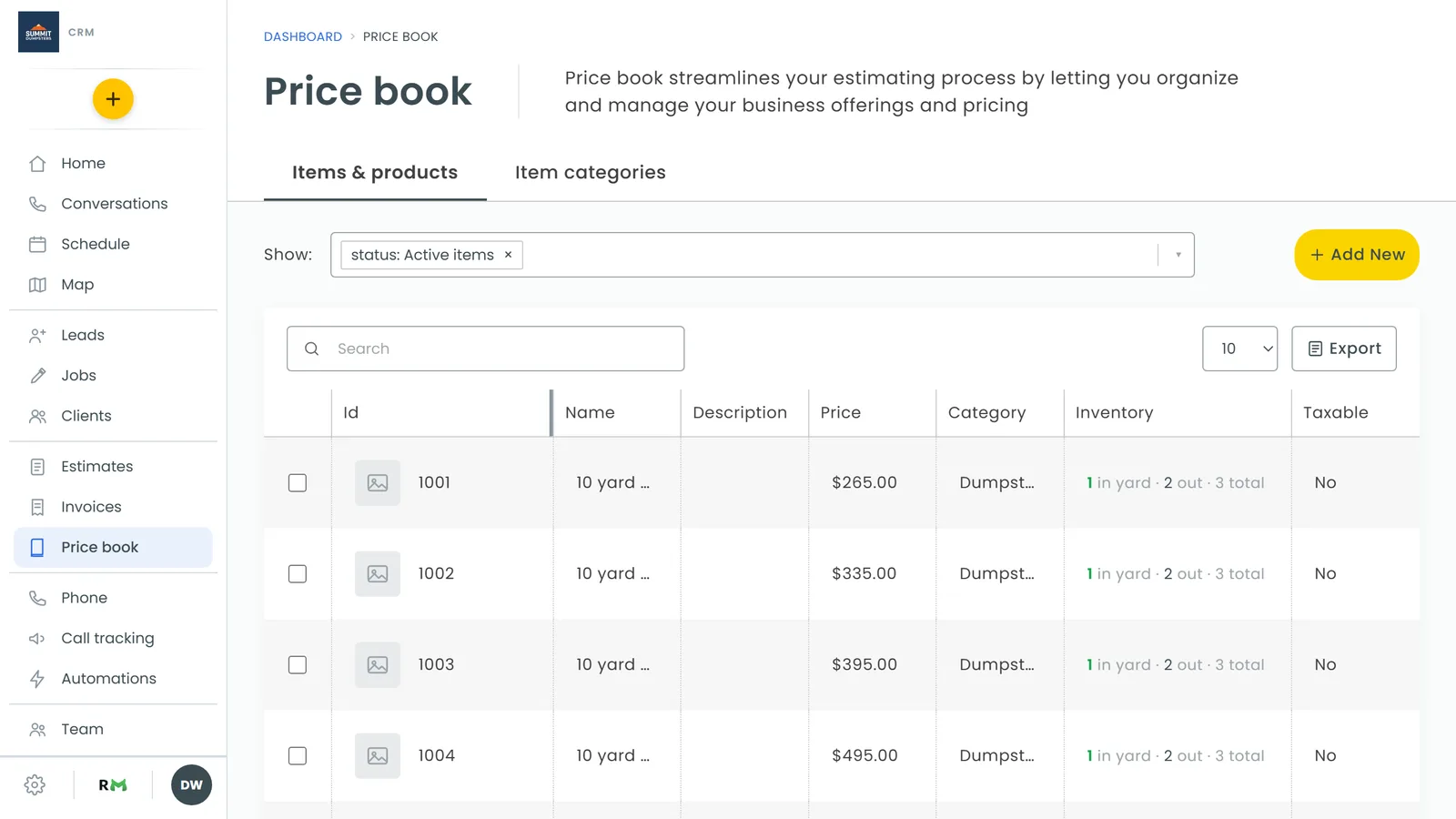
In this article, you'll learn how to use your price book from the phone app: putting items on a job, creating a new item while you're standing in the customer's driveway, and editing or removing lines. Anything you create here lands in your price book, so it's ready for the next job and estimate too.
To open the price book on a job:
- In the menu, tap Jobs and open the job.
- Tap the Finance tab.
- Tap the + on the Items row. If the section is already open, you can tap Add item instead.
The Price book screen slides in with a Search box at the top. Before you type anything, it shows the last five items used on any job under Items, marked Recently used. Tap Categories to narrow the list to one category (tap All items to widen it again), or start typing to search the whole book by name or description.
Add an item to the job
There are two ways to add an item, depending on whether you want to change anything first.
Add it as it is
- Find the item in the list.
- Tap the + on the right of its row.
The item goes on the job at its price book price with a quantity of 1, and the price book closes.
Change the price, quantity or description first
- Tap the item's name.
- Tap the price to type a different one.
- Use the − and + buttons to set the quantity, or type over the number.
- Change the Description if you need to.
- To change the name or the Taxable switch, tap Edit in the top right, make your changes on Edit item and tap Apply.
- Tap Add to job. The button shows the line total.
Create a new item from the app
If what you need isn't in the book, you can create it without leaving the job.
- On the Price book screen, tap Add new in the top right. If you've already searched and nothing matched, tap the add "…" as a new item link instead, and the title is filled in for you.
- On Add New Item, fill in Title, Choose category (optional), Item Description (optional) and Price.
- Leave Taxable item on if the item should be taxed.
- Leave Enable item on so it shows up in your price book lists.
- Tap Save.
The new item is saved to your price book and added straight to the job with a quantity of 1.
Edit an item that's already on the job
- On the Finance tab, tap the item's row under Items.
- On Edit item, change the Item name, Quantity, Unit price, Description or the Taxable switch.
- Tap Save. The button shows the new line total.
If you back out with unsaved changes, the app asks Leave page?. Tap Leave to drop them or Cancel to stay.
Remove an item from the job
- On the Finance tab, tap the ⋮ next to the item, then tap Remove. You can also open the item and tap the trash icon at the top.
- When asked Are you sure that you want to delete this item?, tap Yes, delete. Tap Cancel to keep it.
This only takes the line off the job. The item stays in your price book.