In this article, you'll learn how to change a job's status. The status tells your whole team where a job stands. A few statuses do more than label the job: Done locks it and can ask the customer for a review, Canceled voids unpaid invoices, and an on-my-way status can text the customer.
What a status is
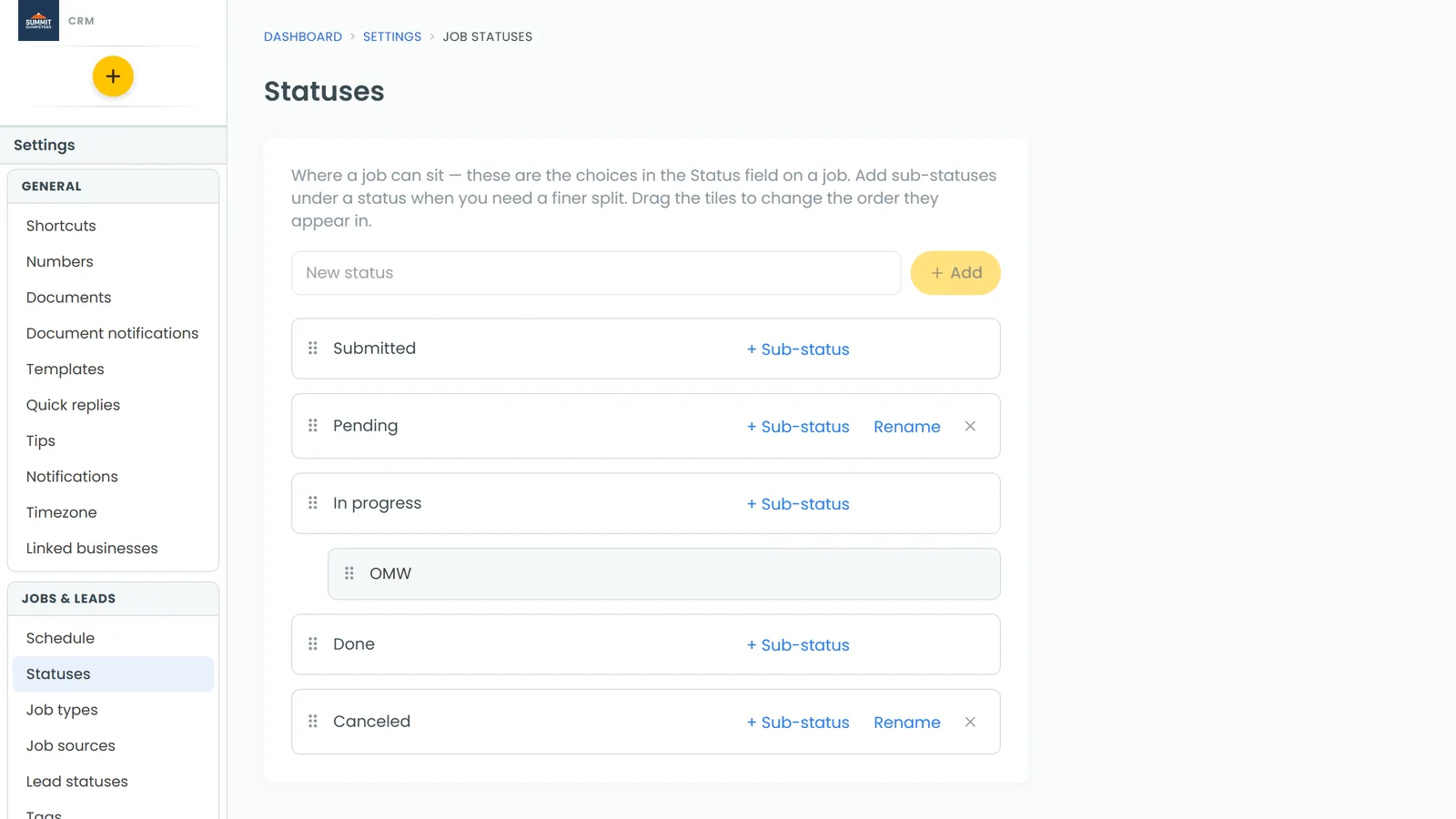
A status is the stage a job is at. Your list of statuses lives in Settings, and every place you pick a status shows that same list, in the order you set there.
A status can have sub-statuses under it. They split one stage into finer steps, such as an on-my-way sub-status under In progress. To add them, see How to create sub-statuses.
To see your statuses:
- Open Settings.
- Under Jobs & leads, click Statuses.
Change the status from the job page
- Open the job.
- Near the top, next to Status:, click the grey dropdown. It shows a coloured dot and the current status, with the sub-status after it if the job has one.
- Pick a status. Sub-statuses are indented under their parent. Picking one sets both the status and the sub-status.
The change saves as soon as you pick it. There's no Save button. If it can't be saved, the dropdown goes back to the old status and a Status change failed message tells you why.
On the phone app
- Open the job.
- On the Details tab, tap the dropdown next to Status:.
- Pick the new status. Sub-statuses are indented under their parent.
The app shows the new status straight away, then saves it. If the save fails, you see a Status change failed message and the old status comes back.
Change the status from the Jobs list (web)
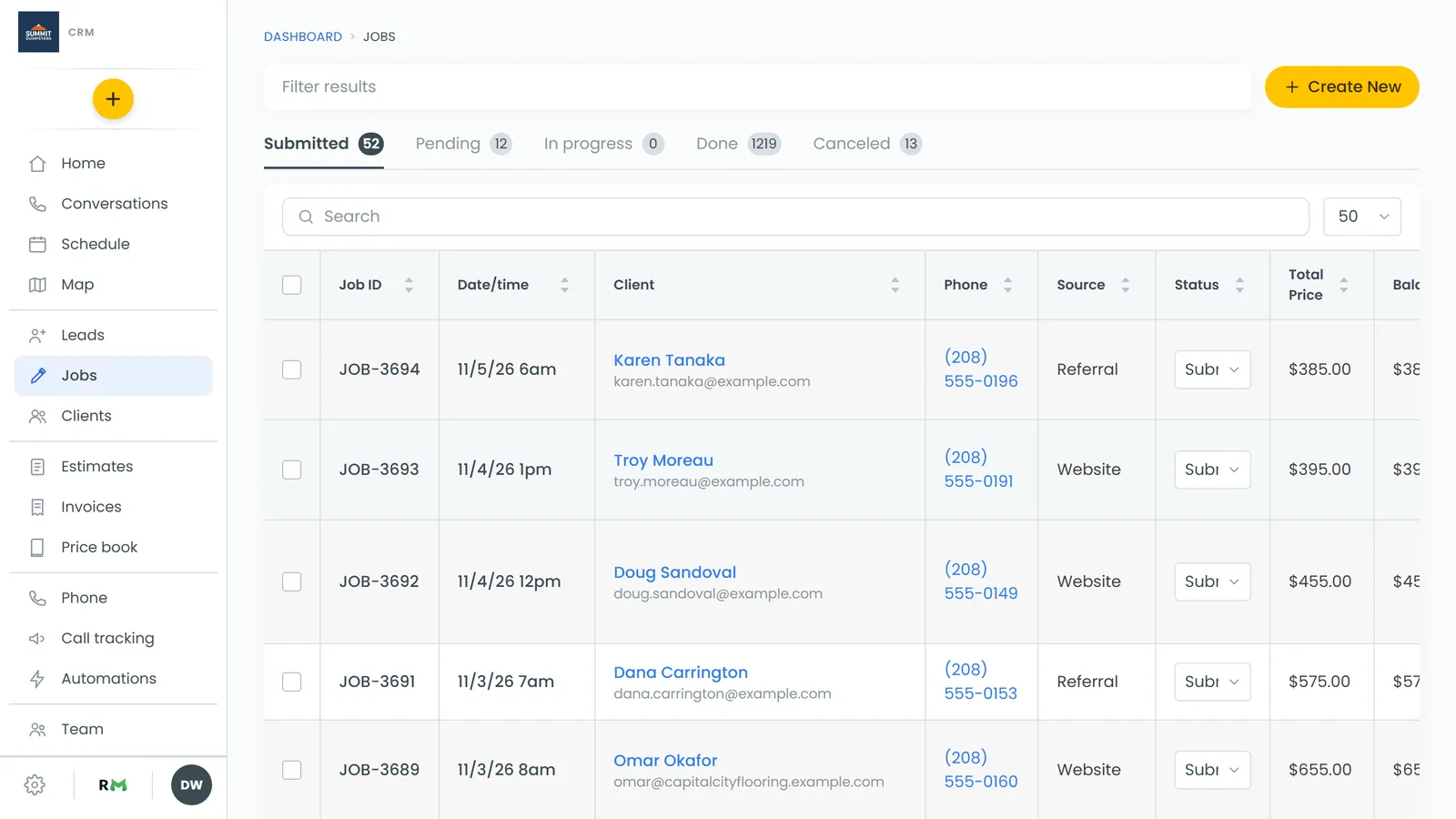
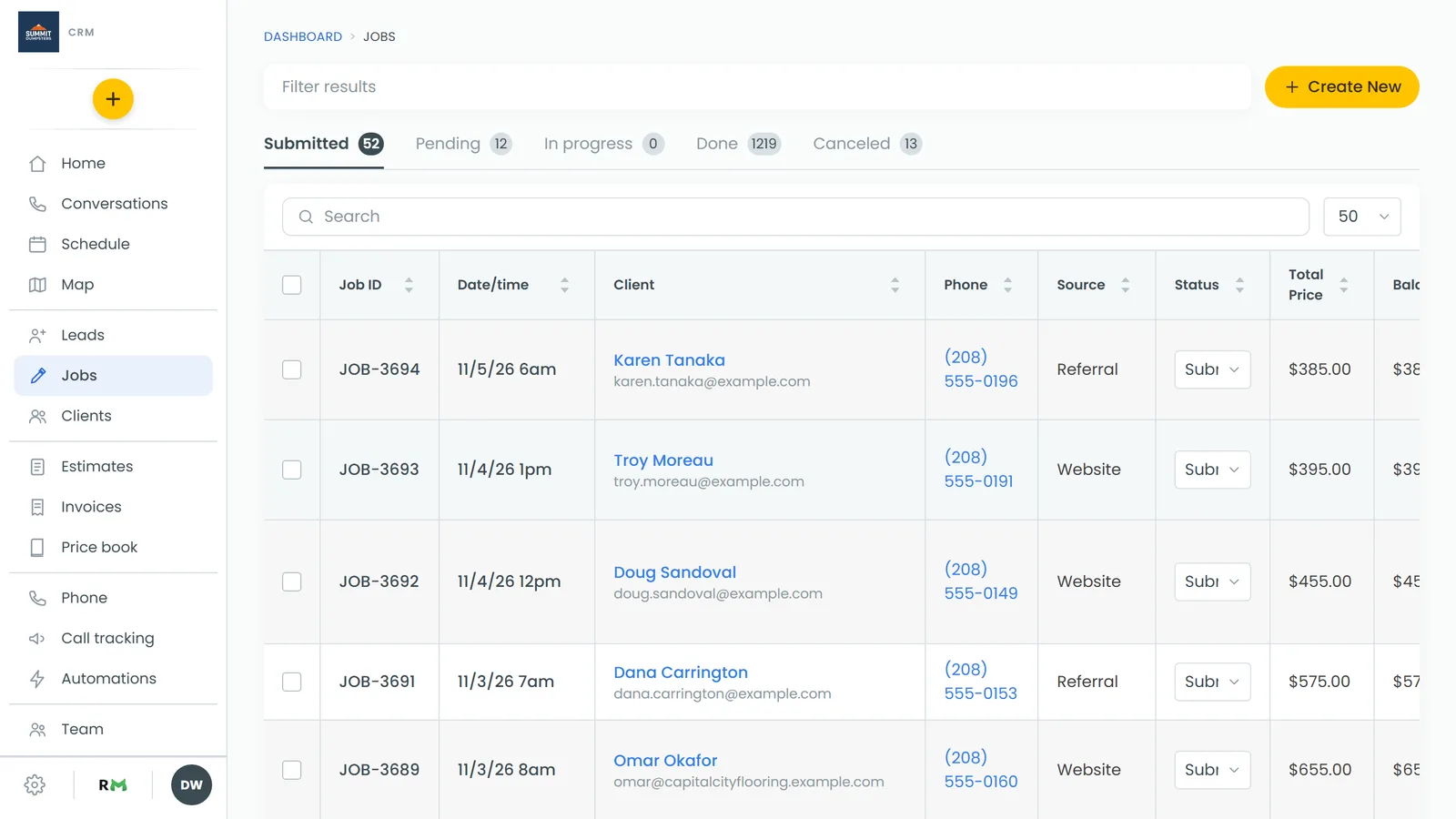
You don't always need to open the job. In a desktop browser, the Jobs list has a Status column with a dropdown in every row.
- In the menu, click Jobs.
- In the job's row, open the dropdown in the Status column and pick a new status.
This dropdown only offers your top-level statuses, and picking one clears any sub-status the job had. If you need a sub-status, set it from the job page.
The tabs across the top of the Jobs list are your top-level statuses, in your Settings order, each with a count of the jobs in it. Click a tab to see just those jobs. The phone app's Jobs screen has the same tabs, but no dropdown in the rows.
What happens when you pick certain statuses
Done
- The job locks. Only the status and payments can change on a Done job. A yellow bar at the top of the job says to change the status to reopen it. Move the job off Done, make your change, then set it back to Done.
- A review request can go out. Moving a job to Done asks the customer for a review if your review request automation is on and the job's type allows it. It only happens on the move to Done, so re-saving a job that's already Done won't ask again.
- Some customers have to pay first. If a customer's billing terms say they pay before a job is done, you can't mark the job Done while they still owe money. A Payment first message says how much is due and offers a Record payment button that opens the payment screen, or Not now.
Canceled
- Any invoice on the job that nobody has paid against is voided, so the customer isn't chased for it.
- Any live tracking link for the job stops working.
An on-my-way status
If a status or sub-status is set up to send your on-my-way text, picking it texts the customer. If they already got one in the last 6 hours, you're asked Send it again? first. Choose Send again for a real second trip, or Cancel if it was a slip.
If tracking follows a tech's phone and nobody is on the job yet, you're asked Who's on their way? The person you pick is added to the job and the text goes out. Or choose Send without a map link to send the text with no map.