In this article, you'll learn how to switch on the chat widget that's already built into your website, pick how it works, and read the chats that come in. It gives visitors a way to reach you without picking up the phone.
The widget is on every page of your site from day one. It stays invisible until you pick a mode here, so visitors see nothing until you're ready.
To open the chat widget settings:
- In your dashboard menu, click Website.
- In the list that opens under it, click Chat Widget.
Picking a widget mode
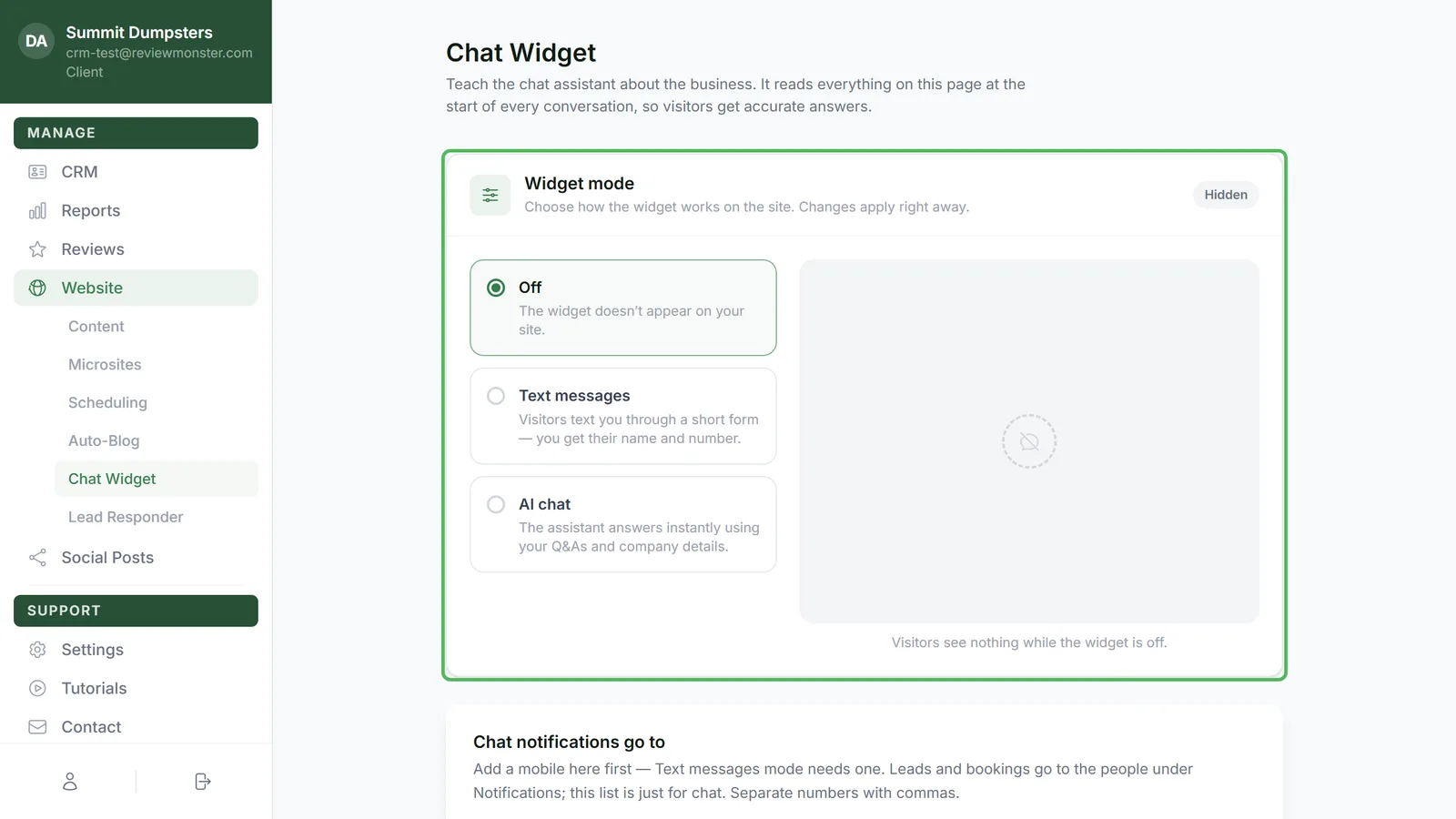
The Widget mode box at the top is the on/off switch. Changes apply right away, so there's no Save button for this part.
- Choose one of the three options:
- Off. The widget doesn't appear on your site.
- Text messages. Visitors fill in a short form with their name, mobile number and message. It lands on your phone as a text.
- AI chat. An assistant answers visitors instantly, using the questions, company details and rules you give it further down the page.
- Watch the preview on the right. It shows what a visitor sees in the mode you picked, with a caption under it explaining the example.
- Check the pill in the top-right corner of the box. It reads Hidden when the widget is off, and Live · Text messages or Live · AI chat when it's on.
Your site picks up the change the next time a page loads. In Text messages mode visitors see a Text us button. In AI chat mode they see Chat with us.
Choosing who gets chat notifications
The Chat notifications go to box decides who hears about a chat.
- In the first field, type the mobile numbers that should get a text. Separate them with commas.
- If you're in AI chat mode, a second field appears for email addresses. Type the addresses that should get an email when the assistant collects a visitor's name and a way to reach them. Separate them with commas too.
- Click Save. The box says "Saved." when it's done.
Every number and address is checked before it's saved. A landline, a toll-free number or an address that doesn't exist is refused, and the message under the box tells you which one and why.
Why Text messages mode can be refused
Text messages mode needs somewhere to send the text. If you pick it with no mobile on the list and no phone number on your account, the page switches back to the mode you had before and shows "Add a mobile number for chat texts before switching on Text messages." Add a mobile, click Save, then pick Text messages again.
If you save the box with no numbers in it, it says so: "Saved — no chat numbers, so Text messages mode can't be switched on until one is added."
Reading your recent chats
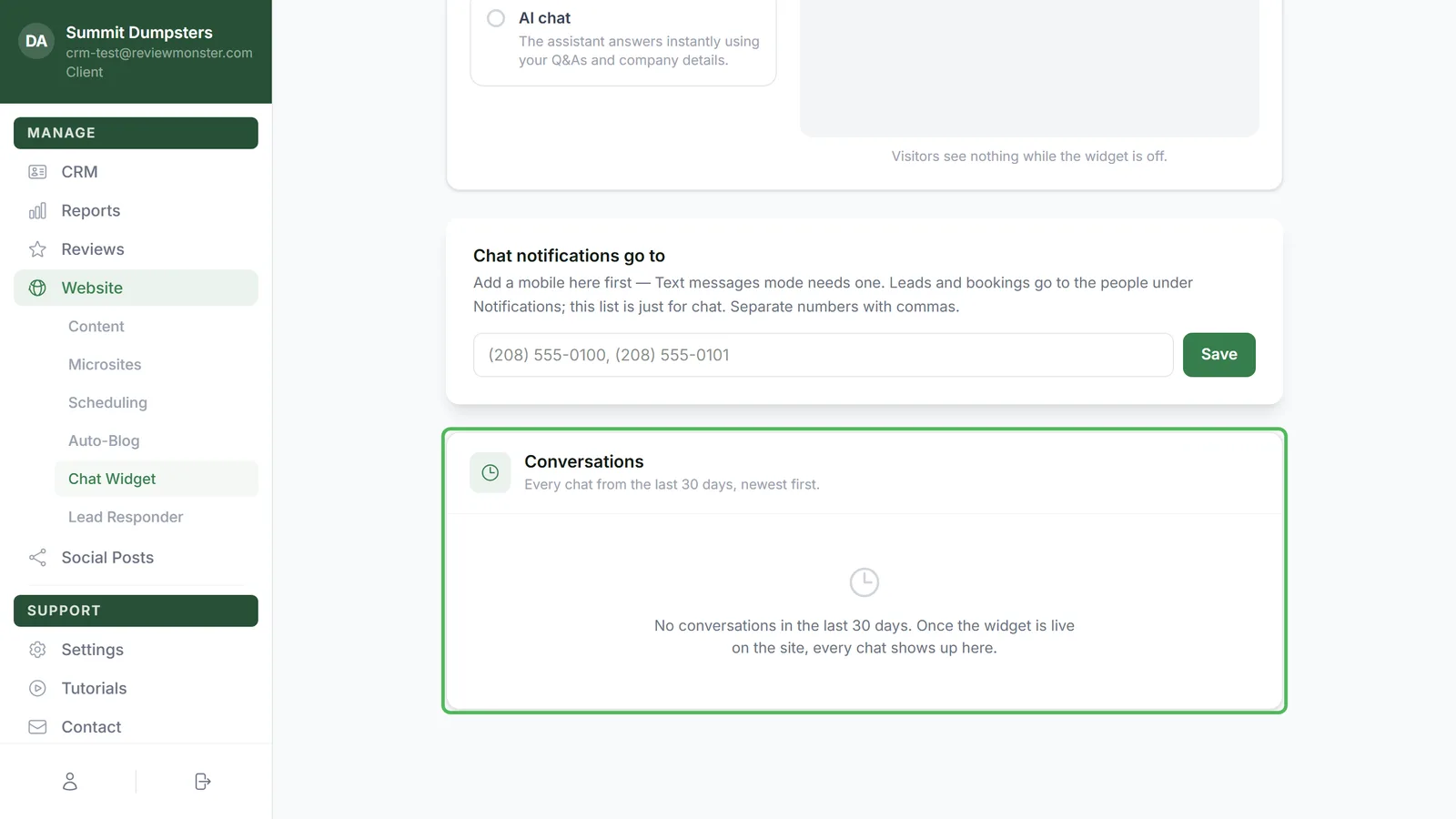
The Conversations box at the bottom lists every chat from the last 30 days, newest first. A pill in its header shows how many there are.
- Each row shows when the chat happened, the visitor's first message, their name and contact details if the chat captured them, and how many messages it holds.
- Click a row to expand it and read the whole exchange. The visitor's messages sit on the left and the assistant's on the right.
- Click the row again to close it.
If nothing has come in yet, the box says "No conversations in the last 30 days. Once the widget is live on the site, every chat shows up here."