In this article, you'll learn how to set up the Lead Responder, which answers someone the moment they send a quote request, fill in your contact form or text you through your website's chat widget. A quick reply tells them you got their message and, if you want, asks for the details you'd ask for anyway.
The Lead Responder is a page in your dashboard on the web. The switches and the assistant can only be changed there. The wording of the fixed text and the email can also be edited in the CRM under Settings › Templates, on the web and in the phone app (see below).
To open the Lead Responder:
- In your dashboard menu, click Website.
- Under it, click Lead Responder.
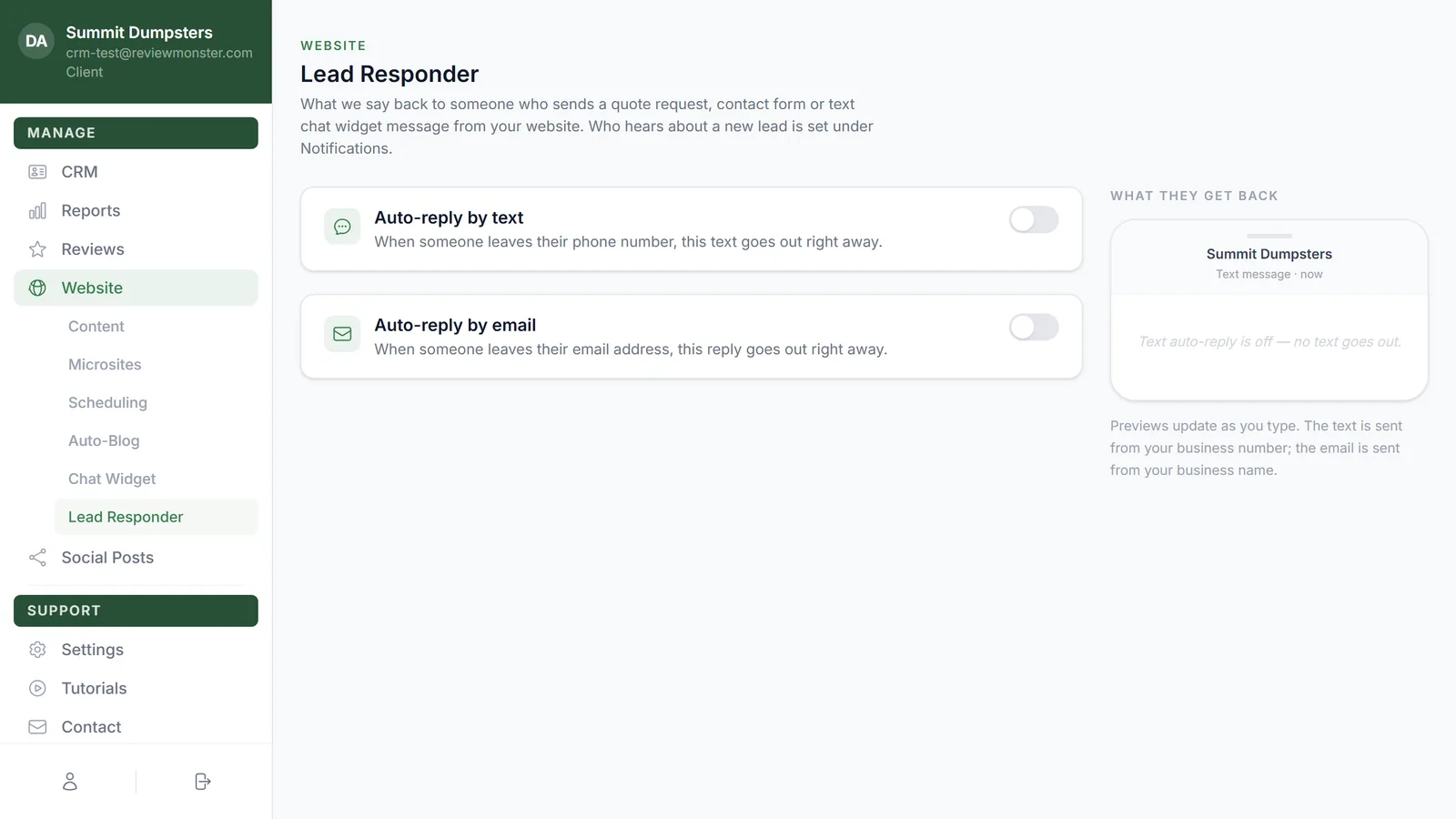
What the Lead Responder answers
The page sets what goes back to a visitor who:
- sends a quote request from your site
- fills in your contact form
- messages you through the chat widget when it's in Text messages mode
The widget's AI chat mode is a separate assistant and doesn't get these replies. Who at your company hears about a new lead isn't set here either. That's under Notifications.
Setting up the text reply
- On the Auto-reply by text card, click the switch on the right to turn it on.
- Choose what the text does: Send a fixed text or Have an assistant text back.
Send a fixed text
The same message goes out every time, from your business number.
- Type your message in the box. It's capped at 320 characters, and the counter under the box shows how much you've used.
- Keep it short. It goes out as a text.
Have an assistant text back
The assistant thanks the person by first name and asks, in one friendly text, for the things you list.
- Under Things to ask for, fill in up to three short lines, such as the address, a few pictures texted to the number, or a bit more detail about the project.
- Leave any line blank to skip it. If all three are blank, your fixed text goes out instead.
The assistant asks once and skips anything the form already gave. If the reply covers only part of what you asked, it thanks them and asks one more time for what's missing, and then it's done. It never texts first and never talks about price, availability or timing. The whole exchange shows up in Conversations, and as soon as someone at your office texts the lead, the assistant steps aside. When it finishes, what it learned is added to the lead's notes under Assistant gathered by text and you get an alert titled Lead details gathered.
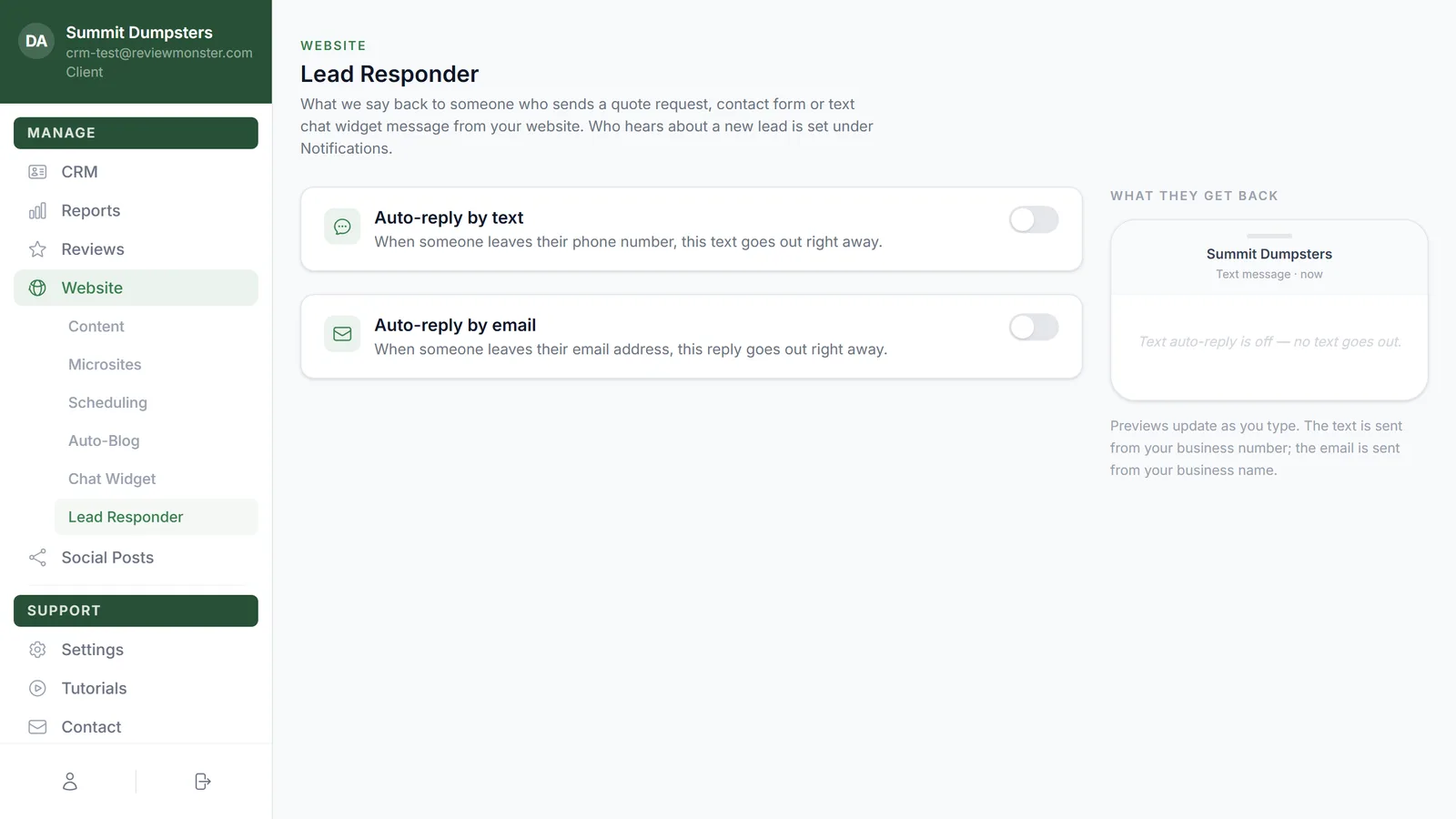
Setting up the email reply
- On the Auto-reply by email card, click the switch to turn it on.
- Fill in the Subject.
- Fill in the Message.
The email is sent under your business name, and replies to it come to your business email. Both fields are required when the switch is on.
Checking the previews
The What they get back column on the right updates as you type. The phone shows your fixed text, or a sample exchange when the assistant is on, and the email preview appears under it once the email reply is switched on. With the text reply off, the phone says no text goes out.
Saving your changes
- Click Save changes. The button only appears once you've changed something.
- Wait for Saved to show next to it.
Editing the wording from the CRM
The words of the fixed text and the email also appear in the CRM, so you can change them without opening the dashboard.
- In the CRM, open Settings and click the Templates tab.
- Scroll to Website leads.
- Edit the Text message or the Email and save.
This works on the web and in the phone app. The tag on the text template tells you whether it's sending: Off, or AI replies instead when the assistant is on. Turning either reply on or off, and choosing the assistant, still happens on the Lead Responder page.
When a reply doesn't go out
- The text only goes to someone who left a phone number that can receive texts. If they didn't tick the consent box on your form, no text is sent.
- The email only goes to someone who left a working email address.
- A contact your company has marked Do Not Disturb gets neither.
- Someone who started a quote request but didn't finish it gets no reply.
- A message that turns out to be someone selling to you is screened out and gets nothing.