In this article, you'll learn the difference between the two kinds of team member you can add: users and subcontractors. Which one you pick decides whether that person can get into your CRM, and whether their hours and pay are tracked for a 1099.
Here's the short version. A user logs in to the CRM and works on your account with the role you give them. A subcontractor never gets a CRM login. They see the jobs you put them on in their own crew portal, and the CRM keeps their W-9, hours, mileage and receipts for you.
To open your team:
- In the menu, click Team. You can also go to Settings, then Team management under Users & roles.
- Click Add New.
- At the top of Add team member, pick User or Subcontractor.
The phone app's Team page has the same Add New button and the same two tabs.
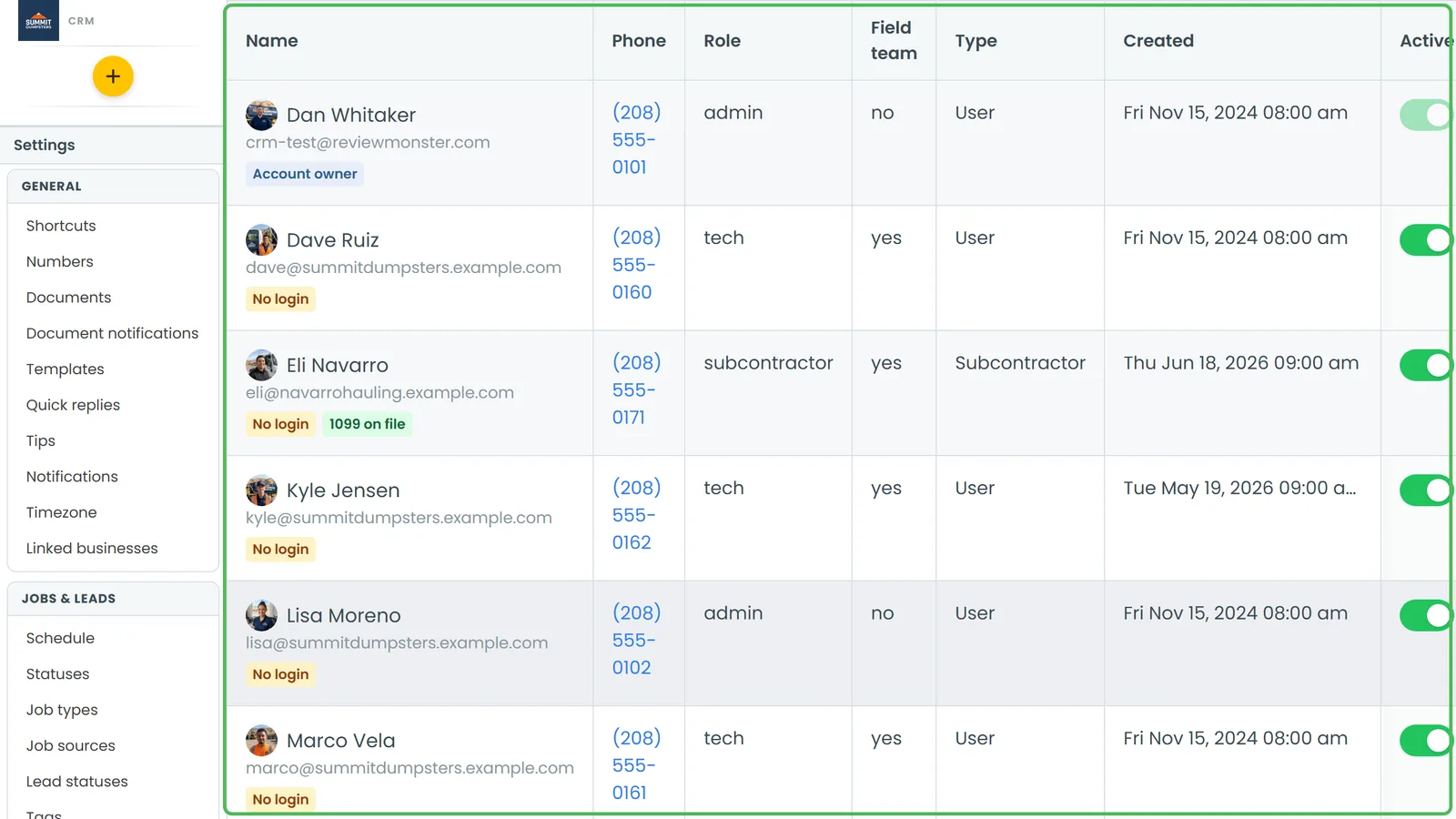
Both kinds sit in the same list. The Type column says User or Subcontractor, and you can filter by User type from the filter bar.
Users
Under the User tab it says "Can login and work on your account". Use it for the people on your own staff: the office, dispatchers, managers and techs.
To add a user:
- Type their Email Address. The invitation is texted and emailed.
- Type their Name. The brush button next to it picks their colour on the schedule.
- Type their Phone.
- Choose a Permission level. This is their role, and it decides what they can see and do on your account.
- Set Field tech to Yes if they can be assigned to jobs.
- Set Track Location to Yes if you want their phone asked to share location for on-my-way texts. They're reminded once a day while it's off.
- Click Invite user.
They get a link to set up their login and pick a password, and from then on they sign in to the CRM like you do.
Subcontractors
Under the Subcontractor tab it says "Can take jobs and get messages — no CRM login". Use it for people you pay as contractors and send a 1099 at the end of the year.
To add a subcontractor:
- Type their First name and Last name.
- Type their Mobile number. The invite is texted here, with the form that collects their W-9.
- Enter their Pay rate, per hour.
- Click Invite.
What happens after you click Invite
- They get a text with a link to fill out and sign their W-9. The form has a Pick a password step along the way.
- Once the signed W-9 is in, they get a second text with the crew portal link. They sign in with their phone number and the password they picked. The same text points them to the Review Monster CRM app on Google Play, which takes the same phone number and password on its login screen.
- Their row on the Team list shows No 1099 yet, 1099 form sent or 1099 on file, so you can see where they're at.
They're added with the Subcontractor role and on the field team, so you can put them on jobs like anyone else.
What a subcontractor sees
The crew portal is all they get. In it they can:
- See only the jobs they're assigned to
- See the customer's name and the job address, but never the customer's phone number or email
- Clock in and out
- Add mileage, if you pay them mileage
- Add photos and videos to their jobs
- Scan receipts they paid for themselves
- Check what they've been paid
Login and pay are the real difference
It isn't about who matters more. It comes down to two things:
- Login. Users sign in to the CRM with the role you gave them. Subcontractors only ever see the crew portal.
- Pay. A subcontractor's hours, mileage and receipts add up on the Subcontractors page so you can pay them, and their signed W-9 is kept for the 1099.