In this article, you'll learn how to connect your Google Calendar to the CRM. Once it's connected, your jobs show up on Google, and the things already on your Google Calendar show on the CRM schedule as busy time. That way you see everything in one place, and online booking won't offer a customer an hour you've already blocked off.
You need to be an admin to connect, change or disconnect the sync. Each company connects one Google account, and the sync uses that account's main calendar.
To open Calendar sync:
- At the bottom of the menu, click the gear (Settings).
- Under Jobs & leads, click Calendar sync.
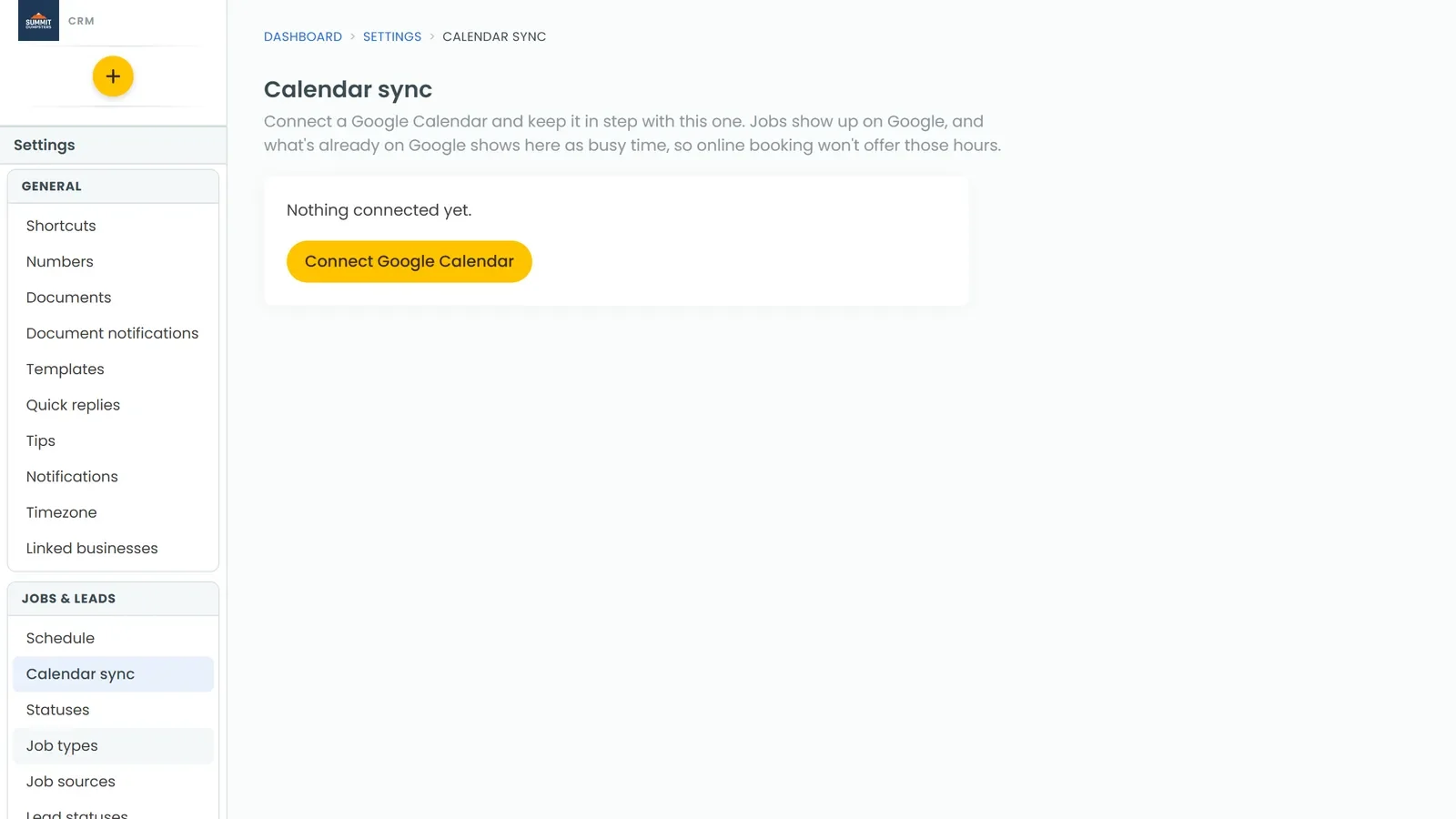
Connect your Google Calendar
- On the Calendar sync page, click Connect Google Calendar.
- Google opens. Sign in to the Google account whose calendar you want to use.
- Allow the CRM to see and edit your calendar events. Make sure the calendar box is ticked, or the connection won't go through.
- Google sends you back to Calendar sync, which shows Connected. Your jobs are on their way to Google.
Your first sync starts right away, and after that it runs by itself every five minutes.
See how the sync is doing
Once you're connected, the page shows which Google account you're connected to, how many jobs are on Google, and when the CRM last read from Google and last sent to Google.
If something stopped the last sync, you'll see Last sync stopped: with the reason. If it says Google access was removed, click Disconnect, then connect again.
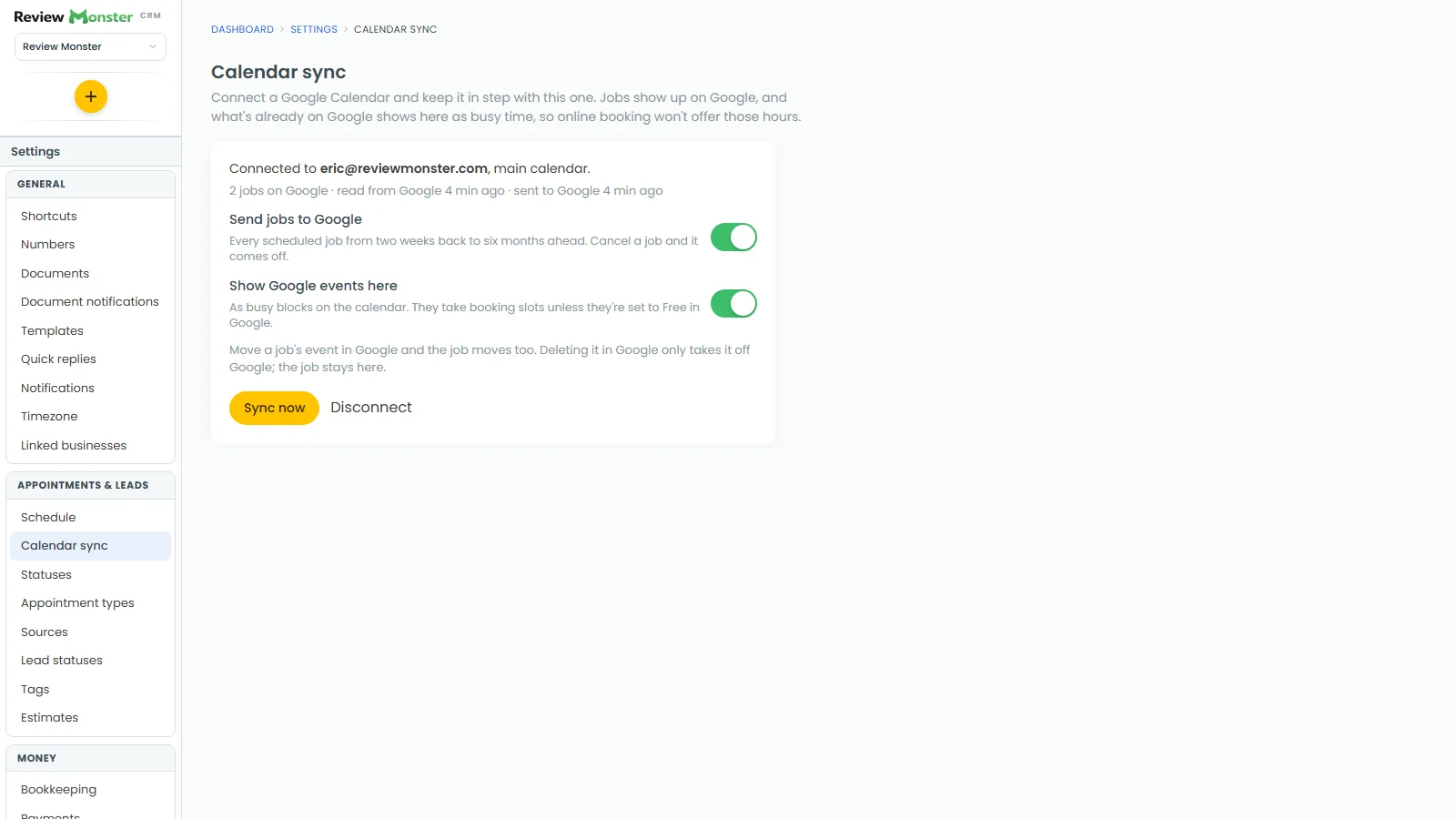
Choose what syncs
There are two switches, and you can use either one alone or both.
Send jobs to Google
With Send jobs to Google on, every scheduled job from two weeks back to six months ahead goes onto your Google Calendar. Each event shows the job's name (or its job type and customer), the job address, and in the notes the customer, their phone number, the job type, the status and a link back to the job.
When you change a job in the CRM, its Google event updates. Cancel a job, take it off the schedule or delete it, and its event comes off Google.
Show Google events here
With Show Google events here on, events from your Google Calendar appear on the CRM schedule as grey striped blocks marked Google Calendar · busy. They aren't jobs, so nobody's assigned and there's nothing to do with them.
Click one to see what it is, when it is and where. Open in Google Calendar takes you to the event in Google.
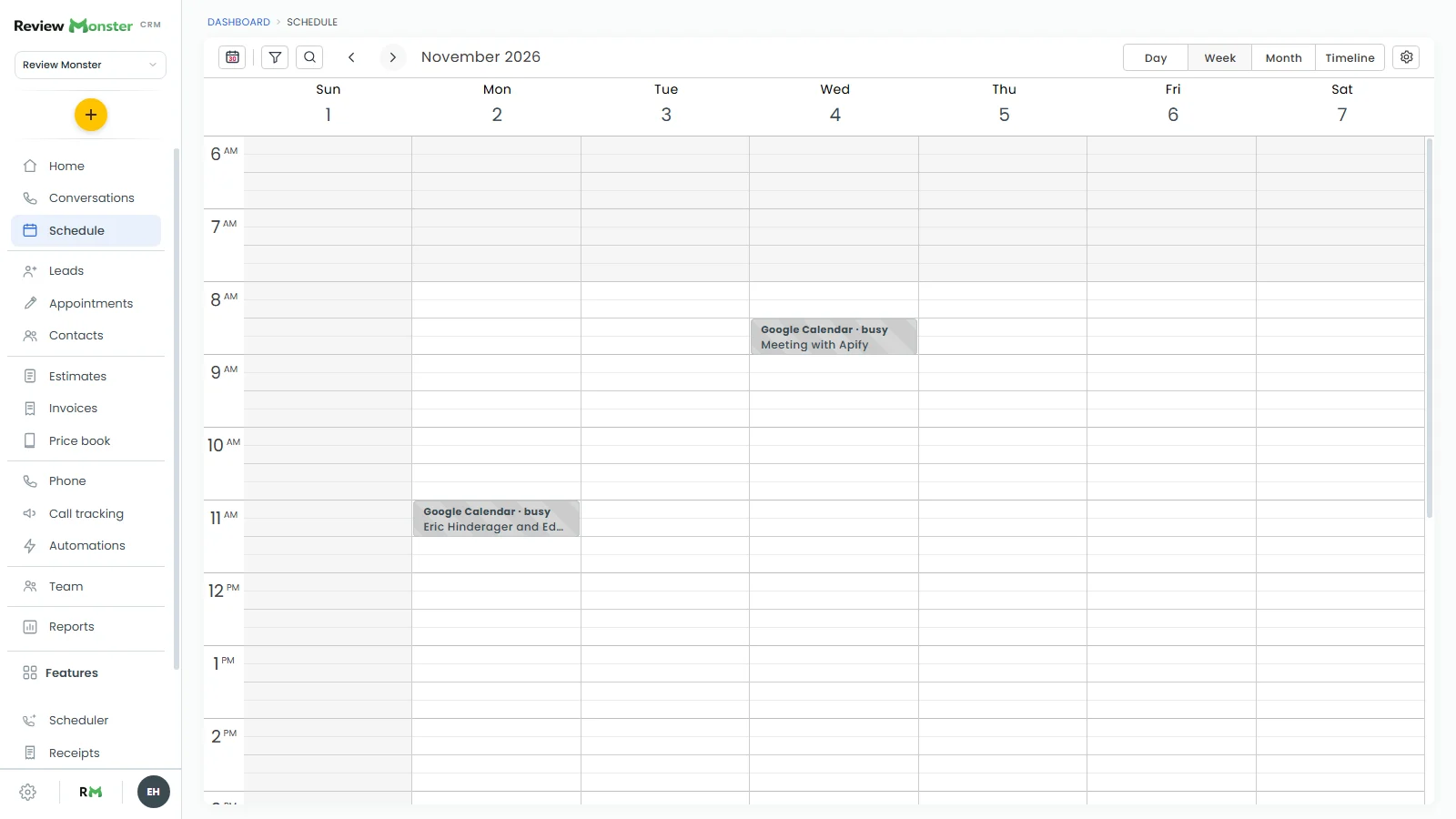
How Google events affect online booking
A busy Google event takes up that time for online booking, the same way a job does. Customers booking online won't be offered those hours.
If you want an event on Google that shouldn't block booking, set it to Free in Google. It still shows on the CRM schedule, and booking can still use the time.
What happens when you change things in Google
- Move a job's event in Google and the job moves to the new time in the CRM. Reminders waiting to go out for that job move with it.
- Delete a job's event in Google and it only comes off Google. The job stays in the CRM, and the CRM won't put it back on Google.
Sync right now
You don't have to wait for the next automatic sync.
- On the Calendar sync page, click Sync now.
- When it's done, a line under the card says how many jobs were added, updated or removed on Google, and how many Google events were read.
If you have a lot of jobs, the first sync can take a few rounds. The line will say how many are still to go, and the next syncs finish them.
Disconnect Google Calendar
- On the Calendar sync page, click Disconnect.
- Confirm that you want to disconnect.
The jobs the CRM put on your Google Calendar are taken off it, and your Google events stop showing on the CRM schedule. Your jobs in the CRM aren't touched.