In this article, you'll learn how to work your schedule from the phone app on iPhone or Android. You can check the day's jobs, jump to another day, filter the calendar and make quick changes to a job without opening a computer.
To open the schedule:
- Tap Schedule on the bar at the bottom of the screen.
You can also open the menu from the top of the screen and tap Schedule. It sits in the first group, with Home and Map.
Picking a view
Three buttons sit at the top of the schedule: Timeline, Day and Map. The app remembers the last one you used on that phone and opens straight onto it next time.
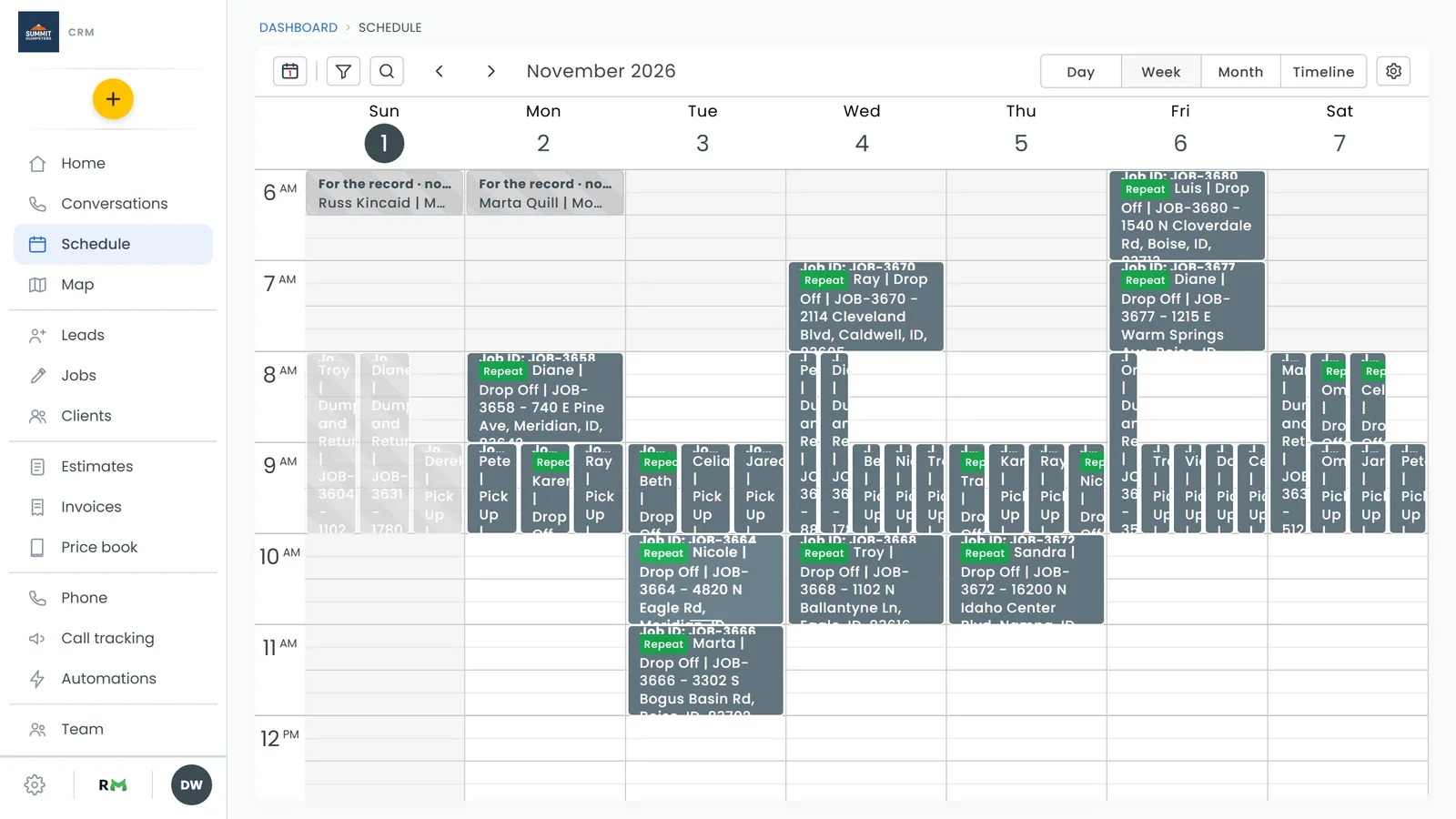
- Timeline is one long list of every day that has work, in date order. It opens on today. Scroll up for past days and down for upcoming ones. More days load as you near either end, and a month heading marks where each month starts. A day with nothing on it says Nothing planned for this day.
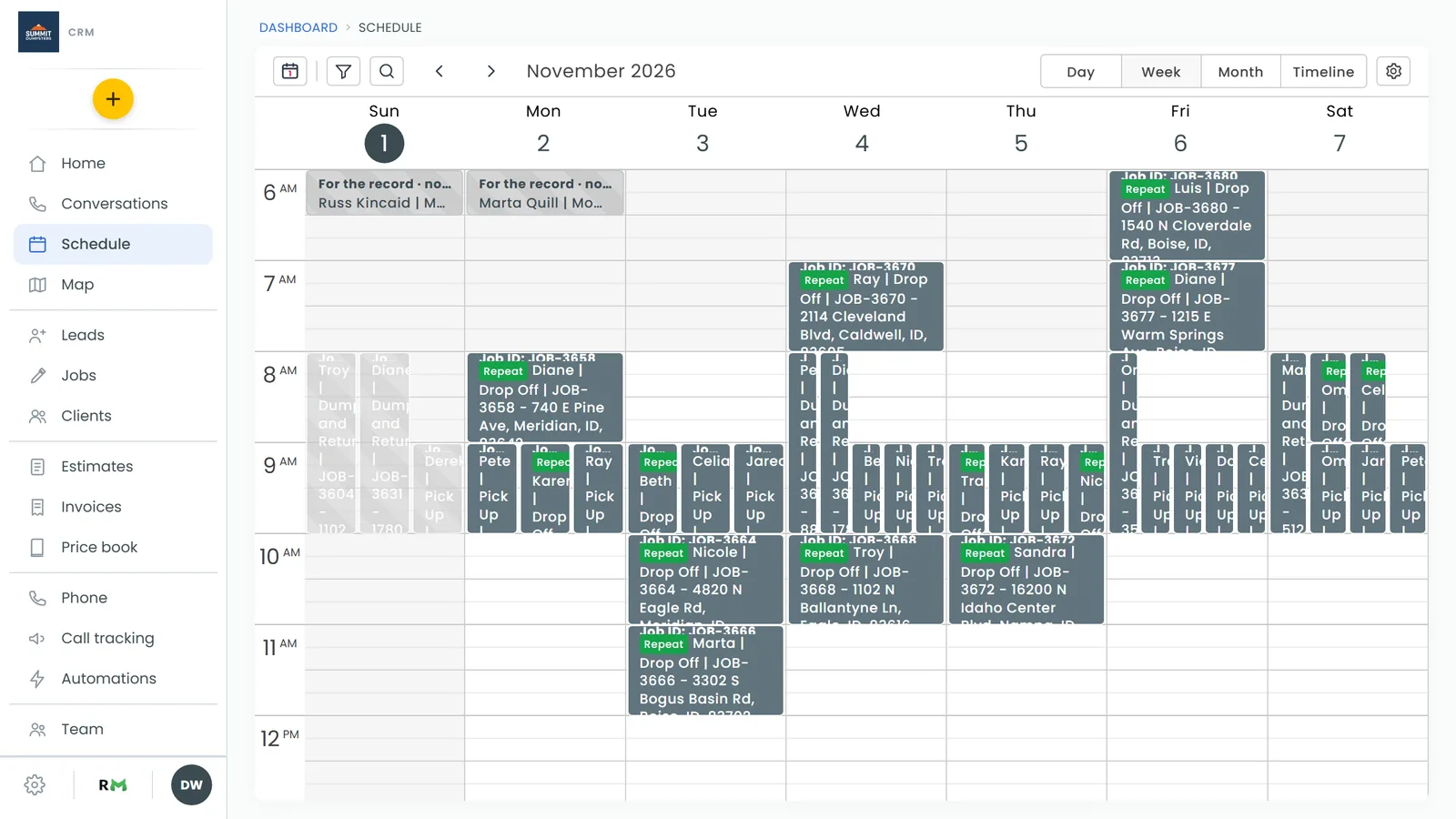
- Day shows one day as an hour grid from 6 am to 8 pm, with a Sunday-to-Saturday week strip above it. Tap a day in the strip to open it, or swipe the strip for the week before or after. Swipe the grid itself to move one day at a time. Next to the date you'll see how many jobs are on that day.
- Map shows the picked day's jobs as a numbered list, with the same number on each job's pin on the map. Your business address is marked too, and the map zooms out far enough to show every pin. Tap a row or a pin to open that job. The Map view has the same week strip as the Day view.
What a job looks like
On the Timeline, each job card shows the job number and status, the start and end time, the job type, the client's name (and company, if they have one), the service address, any tags, and the initials of the first team member assigned. A coloured stripe down the left side matches the job's status. A job that runs several days shows on each of them, labelled Day 1 of 3 and so on.
In the Day view, a job is a block on the hour grid, tinted by its status. Jobs at overlapping times sit side by side. Done jobs show a grey striped pattern so you can tell at a glance what's finished.
If you run several businesses from one login and have a linked business switched on for the calendar, its jobs show up with a pill naming that company. Tapping one switches you to that company to open the job.
Calendar notes show up next to your jobs too, in yellow. Tap a note and choose Mark done (or Mark not done).
If you've connected Google Calendar under Settings › Calendar sync, its events show as grey striped blocks labelled Google Calendar. Tap one to see its time and place, whether online booking will offer that slot, and an Open in Google Calendar link.
Jumping to a date
- Tap the month name at the top of the screen. A month calendar drops down.
- Swipe it left or right to change month. Days with work on them have a dot under them.
- Tap a day to go to it. The calendar folds away again.
To get back to today, tap the small calendar icon showing today's date at the top right.
Filtering and searching the calendar
- Tap the filter icon at the top of the schedule. The Filter the calendar sheet opens.
- Tick what you want to see under Team members, Job types, Statuses, Tags and Sources. Tags show as coloured pills. Only jobs that match stay on the calendar, and the filter icon shows how many things you've picked.
- To start over, tap Clear all.
There's also a Show done notes checkbox at the top of the sheet if you want finished notes back on the calendar.
To search, tap the magnifying glass and type in the box (Search names, numbers, addresses…). The calendar narrows to matching jobs as you type. Tap Done to close the search.
The schedule refreshes itself every minute. For the latest right away, tap the refresh icon at the top.
Quick actions on a job
On the Timeline, each job card has a three-dots button in its top-right corner. Tap it to open a short menu for that job:
- Call or Message the client, by first name. These only show when the client has a phone number and the job belongs to the company you're signed into.
- Navigate to the service address. On iPhone you pick Apple Maps or Google Maps. On Android it opens Google Maps.
- Reschedule, which opens the job so you can change its date and time.
- Mark Done, which sets the job's status to Done.
- Cancel job, which sets the job's status to Canceled.
To see everything about a job, tap the card itself (or the block in the Day view, or the row or pin in the Map view). The full job page opens.
Team Schedule: shifts and time off
Team Schedule is a separate page for your team's shifts, not your jobs.
To open Team Schedule:
- Open the menu.
- Tap Team Schedule.
At the top is the week, with arrows to move back or forward, and a strip of days to pick from. Below that you can switch between All shifts and My shifts. If you're on the schedule yourself, a Your hours this week card shows your scheduled hours, and your estimated earnings if your hourly cost is set.
If you manage the schedule
- Tap the purple + button at the bottom right. The Add to schedule sheet opens.
- Choose Add Shift or Time Off.
- For a shift, pick the Team member, the Start and End times and a Role, then tap the days under Apply to. A Shift note is shown to the team member on their shift.
- Tap Add.
New and changed shifts are drafts until you tap Publish. The Publish week sheet lets you choose who's told and whether they get it by Push in app, Text or Email. Time off goes on the schedule as soon as you add it. Tap Requests to approve or deny what your team has asked for.
If you're on the crew
- Tap Request. The Ask the office sheet opens.
- Under Request, pick Time off, Change my availability, Trade a shift or Get a shift covered, and fill in the details.
- Tap Send request.
Your requests, and whether they're approved, denied or still pending, are listed under My requests.