In this article, you'll learn how to set your business hours and decide whether you're open on holidays. Your hours shape the calendar and limit which times customers can pick when they book online.
To open your schedule settings:
- In the menu, click the Settings gear.
- Under Jobs & leads, click Schedule.
You can also get to the same settings from the calendar itself:
- In the menu, click Schedule.
- On the calendar toolbar, click the gear (Calendar settings) to the right of the view buttons.
The Schedule Settings panel slides in from the right with the same form, so changes made in one place show up in the other.
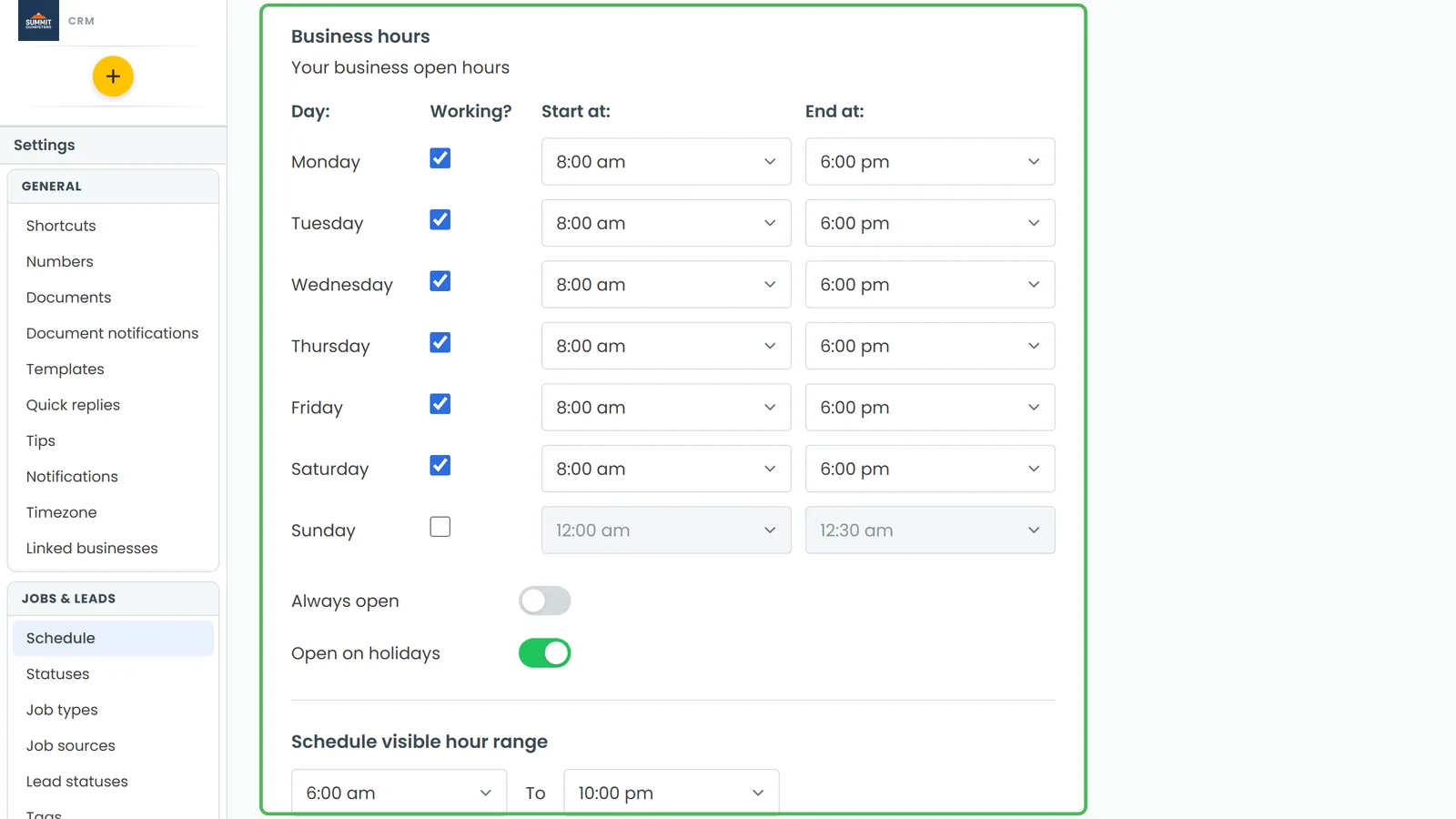
Setting your hours for each day
Under Business hours, each day of the week has its own row, Monday through Sunday, with three columns: Working?, Start at: and End at:.
- Tick Working? for each day you're open. Untick it for days you're closed. The times for that day grey out.
- For each working day, pick a time in Start at: and End at:. Times come in half-hour steps.
- Click Save.
A new account starts with Monday through Saturday, 8:00 am to 6:00 pm, and Sunday off.
If you're open 24/7
If you take work at any hour, you don't need to fill in the grid.
- Turn on Always open.
- Click Save.
With Always open on, the whole hours grid greys out and the calendar never shades any time as closed.
Choosing whether you're open on holidays
There's one switch for holidays. You can't add your own holiday dates here.
- Turn Open on holidays on if you work holidays like any other day, or off if you close.
- Click Save.
New accounts start with Open on holidays on.
Which holidays count
When Open on holidays is off, these US federal holidays count as closed days:
- New Year's Day
- Martin Luther King Jr. Day
- Presidents' Day
- Memorial Day
- Juneteenth
- Independence Day
- Labor Day
- Columbus Day
- Veterans Day
- Thanksgiving
- Christmas Day
When a fixed-date holiday falls on a weekend, the weekday it's observed on counts too. So if July 4th is a Saturday, Friday the 3rd counts as closed as well. New Year's Day observed on December 31st counts the same way.
What your hours change
- Online booking: customers only see times that fit inside your open hours. Closed days are skipped, and so are holidays if Open on holidays is off.
- The calendar: in the Day and Week views, time outside your hours is shaded. The Timeline view only shows the day's open hours, stretched to fill the screen. If a job is booked outside them, the Timeline widens to fit it. On a closed day it falls back to your visible hour range.
- Jobs you book yourself: your hours never stop you. You can still create or move a job to a closed day, a holiday or a time outside your hours.
On the phone app
In the app, open the menu, tap the Settings gear, then Schedule under Jobs & leads. There you'll find the Show done jobs, Always open and Open on holidays switches. Each one saves as soon as you flip it.
The hours grid for each day isn't in the app. To change your days and times, use the CRM on the web.
Related articles
- How to schedule and manage jobs
- How to turn on online booking
- Setting appointment length and availability for online booking
- Managing your schedule on the phone app
- How to create jobs