In this article, you'll learn the different ways to look at your schedule and how to move between them. Some days you want the whole month at a glance. Other days you need to see who's free at 2 pm. Each view is built for one of those.
To open the schedule:
- In the menu, click Schedule.
On the phone app, tap Schedule in the bar at the bottom of the screen.
Switching views on a computer or tablet
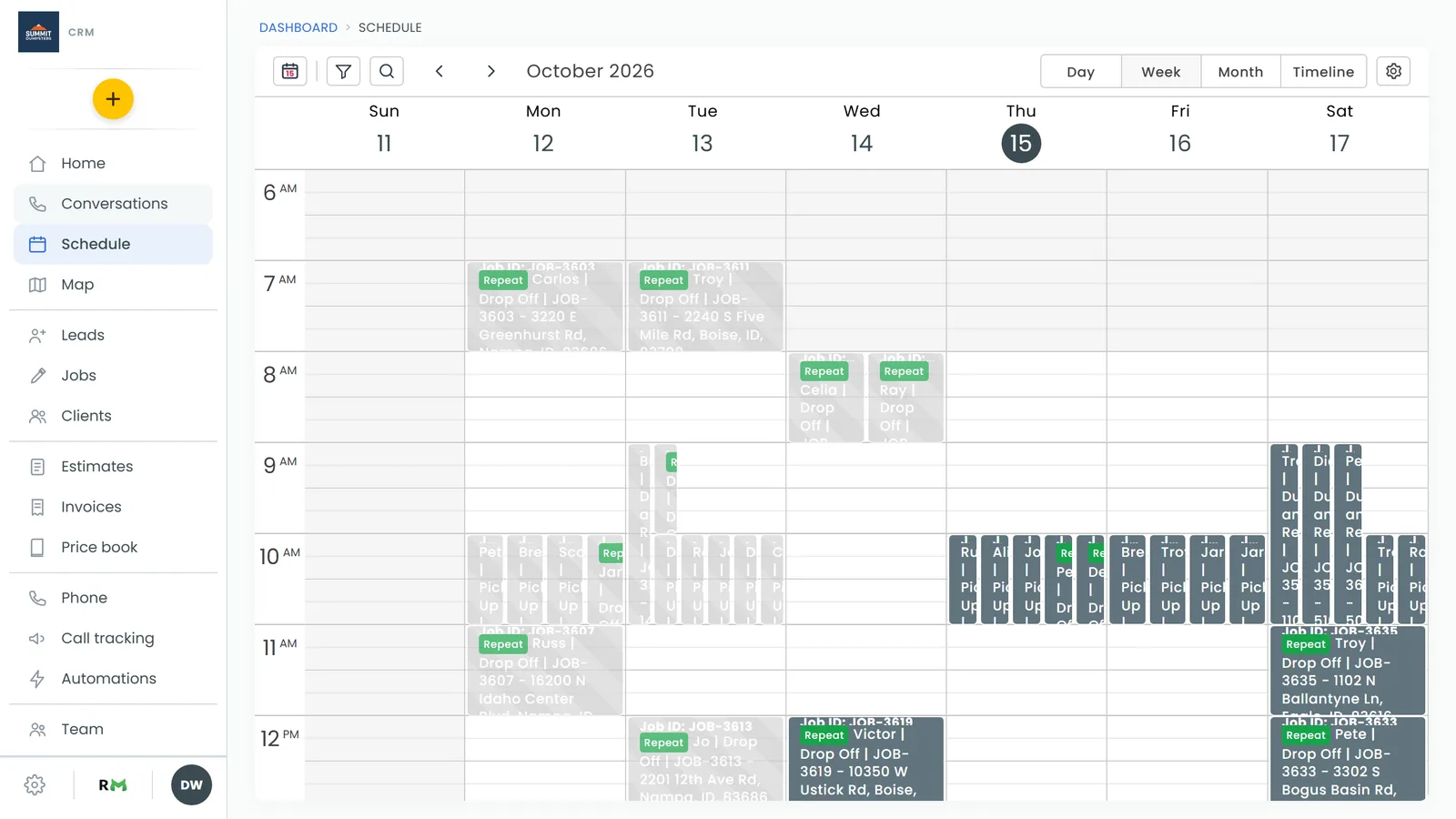
On a computer or tablet the schedule has four views. The buttons for them sit at the top right of the calendar.
- Click Day, Week, Month or Timeline.
Moving between dates
At the top left of the calendar are two arrows and a Today button.
- Click the right arrow to go forward, or the left arrow to go back. In Day and Timeline it moves one day, in Week one week, and in Month one month.
- Click the Today button (the calendar icon) to jump back to today.
Day view
Day view shows one day as a grid of hours, with the start of your day at the top. Each job is a block that runs from its start time to its end time. If two jobs overlap, they sit side by side so you can read both.
Done jobs stay on the grid with a grey striped pattern, so you can still see what happened that day.
Week view
Week view has the same hour grid as Day view, with a column for each day from Sunday to Saturday. Jobs that overlap on the same day sit side by side, the same as in Day view. It's the view to use when you're planning the week and want to spot open slots.
Month view
Month view shows the whole month, laid out week by week from Sunday to Saturday. Each job takes up one line in its day's box, showing the start time and the job's details. Today has a light red outline. There's less detail here than in Day or Week, but it's the quickest way to see how busy the month is.
Timeline view
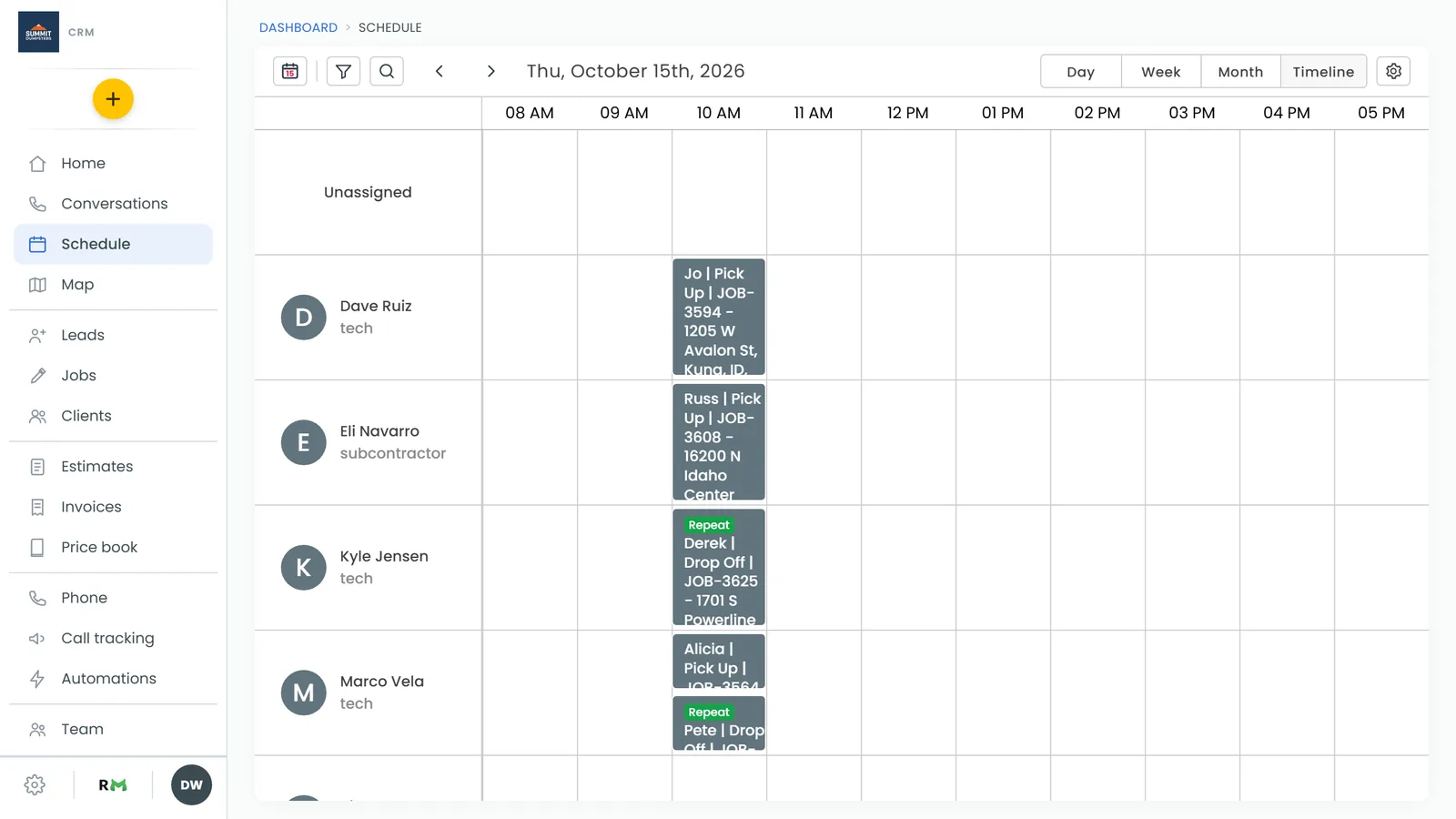
Timeline shows one day laid across the width of the screen, with the start of the day on the left. Each team member gets their own row, with an Unassigned row at the top for jobs that nobody's on yet. That makes it easy to see who has room for a last-minute job.
Timeline only shows the hours you're open that day, stretched to fill the screen. If a job is booked outside those hours, the timeline widens to fit it, so nothing gets cut off. On a day you're closed, it uses the hour range from your schedule settings.
Views on a phone
The schedule looks different on a phone, both in the phone app and in your phone's web browser. There are three views, and you switch with the Timeline, Day and Map buttons near the top.
- Timeline is a running list of your jobs, grouped by day. It keeps going as you scroll forward or back.
- Day shows one day as an hour grid, with a strip of the week above it. Tap a day in the strip to open it, or swipe the strip to see the week before or after.
- Map shows that day's jobs numbered in the order they start, with a map underneath. Each job has a pin with the same number. Tap a job in the list, or tap its pin, to open it.
To jump back to today on a phone, tap the calendar icon at the top right. To pick a date further away, tap the month name at the top left and choose a day.
Related articles
- How to schedule and manage jobs
- Managing your schedule on the phone app
- How to create jobs
- Assigning team members to jobs
- Using the CRM on a tablet