In this article, you'll learn how to change your website's logo, contact details, hours and Google search text from the Business Info tab. These details show on every page of your site, so check them whenever you move, get a new number or change your hours.
To open Business Info:
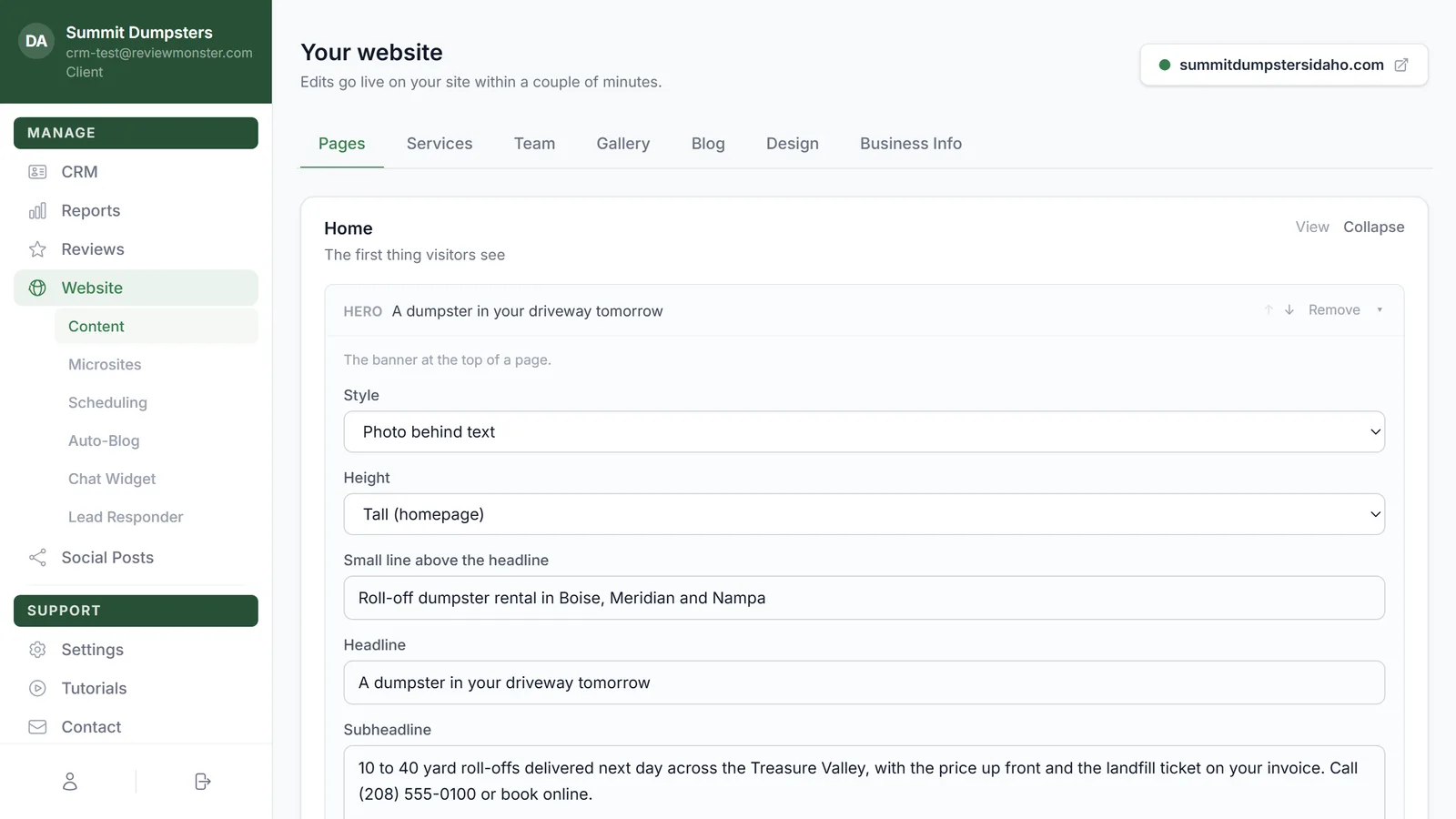
- In the dashboard menu, click Website. It opens Content, the first item under Website.
- Click the Business Info tab. It's the last tab, after Design.
Change your logo
Your logo shows in your site's header and footer.
- In the Logo card, click Add logo if you don't have one yet. If you do, hover over your current logo and click Replace photo.
- Choose the image file. JPG, PNG, WebP and GIF files all work.
- Wait while the button says Uploading…. Your new logo shows in the card when it's done.
The logo saves as soon as it uploads, so you don't need to click Save changes for it.
Update your business details
The Business details card holds what visitors see in your header, footer and contact page.
- Edit any of these fields:
- Business name
- Tagline
- Phone
- Address
- Hours
- Footer text, the short paragraph about your business at the bottom of every page
- Click Save changes. You'll see Saved next to the button when it worked.
Writing your hours
Put each day, or each range of days, on its own line:
- Mon-Fri: 8:00 AM - 6:00 PM
- Sat: 9:00 AM - 2:00 PM
- Sun: Closed
Change what Google shows
The Search settings card sets the title and short description Google can show when your site comes up in search results.
- Type your Google title. Keep it short and say what you do and where, like your main service and city.
- Type your Google description, a sentence or two about your business.
- Click Save changes.
When your changes go live
The Save changes button only appears once you've changed something. If you see Couldn't save — try again, click the button again.
Saved changes show on your live site within a couple of minutes. To check, click your site's address at the top right of the page. It opens your site in a new tab.
Related articles
- Website overview
- Changing your website's colors, fonts and layout
- Editing the pages on your website
- Checking your business details
- Resizing your company logo on documents