In this article, you'll learn how to read the three tables on your Website report: the searches your site shows up for, the pages that bring people in, and the nearby businesses competing for the same searches. They tell you what's working on your site and who you're up against.
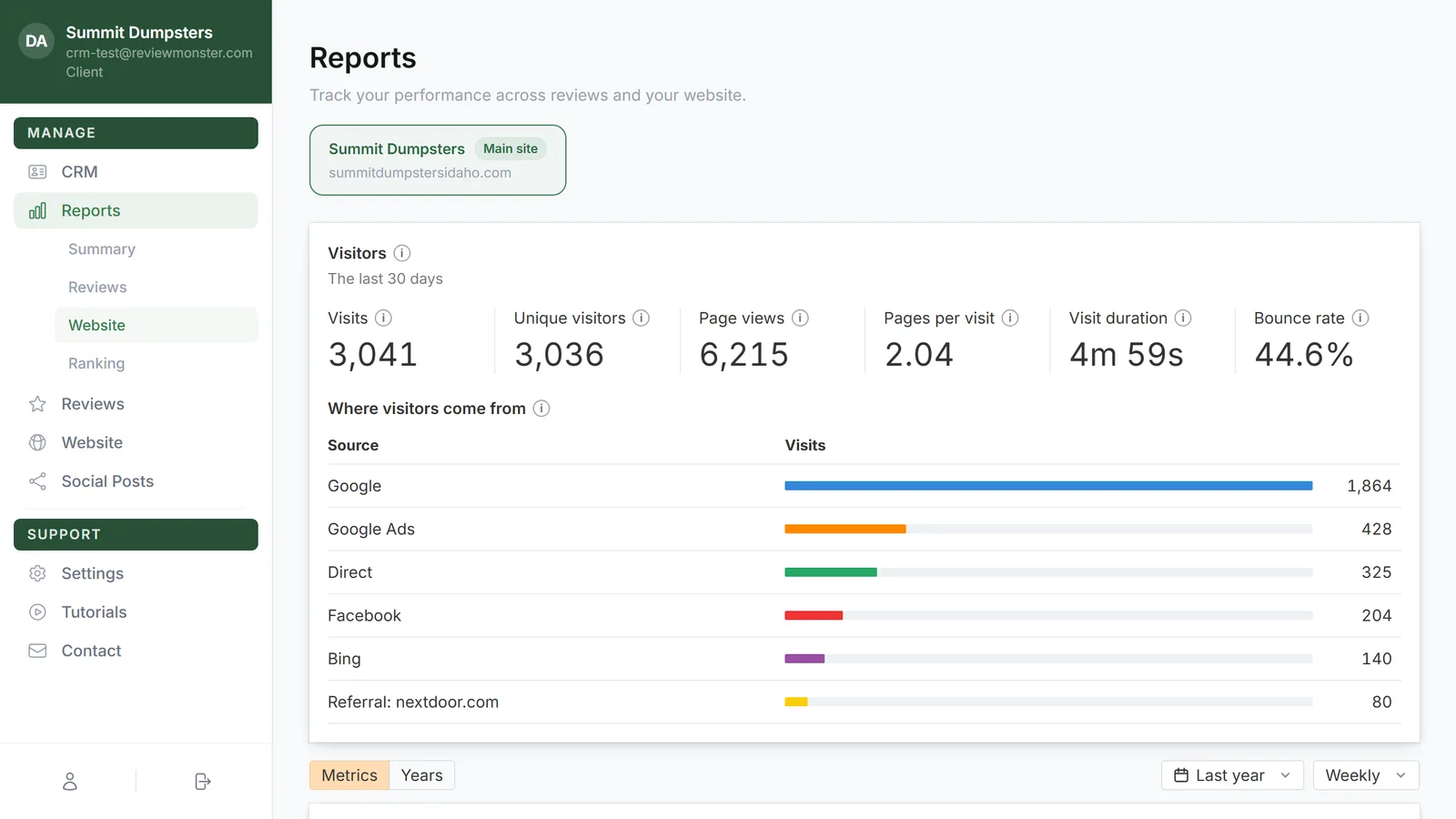
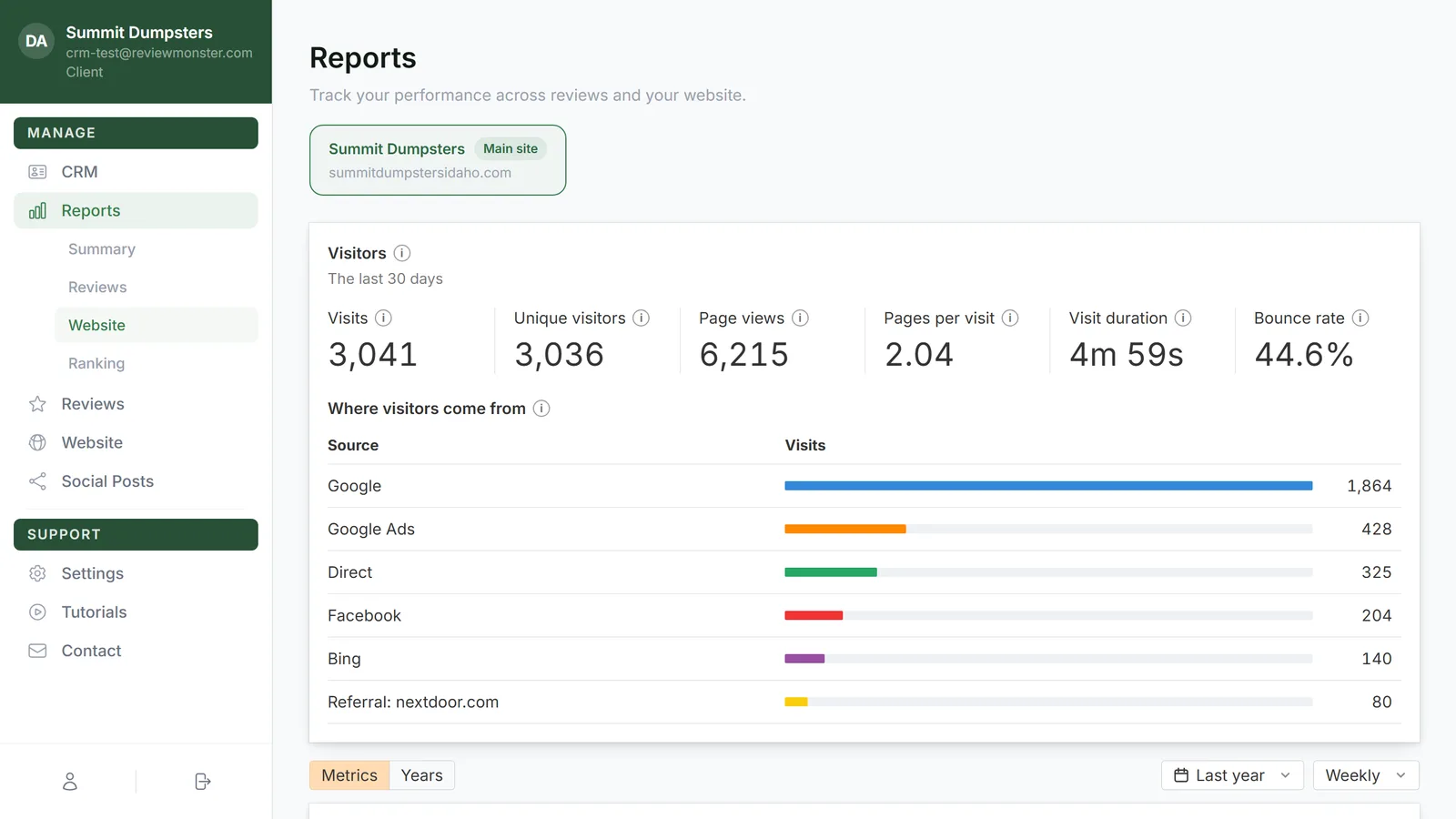
To open the Website report:
- In the menu, click Reports.
- Click Website.
- If you have microsites, click the site you want in the row of tabs at the top. Your main site comes first.
Top organic keywords
This table lists the Google searches your site shows up for, busiest first. Each row has four columns:
- Keyword: the search itself. Click it to open that search on Google in a new tab, so you can see the results for yourself.
- Volume: roughly how often people search for it.
- Traffic: the estimated visits that search sends to your site.
- Position: where your site ranks in Google's results for it. Lower is better, and 1 is the top spot. A dash means there's no position for it yet.
The table shows five searches at first. Here's how to see the rest:
- Click View all under the table.
- Click Show less to go back to the top five.
If your site doesn't rank for anything yet, you'll see "No ranking keywords yet."
Top organic pages
This table, right below the keywords, shows which pages on your site bring in the most visits from Google:
- URL: the page. Click it to open the page in a new tab.
- Traffic: the estimated visits that page gets from Google.
- Keywords: how many searches that page shows up for.
It works the same way as the keyword table: you see the top five, then click View all to see every page, or Show less to shrink it again.
Top organic competitors
This section sits higher up on the page, under Organic positions. It only lists businesses near you that show up for the same searches you do, so you're comparing yourself with real local competition, not big national sites.
Reading the bubble chart
Each circle on the chart is a website:
- Going across is Organic keywords: how many searches the site shows up for.
- Going up is Organic traffic: how many visits it gets from Google.
- Circle size is Organic pages: the bigger the circle, the more of that site's pages rank.
Your own site is the blue circle. A circle further up and to the right is doing better in search. Move your mouse over any circle to see that site's organic traffic, organic keywords and organic pages. The other circles fade a little so the one you're on stands out.
Choosing who's on the chart
Under the chart you'll see your own domain with "— target" next to it. That's your site, and it's always on the chart.
Below that is the list of competitors. Your top five are on the chart to start with.
- Click the checkbox next to a competitor to take them off the chart.
- Click it again to put them back. A checked box takes on the same color as that competitor's circle.
Unchecking someone only removes them from the chart. They stay in the list.
What the columns mean
- Domain: the competitor's website, with the business's name beside it when we have it. Click the domain to open their site in a new tab.
- Keyword overlap: a bar comparing how many searches each competitor shares with you. The longest bar is the competitor who overlaps with you most.
- Common keywords: how many searches you both show up for.
- Share: the share of your searches that this competitor also shows up for.
- Competitor's keywords: how many searches they show up for in total.
Seeing more competitors
The list shows five competitors at first.
- Click Show top 20 under the list. If fewer than 20 local competitors were found, the button reads Show all with the number instead.
- Click Show top 5 to shrink it again.
Once the list is longer, you can tick any of those extra competitors to add them to the chart too.
If no nearby business shares searches with you yet, the list reads "No local competitors share keywords with this site yet."
Related articles
- Reading the Website report
- Reports in your dashboard: an overview
- Picking the five searches you want to win
- Understanding your microsites
- Listing the services and cities your site gets pages for