In this article, you'll learn how to switch your domain over to your new website from the Setup page. Your new site can't show up at your own address until the domain points at it, and this is the step that makes that happen. We do it with you, so you don't need to know anything about DNS.
This is only on the web dashboard, and you'll only see it if your plan includes a website and we have your domain on file.
To find the switch-over card:
- In the menu, click Setup.
- Scroll to the Website section.
- Below the Website tiles, look for the card that says Switching yourdomain.com over to the new site.
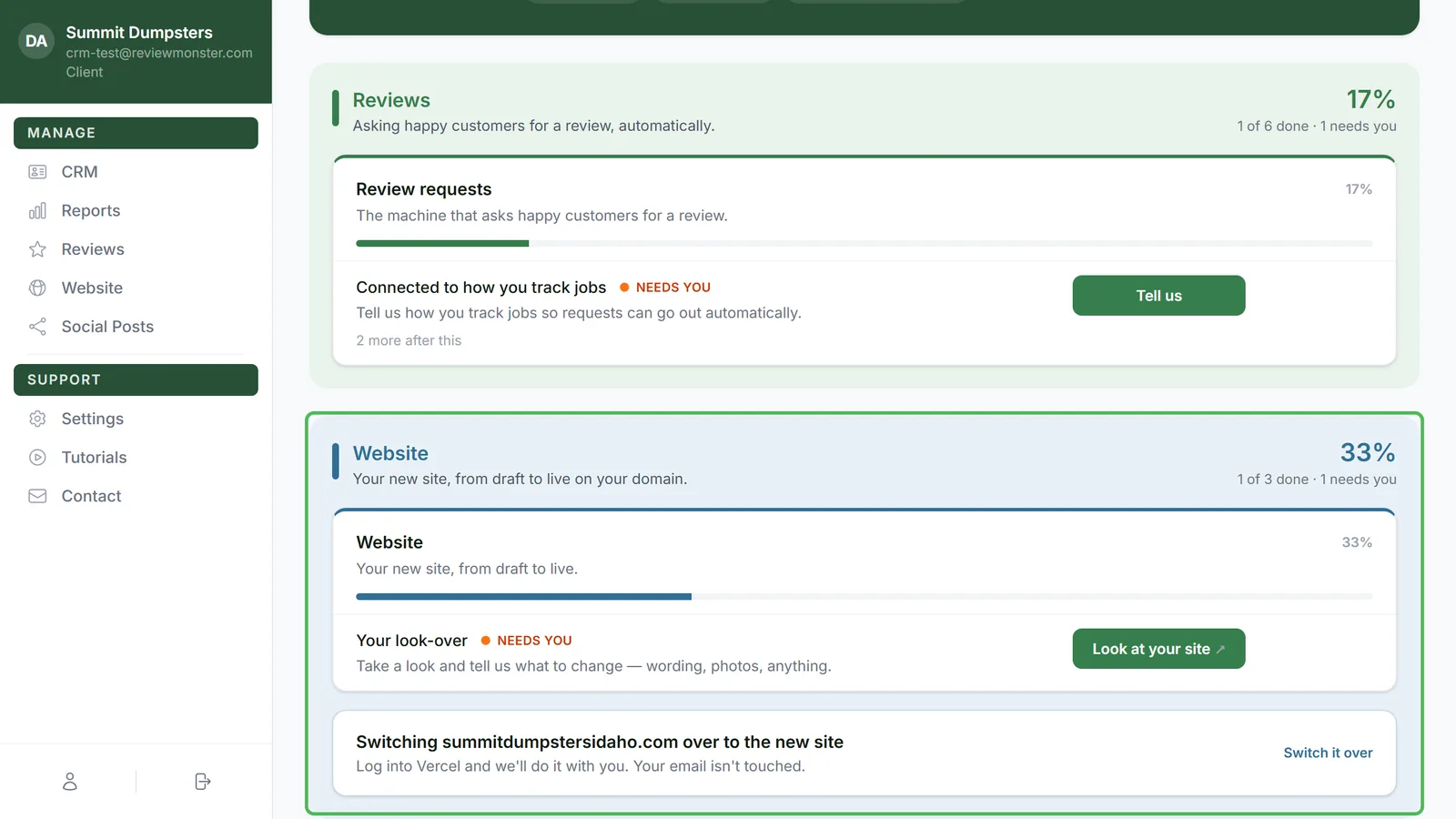
Under the title, the card says Log into followed by the company that runs your domain's DNS (GoDaddy, Namecheap and so on), then and we'll do it with you. Your email isn't touched. We work out who that company is from your domain's nameservers, so have that login handy before you start.
What actually changes
Two records change: the one for your bare domain (yourdomain.com) and the one for the www version (www.yourdomain.com). Both get pointed at your new site. We don't move your nameservers, so your email and every other record on your domain stay exactly as they are.
Switching over on a computer
- Click Switch it over on the card. The card opens and starts a guided session right there on the page. You'll see Starting… for a moment.
- Your DNS company's sign-in page loads inside the card. Log in the way you normally would.
- From there, we work through the two records with you watching.
- If the session doesn't start on its own, click Switch it over for me.
While the session is making changes by itself, a red Stop button shows at the bottom of your screen. Click it any time you want it to stop.
Switching over from your phone
On a phone, the session doesn't open inside the page. Instead:
- Tap Switch it over on the card to open it.
- Tap Text me a link.
- You'll see Sent — open the text on your phone. Open the text and tap the link.
- Log into your DNS company in that session and we'll take it from there. When it's finished, it brings you back to your dashboard.
When it's done
Once both records are in, the card shows Done — yourdomain.com now points to your new site. A few seconds later the card closes, and from then on it doesn't show on your Setup page at all, because there's nothing left to do there. It stays that way while the change spreads across the internet, so you won't be asked to do it twice.
If we can't do it automatically
For most DNS companies we can run the session. If we can't work out who runs your domain's DNS, or it's a company we can't switch over automatically yet, the card tells you so and says we'll do it with you on a quick call instead.
Related articles
- Setup page overview
- What each item on your Setup page means
- Website overview
- Booking your onboarding call
- Reading the Website report