In this article, you'll learn how to use the Requests Sent page to see the review requests that have gone out to your customers. It's the place to check that a customer actually got asked, read the exact words they received, and see when each follow-up went out.
To open Requests Sent:
- In your dashboard menu, click Reviews.
- Click Requests Sent.
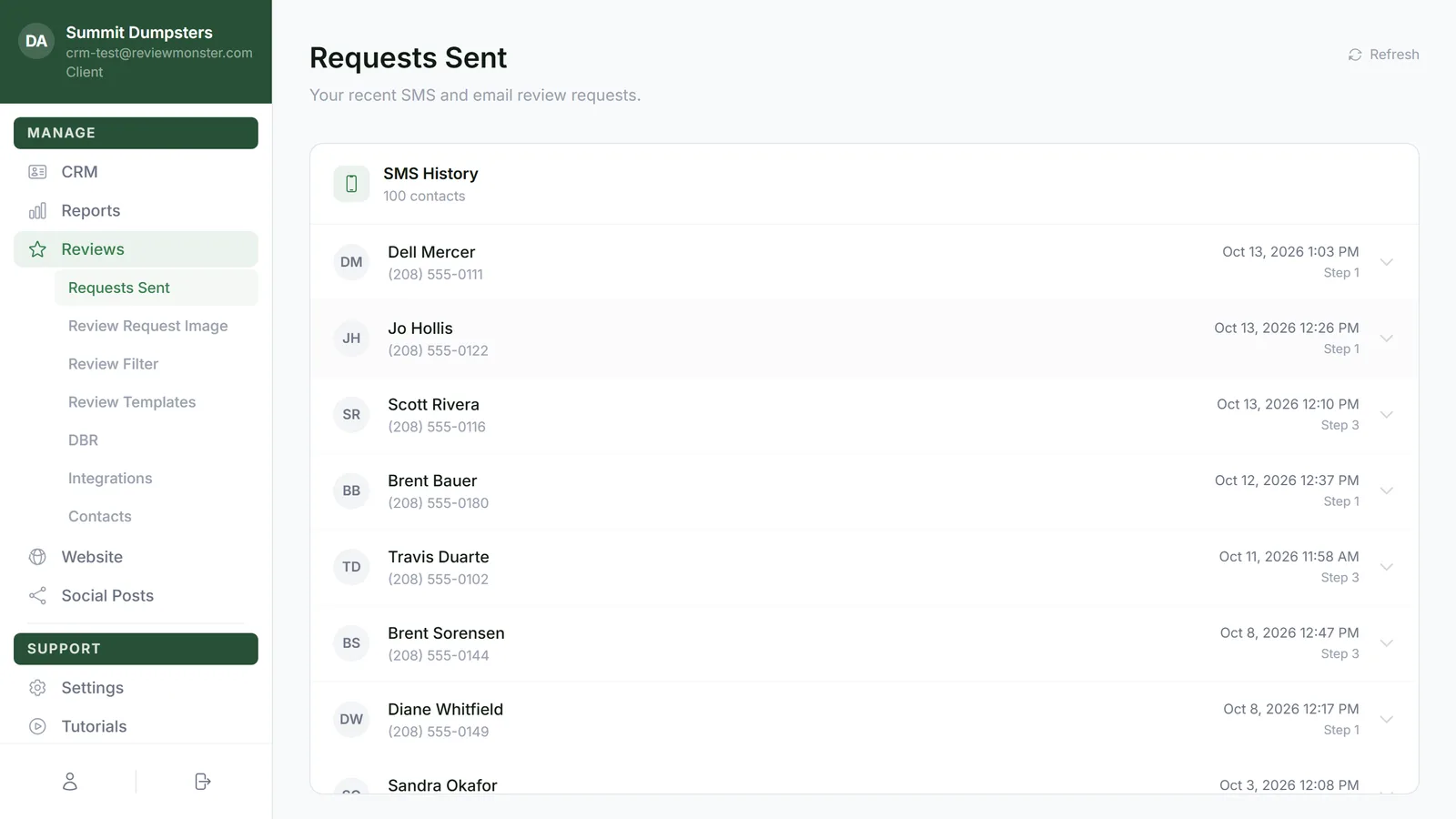
What's on the page
The page has two lists, one on top of the other:
- SMS History shows the customers who were sent a review request by text.
- Email History shows the customers who were sent one by email.
A customer who got both a text and an email shows up in both lists. Under each list's title you'll see how many contacts are in it. Both lists put the most recent sends at the top, and the page shows up to your 100 most recently contacted customers.
Each row shows:
- The customer's initials and name
- Their phone number (in SMS History) or email address (in Email History)
- The date and time of the latest message in that list
- The Step that latest message was
Reading the messages a customer got
- Click the customer's row. It opens to show every message they were sent in that list, newest first.
- Each message shows its Step number and the date and time it went out.
- Read the message underneath. Texts show the review request image above the words, the way it looked on the customer's phone. Emails show the subject line first, then the email itself.
- Click the row again to close it.
Getting the latest sends
The page loads once when you open it. To check for anything that went out since, click Refresh at the top right.
When a list is empty
If nothing has gone out by text yet, SMS History says No messages yet and No SMS requests sent yet. Email History does the same for email. That usually means no customers have reached their first send yet, not that something's broken.
If the page can't load, you'll see a red message such as Network error. Please try again. Click Refresh to try again.
Related articles
- How review requests work
- Reviews menu overview
- Editing your review request texts and emails
- Customizing your review request image
- Tracking your review requests