In this article, you'll learn how to find the agreements you've signed with us and open a PDF copy of each one. It's useful when your bookkeeper, a partner or your own records need a copy of what you agreed to.
To open your agreements:
- At the bottom of the dashboard menu, click the Account icon (the person outline, left of the sign-out icon).
- In the Account menu, click Agreements.
On a phone or narrow screen, tap the menu button at the top left first. The Account icon sits at the bottom of the menu that slides out, and the Account menu shows as a row across the top of the page that you can swipe sideways.
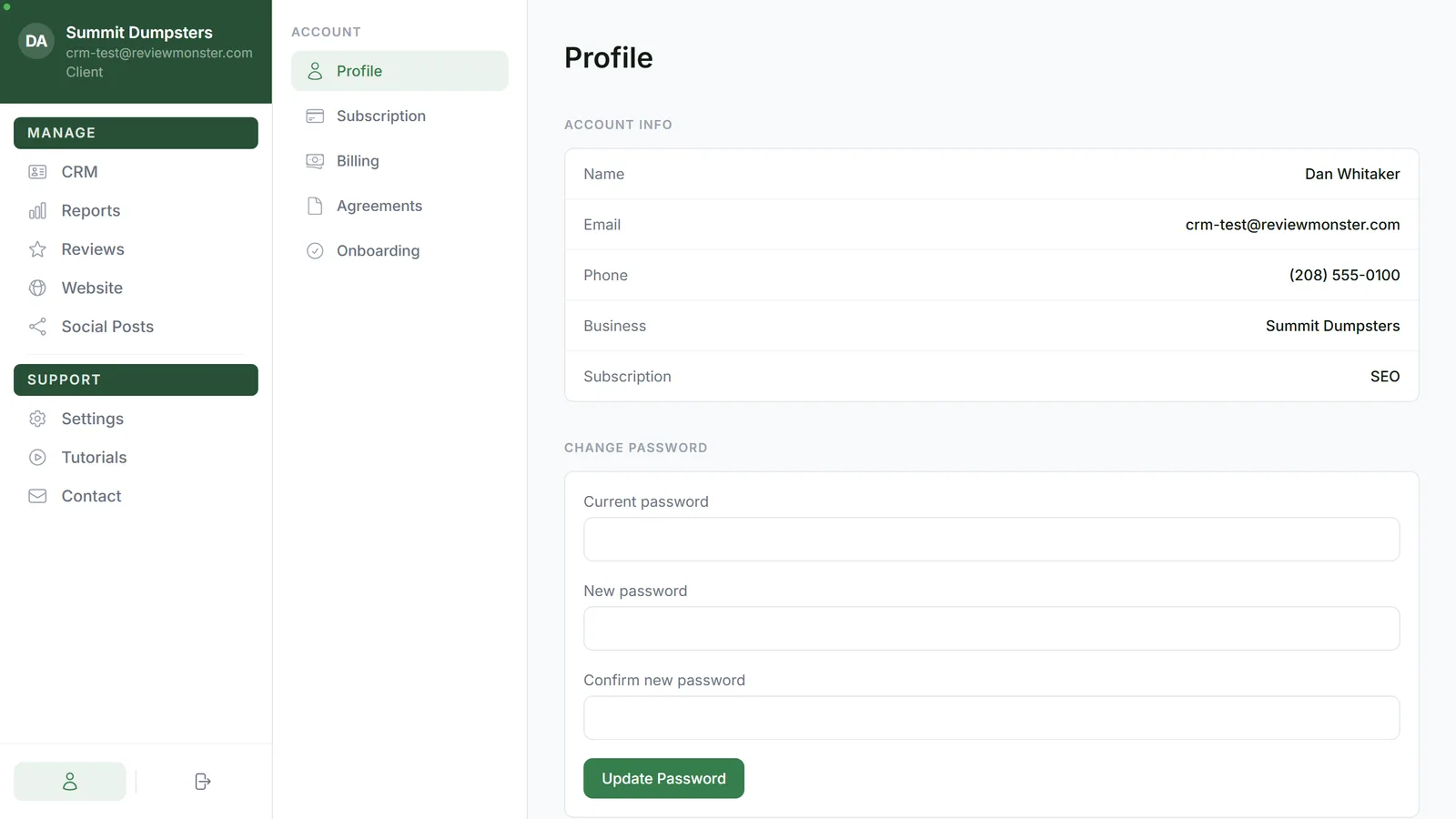
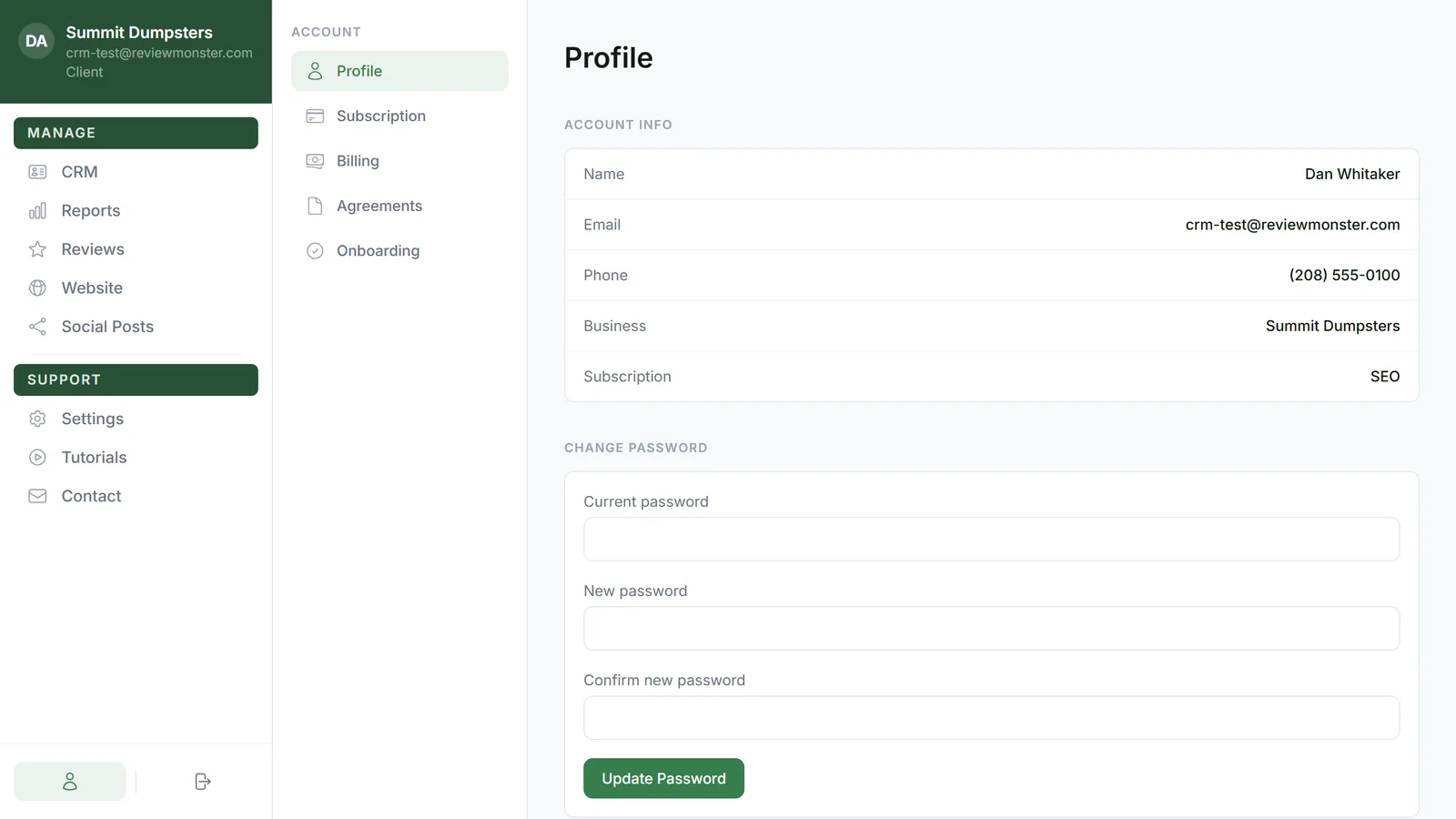
The Agreements page is part of the web dashboard. It isn't in the phone app.
What's on the Agreements page
Under Signed Agreements there's one row per agreement. Which ones you see depends on your plan:
- Review Automation Agreement if your plan includes review requests
- Website Development Agreement if your plan includes a website
- SEO Services Agreement if you're on the SEO plan, which also shows the other two
If you signed an agreement under an earlier plan, it stays on the list after you change plans, so you can always get a copy of what you signed.
Each row shows where that agreement stands:
- Version and Accepted with a date: you've signed it. The version is the one you agreed to, and the date is the day you accepted it.
- Not yet accepted: it applies to your plan, but you haven't signed it yet. There's nothing to download until you do.
Downloading a signed copy
- Open Account and click Agreements.
- Find the agreement you want.
- Click Download PDF on its row.
The signed copy opens in a new browser tab. From there you can save it or print it like any other PDF.
If nothing opens, your browser may have blocked the new tab as a pop-up. Allow pop-ups for the dashboard and click Download PDF again.
When there's no download button
If a signed agreement shows No PDF available instead of a button, we have your acceptance on record but no signed copy was saved for it. Send us a message from Contact in the dashboard menu and we'll sort it out.
Related articles
- Reading and signing your service agreement
- Reopening your onboarding steps from Settings
- How to customize your account settings
- How to reset your own password