In this article, you'll learn how to delete your CRM login from the Account page. If you're a team member, this removes only your own access. If you're the owner, it closes the whole company account. It works the same on the web and in the phone app, and you don't have to email anyone first.
To open your account on a computer:
- At the bottom of the menu, click your initials.
- Click Account.
To open your account on the phone app (or the web on a phone):
- Open the menu.
- At the bottom of the menu, tap the person icon to the left of the Settings gear.
Every login can reach this page, admin or not. That's on purpose. A team member doesn't have access to Settings, but they still need a way to close their own login.
What's on the Account page
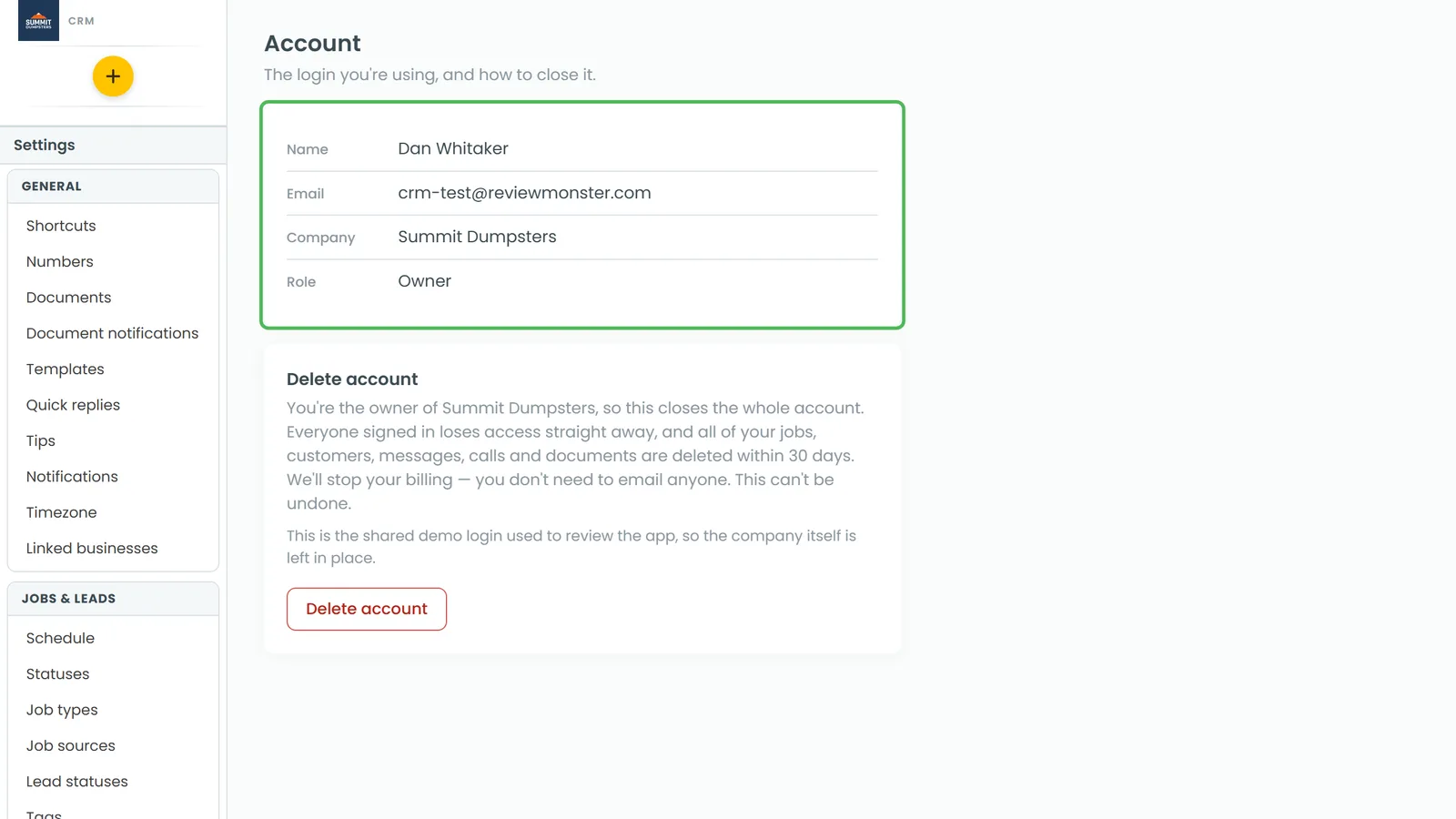
The top card shows the login you're using now:
- Name
- Company: the business this login belongs to
- Role: Owner or Team member
Under that card is the Delete account section. What it does depends on your role, and the page tells you which applies before you click anything.
Deleting your login as a team member
If your role says Team member, deleting your account only removes your own access. Your login is deleted and you're signed out on every device. The jobs, customers and notes you worked on stay with the company.
- On the Account page, click Delete account.
- In the box under Type DELETE to confirm, type DELETE.
- Click Delete my login.
- You'll see "Your login has been removed." Click Done.
If you want the whole company account closed, you can't do it from a team member's login. The owner has to do it from theirs.
Closing the company account as the owner
If your role says Owner, this closes the account for the entire company:
- Everyone signed in to the company loses access right away, including you.
- Your jobs, customers, messages, calls and documents are deleted within 30 days.
- Your billing is stopped. You don't need to email anyone to make that happen.
- On the Account page, click Delete account.
- In the box under Type DELETE to confirm, type DELETE.
- Click Close the account.
- You'll see a message that the account is closed. Click Done.
The red button stays greyed out until the box says DELETE. If you change your mind before that, click Cancel.
This isn't the same as cancelling in your dashboard
Your Review Monster dashboard has its own Cancel subscription button on its Account page. That one sends a cancellation request, and someone from our team follows up with you. Nothing shuts off right away.
Closing the account in the CRM is different. It doesn't wait for anyone: access ends the moment you click Close the account. If you only want to talk about changing or ending your plan, start in the dashboard. For more on that, see Changing or cancelling your plan.