In this article, you'll learn how to book a support call with us on Zoom. Some things are easier to show than to type, and a call lets us look at your screen with you. You can book one whenever you need it.
To open the support call calendar:
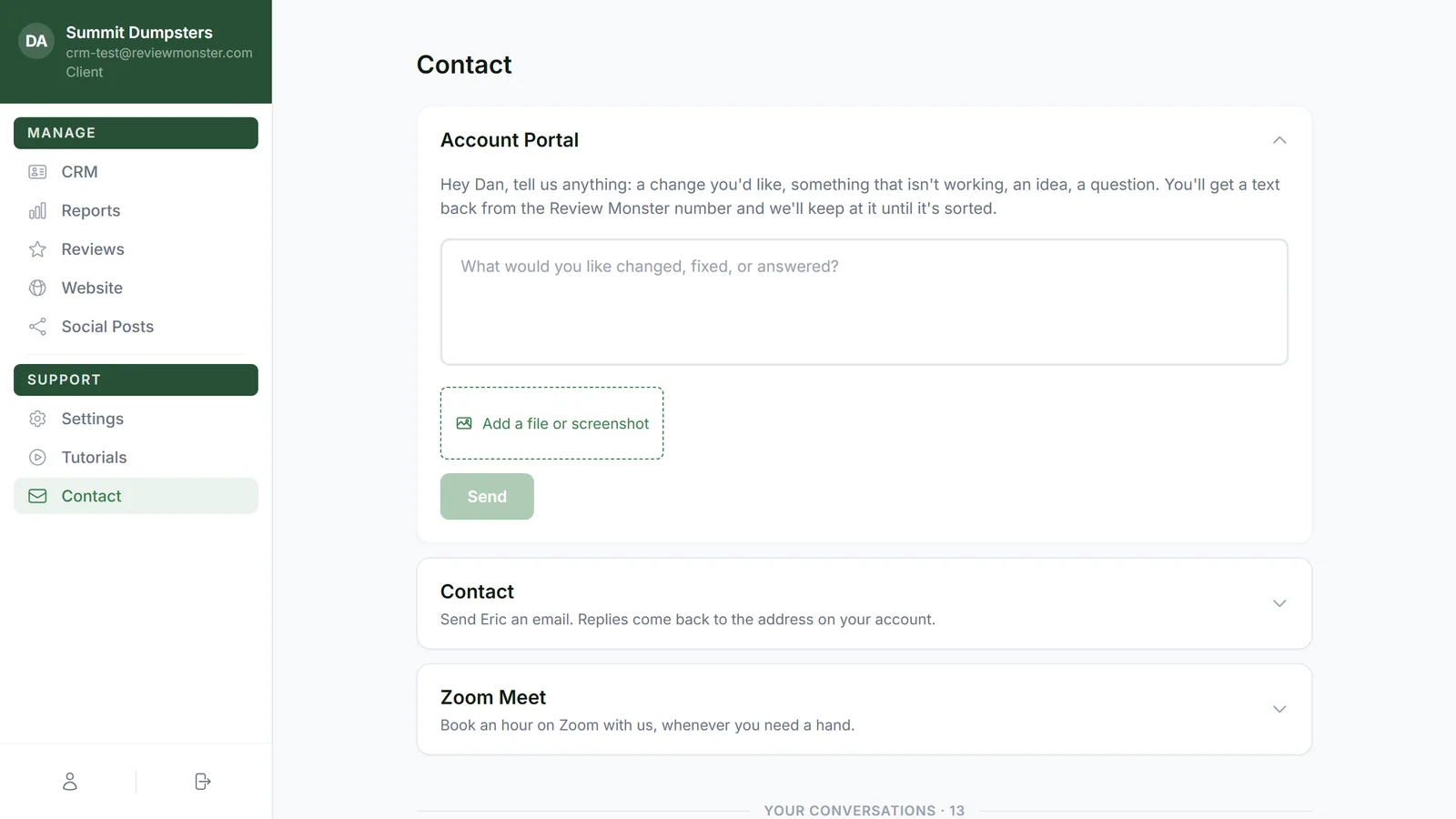
- In your dashboard menu, click Contact.
- Click Zoom Meet to open it. Whichever section was open folds shut as this one opens.
You'll see the heading Support Call and, after a moment, a calendar of our open times.
Pick a day and a time
There's nothing to fill in. We know who you are from your login, so the call is booked under your name and email.
- On the calendar, days with open times are shaded green. The first open day is already picked when the calendar loads.
- Click a different day if you'd like. Use the ‹ and › arrows to move between months.
- The open times for that day are listed beside the calendar. Click the one you want.
- Check the time zone under the calendar. Every time is shown in your own time zone, with your current time next to it, so there's nothing to convert.
- Click Book followed by the time, for example Book 10:00 AM. Until you've picked a time, the button reads Pick a time.
If your time gets taken
Someone else can book the same time while you're deciding. If that happens, you'll see That time was just taken. Pick another. The calendar reloads without that time, so pick another and click Book again.
After you book
You'll see Support call booked with the day and time of your call in your time zone. Under it you'll see one of these:
- The Zoom link, if it's ready. Click it to open it now or save it for later.
- The Zoom link is on its way by email., if it isn't ready yet.
A confirmation goes to your inbox, and we'll remind you the day before and an hour before the call.
Getting ready for the call
- Calls are an hour on Zoom.
- Please join from a desktop computer, not a phone, so you can follow along and share your screen.
- You can book as many support calls as you need. Each one is booked the same way.
Booking from the CRM
The CRM on the web has the same Contact page.
- Click the + (Create new) in the menu.
- Click Contact.
- Click Zoom Meet, then book the same way as above.
Related articles
- How to customize your account settings
- Booking your onboarding call
- Rescheduling your onboarding call
- Sending feedback and feature requests
- Getting help with the CRM