In this article, you'll learn how to send a team member a link to set a new password. It's what you reach for when someone on your crew forgets theirs or gets locked out. You never see or pick the password yourself. The CRM emails them a link and they choose it.
To open someone's profile:
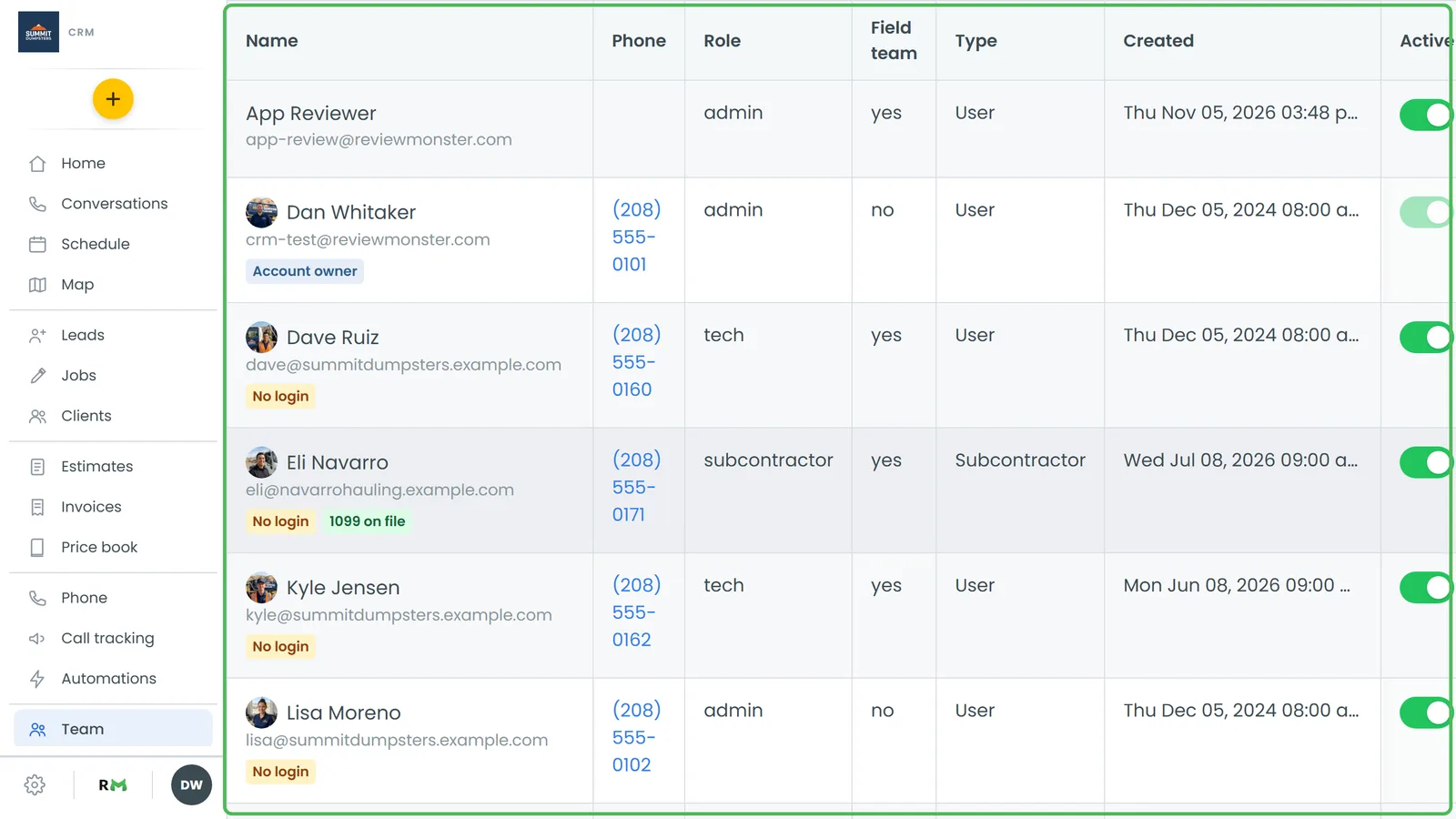
- In the menu, click Team.
- Click the person's row in the list. Their User Profile opens.
Sending a password reset on the web
- On the person's User Profile, click Actions in the top right.
- Click Reset password.
A green message at the top of the page confirms it: Password email sent to followed by their email address.
The email goes to the address on their profile. You can't edit that address there. When they open the link, they land on a Set New Password page, type the new password into New Password and Confirm Password (at least 6 characters) and click Update Password. Their old password stops working once they do.
Sending a password reset on the phone app
- Open the menu and tap Team.
- Tap the person's card to open their profile.
- On the Profile tab, scroll to the bottom and tap Reset password. It sits next to Disable user.
A note under the tabs reads Password email sent to and their address. The web page looks the same way when your browser window is phone-sized.
When Reset password doesn't show up
The option only appears for someone who has a login. You won't see it for:
- People with a yellow No login tag on the Team list. There's no password behind their row to reset.
- Subcontractors. They never get a CRM login, so their Actions menu offers the 1099 form (W-9) instead.
Subcontractors and the crew portal
Subcontractors is a feature you turn on first in Features. Subcontractors sign in to the crew portal rather than the CRM, with their phone number and the password they picked under Pick a password on the W-9 form.
If they forget it, they can fix it themselves:
- On the crew portal's sign-in page, tap Forgot your password?.
- Type the phone number and tap Send me a code. The code expires in 15 minutes.
- Enter the 6-digit code and a new password of 8 or more characters, then tap Set new password.
You can also send them a fresh login yourself:
- In the menu, click Subcontractors.
- Open the People tab.
- Click Resend invite next to their name.
- Click Send to confirm.
This texts them the sign-in link, their username (their phone number) and a brand-new password. Their old password stops working as soon as the text goes out. Resend invite only shows for someone who has already signed their W-9. Before that, the row offers Resend link, which sends the W-9 form again. The phone app has the same two links on its People tab.