In this article, you'll learn how to sign in to the CRM on the web and in the phone app, and how to log out when you're done. Logging out matters most when you share a computer or hand your phone to someone on the crew.
You sign in with your email and password. There's no Google or Facebook sign-in and no texted code.
Logging in
On the web
To sign in on a computer or tablet:
- In your browser, go to /crm/login. You'll see Sign in to your CRM.
- Under Email, type the email address your login was made with.
- Under Password, type your password.
- Click Sign in.
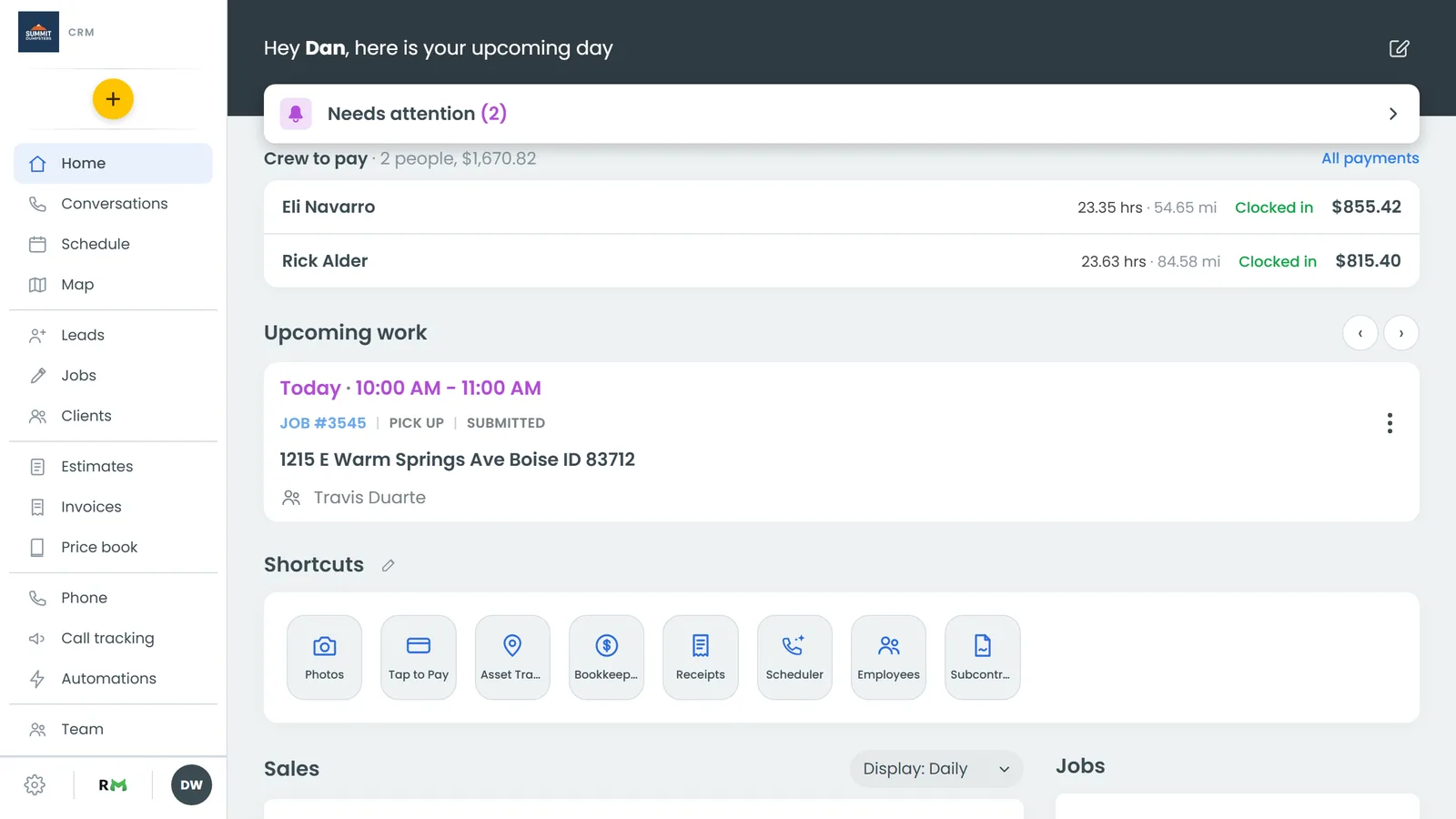
The CRM opens on your Home page. If a CRM link sent you to the sign-in page, you land back on that page instead.
Forgot your password?
- On the sign-in page, click Forgot password?. The card changes to Reset password.
- Type your email and click Send reset link. You'll see Check your email for a password reset link.
- Open the email and follow the link. It opens Set New Password.
- Type your new password under New Password and again under Confirm Password, then click Update Password.
If you opened the reset form by mistake, click Back to sign in.
In the phone app
The app works the same way on iPhone and Android.
To sign in on your phone:
- Open the Review Monster CRM app. You'll see Sign in to your CRM.
- Under Email, or your phone number if you're on a crew, type your email. Subcontractors type the phone number they use on the crew portal instead.
- Type your password.
- Tap Sign in.
Forgot your password? Type your email first, then tap Forgot password?. The app shows Check your email and sends a reset link to that address. If you typed a crew phone number, tapping Forgot password? opens the crew password reset page in your browser instead.
Using Face ID or your fingerprint
The first time you open the app on a phone with Face ID, Touch ID or a fingerprint reader set up, it asks Unlock with Face ID? (or your phone's version). Tap Turn on, or Not now if you'd rather not. You can change it later with the Unlock with Face ID switch near the bottom of the menu. On Android, the switch is named after your phone's fingerprint or face unlock.
With it on, the app only asks again after you've been away from it for a week. You'll see Welcome back. Tap Unlock with Face ID (or your phone's version) to get back in. Your phone's passcode works as a fallback, the same as on its lock screen.
Logging out
On the web, on a computer
- At the bottom of the left-hand menu, click the circle with your initials.
- Click Log out.
On the web, on a phone-size screen
- In the top bar, tap the menu icon (three lines) in the top-left corner.
- At the bottom of the menu, tap the sign-out icon (a door with an arrow) at the right end of the row of icons.
Either way, you're taken back to the CRM's sign-in page.
In the phone app
- On the Home screen, tap the menu icon (three lines) in the top-left corner.
- At the bottom of the menu, tap the sign-out icon (a door with an arrow) at the right end of the row of icons.
The app signs you out right away and goes back to Sign in to your CRM. Signing out also stops notifications for your login on that phone.