In this article, you'll learn how to reset your own password. If you've forgotten it, you can have a reset link emailed to you and pick a new password yourself, without asking the office. If you still know it and just want a new one, there are two places to do that while you're signed in.
To open the sign-in page:
- Go to the CRM sign-in page. If you're already signed in, sign out first.
If you've forgotten your password
Asking for a reset link on the web
- On the sign-in card, click Forgot password? under the Sign in button.
- The card changes to Reset password, with the line "Enter your email and we'll send a reset link".
- In Email, type the address you sign in with.
- Click Send reset link.
- A green message says "Check your email for a password reset link."
Changed your mind? Click Back to sign in to get the normal sign-in form back.
Setting your new password
- Open the reset email and click the link inside it.
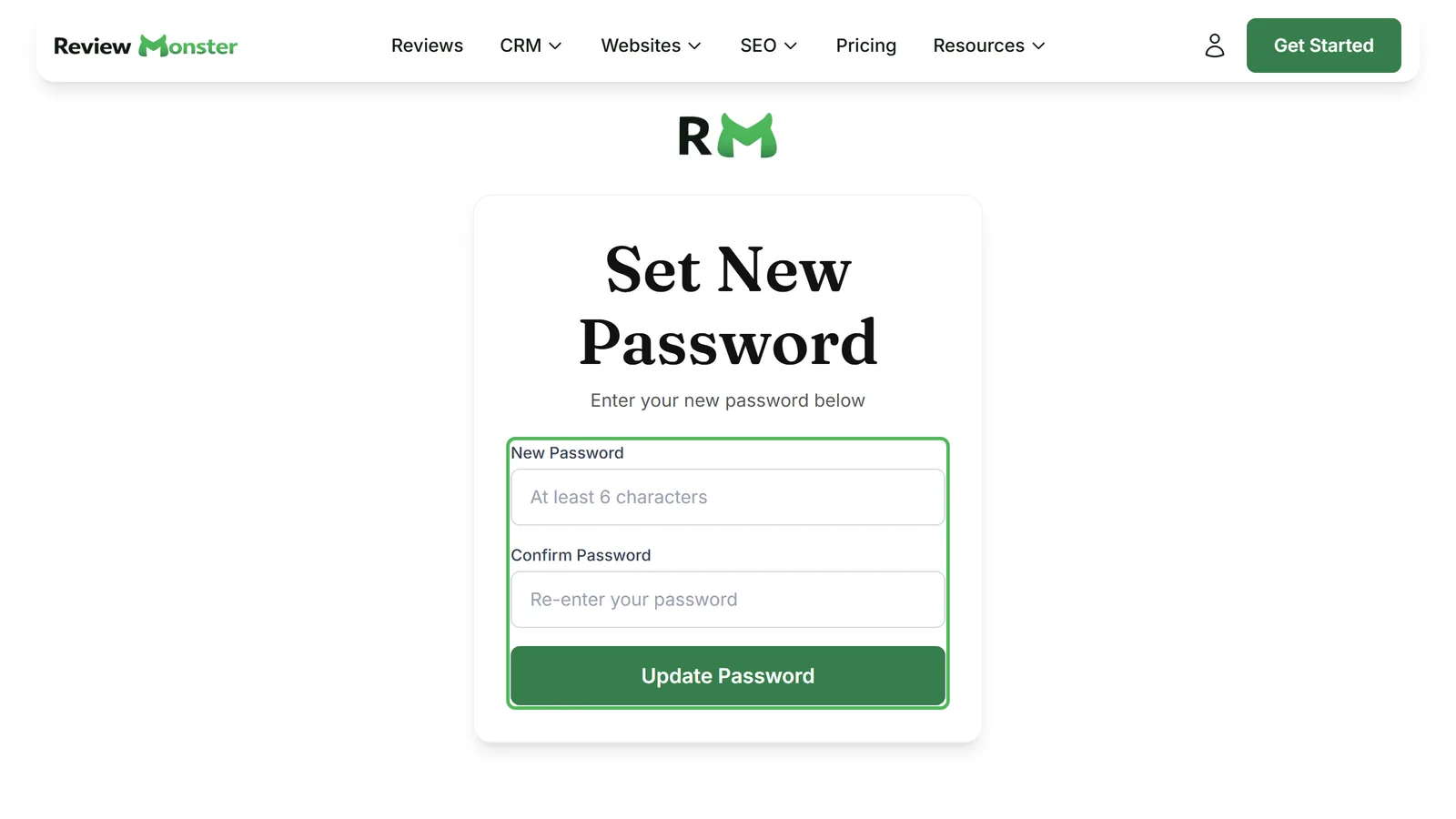
- The Set New Password page opens.
- Type your new password in New Password. It has to be at least 6 characters.
- Type it again in Confirm Password. If the two don't match, you'll see "Passwords don't match." and nothing is saved.
- Click Update Password.
Once it saves, you're signed in with the new password. If you only use the CRM, you're taken straight to the CRM. If you're the business owner, you land on your Review Monster dashboard, and you can open the CRM from there.
Asking for a reset link on the phone app
- On the login screen, type your email address in the first box.
- Tap Forgot password? under the Sign in button.
- An alert titled Check your email tells you a reset link is on its way if that address has a CRM login.
If the first box is empty when you tap Forgot password?, the app asks you to enter your email or phone number first. Fill it in and tap it again.
If you're on a crew
Crew members who sign in with a phone number reset their password with a texted code instead of an email.
- On the app's login screen, type your phone number in the first box.
- Tap Forgot password?. A Reset your password page opens in your browser.
- Enter your phone number and tap Text me a code.
- Type the 6-digit code you get. It expires in 15 minutes.
- Type a new password of 8 or more characters and tap Set new password.
Typed the wrong number? Tap Use a different number and start again.
If you know your password and want a new one
From the Team page
Admins can send themselves a reset link from inside the CRM. It works on the web and in the app.
- In the menu, click Team.
- Click your own row. Your User Profile opens.
- Click Actions, then Reset password. In the app, tap the Reset password link under your profile instead.
- A message says "Password email sent to" your address.
- Open the email and follow the steps under Setting your new password above.
Reset password only shows for a person who has a login, and sending it needs the Admin role.
From your Review Monster dashboard
If you're the business owner, you can change your password directly, without an email.
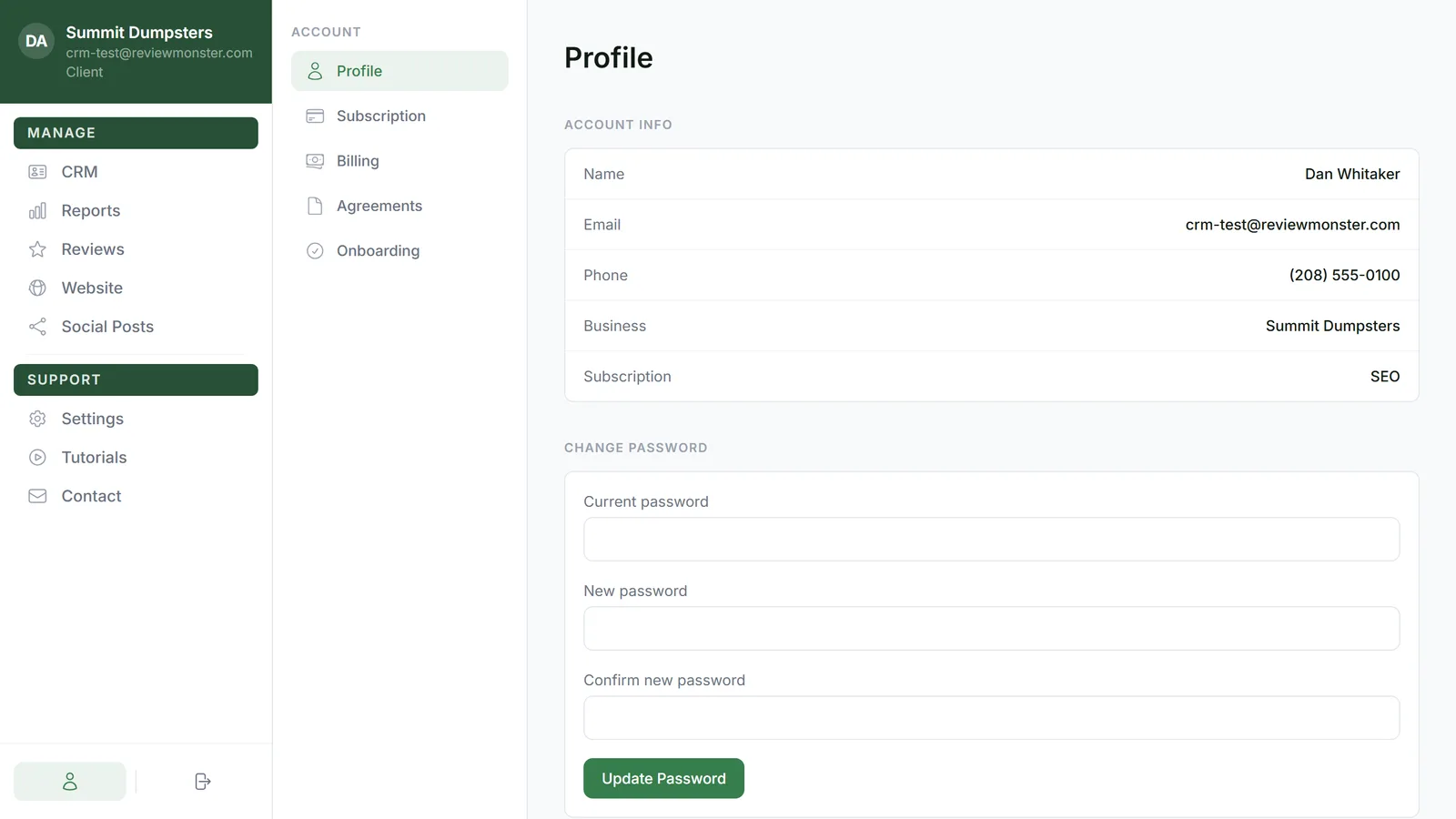
- Sign in to your Review Monster dashboard and click Account in the menu.
- Click Profile if it isn't already open.
- Under Change Password, type your Current password.
- Type the new one in New password and again in Confirm new password. It has to be at least 8 characters.
- Click Update Password. You'll see "Password updated" when it's done.
If the two new passwords don't match, you'll see "New passwords do not match". If your current password is wrong, you'll see "Current password is incorrect". Either way, nothing changes.
Team members who aren't admins don't have either of these. If that's you, sign out and use Forgot password? as described above. Logging in and out shows where to sign out.