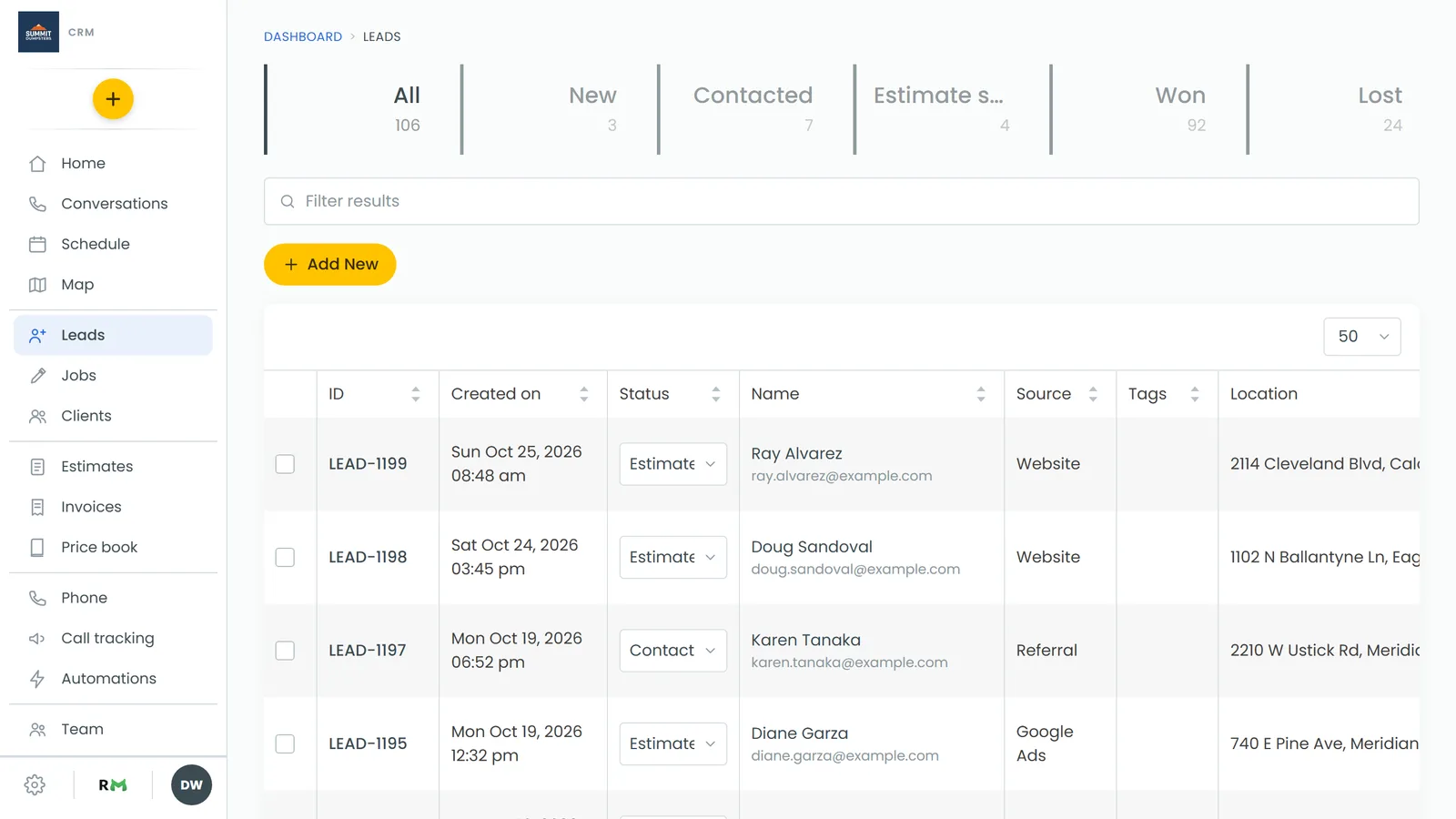
In this article, you'll learn how to mark a lead as lost and record why. Lost leads leave your pipeline, so the numbers at the top of the Leads page only count work you're still chasing. The reasons you pick are saved, so over time you can see why jobs slip away.
To open your leads:
- In the menu, click Leads.
Mark a lead as lost on the web
- On the Leads page, click the lead's row. Its panel opens on the right.
- Click Mark lost.
- Pick the reason that fits best: Price too high, Went with another company, No response, Not a fit for us, Timing didn't work or Other.
- If you want, add a note in Anything else worth noting (optional).
- Click Mark lost to save it, or Cancel to go back without changing anything.
The panel closes and the lead leaves the All tile.
Note: You won't see Mark lost on a lead that's already been converted to a job, or on one that's already Lost.
Mark a lead as lost on the phone app
- Open the menu and tap Leads.
- Tap the lead.
- Tap Mark lost.
- On the Why was it lost? sheet, tap a reason.
- If you want, add a note in Anything else.
- Tap Mark lost.
What happens to a lost lead
- The reason you picked, plus your note if you added one, is saved on the lead.
- On the web, open the lead's panel and you'll see Lost in red with the reason next to it.
- The lead no longer counts in All. It sits under its own status instead. If Lost is one of your lead statuses, click its tile at the top of the Leads page to see all of them.
- You can still find a lost lead on the web by its number. Type it (like LEAD-0089) into Filter results, or search for it from the top bar.
- Lost leads and their reasons show up in the Leads report, which also counts how many leads you've lost.
Bring a lost lead back
Did the customer call back after all? Set the lead's status again.
- On the web: find the lead, then pick a new status from the Status dropdown in its row. You can also open the lead and click a stage under Move to stage.
- On the phone app: pick a new status from the lead's Status dropdown in the list, or tap the lead and choose a stage under Move to stage.
Tip: Pick the closest reason even when it isn't perfect, and use the note for the details. Short, consistent reasons make the pattern easier to spot later.
Related articles
- How to manage new leads
- Converting a lead into a job
- Creating custom lead statuses
- How to create leads
- Understanding the Leads report