In this article, you'll learn where to see what a client owes you and what they've already paid. It's the quickest way to answer "are they square with us?" before you book their next job or call them about a bill.
To open a client's page:
- In the menu, click Clients.
- Click the client's name.
The figures at the top of the client page
On a computer, four figures run across the top of the client page, to the left of the yellow Create new button:
- Past due, in red: the unpaid balance on this client's invoices that are past due.
- Due: the unpaid balance on all of this client's open invoices. Voided invoices aren't counted.
- Total revenue: every payment you've taken from this client. Refunded and failed payments don't count.
- Estimates: how many estimates this client has.
Seeing the invoices behind the balance
Under the figures is a row of tabs, each with a count beside it.
- Click the Invoices tab.
- Read across the columns: Id, Invoice Name, Job, Created, Amount, Paid, Due and Status.
- Click an invoice's Id to open the invoice, or click the job number to open the job.
Use the Search box above the list to find a particular invoice, and the number box beside it to show 10, 25, 50 or 100 rows at a time.
Seeing what they've paid
- Click the Payments tab.
- Each payment shows its Id, Job, Payment Type, Date, Reference and Amount.
The Estimates tab works the same way. Its Status column shows which quotes are still waiting on an answer.
On your phone
On a phone, in the browser or the app, the client page is a list instead of tabs. Just under the phone number and email you'll see one line with Total revenue and Due.
Below that, tap Invoices to see the client's invoices, or Estimates to see their quotes. Each row shows how many there are. The past-due figure and the payments list only show on the computer layout.
Chasing balances across all your clients
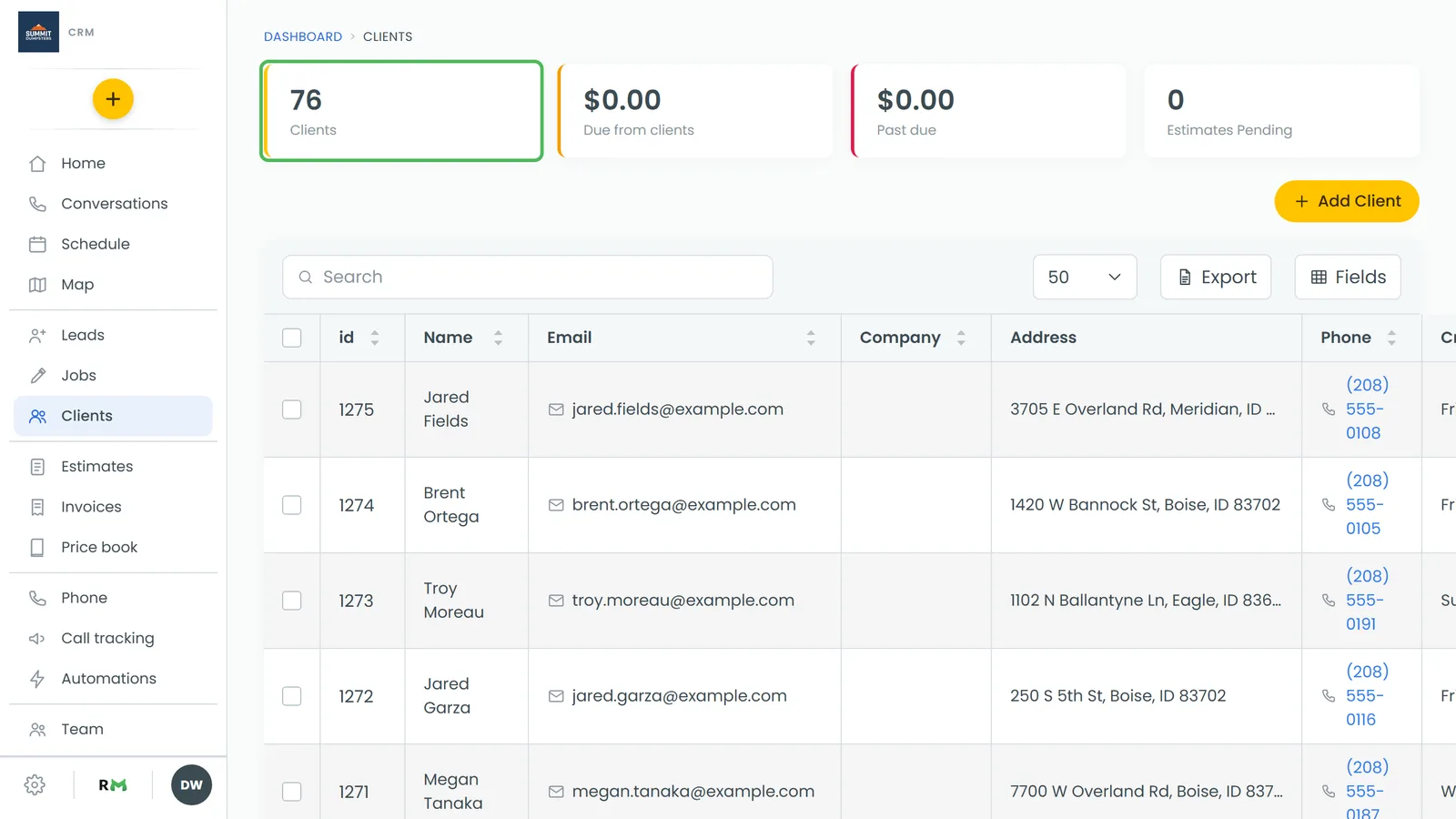
The Clients list doesn't have a balance column, and you can't filter it by what people owe.
To see everyone who owes you money at once, go to Invoices in the menu. Click the Due or Status column heading to sort, and work down the list.
Related articles
- Managing client details and history
- Setting a client's billing terms
- Managing and tracking invoices
- Understanding invoice statuses
- Keeping track of aging invoices