In this article, you'll learn how to handle receipts for things you paid for with a personal card, cash, Venmo or anything other than your business account. Those charges never arrive from your bank feed, so the CRM keeps them on their own list until someone enters them in the books by hand.
To open your receipts:
- In the menu, under Features, click Receipts.
Marking a receipt as paid from another account
The easiest time to do it is when you save the receipt. The steps are the same on the web and in the phone app:
- Take or upload the photo as usual.
- Type anything the bookkeeper will need in the Expense details box, such as whose card it went on.
- Next to Paid from, click Other instead of Business account. A yellow note confirms it won't be matched to a bank charge and will go on the Other accounts list.
- Click Scan and Save Receipt.
You can also change it later:
- On a desktop, click the receipt's row to open it, then pick Other in the Paid from dropdown. It saves right away.
- On a phone, or in the phone app, tap the row, tap Other under PAID FROM, then tap Save.
Receipts left on Business account are matched to your bank feed instead. See Matching receipts to bank charges.
Where they show up
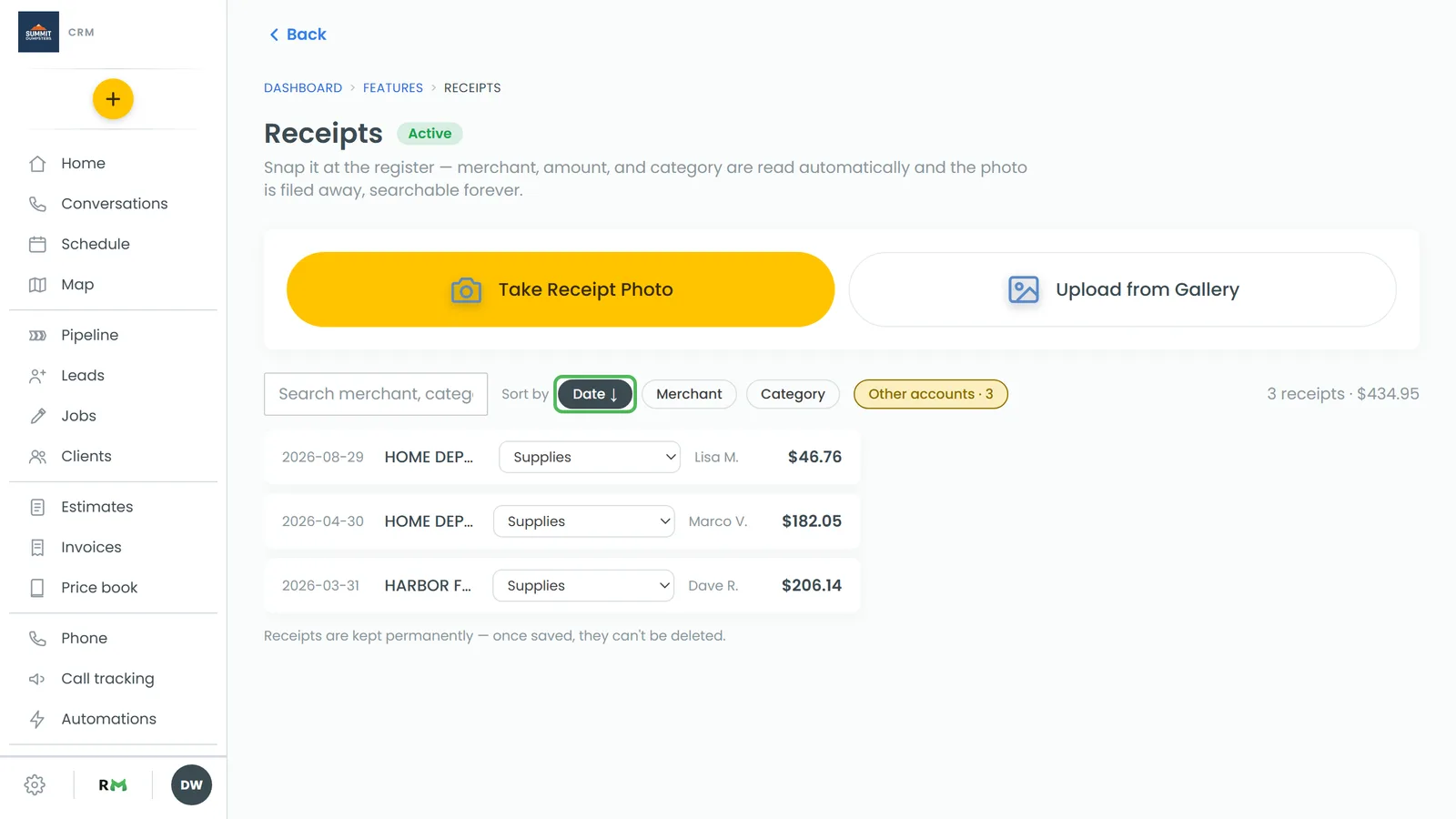
- On Receipts, a yellow Other accounts · N to record button appears beside the sort options once you have at least one. Click it to see only those receipts. When every one has been entered, it reads Other accounts · N instead.
- Each of those rows carries a tag: Other · to record until it's entered, then Other · recorded. Older receipts saved with a payment method show that instead, like Venmo · to record.
- On a desktop, once your bank is connected, Bookkeeping shows a yellow banner at the top counting the receipts that still need a hand entry. Review them in Receipts opens the list with the filter already on.
Ticking them off
Once you've entered the expense in your books, mark the receipt so it drops off the count.
On a desktop:
- On Receipts, click Other accounts · N to record.
- Click a receipt to open it.
- Tick Needs a bookkeeping entry. The label changes to Recorded in bookkeeping and it's saved.
On a phone, or in the phone app, from the receipt:
- Tap the receipt to open it.
- Turn on the switch beside Needs a bookkeeping entry so it reads Recorded in bookkeeping.
- Tap Save.
On a phone, or in the phone app, from Bookkeeping:
- Open Bookkeeping and stay on Transactions.
- Tap Reimbursements. The number beside it is how many still need entering.
- Each row shows the merchant, the date, how it was paid and the amount. Tap Mark recorded. The row then reads Recorded.
Crew payments that need entering too
Payments you've made to subcontractors work the same way. The CRM can't know whether a bank line will show up for them, so each stays outstanding until it's ticked off. Subcontractors is a feature you switch on in Features (the store).
- On a desktop, once your bank is connected, Bookkeeping shows a second yellow banner with the count and total. Review them in Subcontractors takes you there.
- On a desktop, open the Pay tab on Subcontractors. Each payment has a Books column. Click Needs entry once the payment is in your books and it changes to ✓ Entered.
- On a phone, or in the phone app, open the Payments tab instead. A yellow note at the top counts what still needs entering. Tap Needs entry under the payment and it changes to ✓ Entered.