In this article, you'll learn how to read the Bookkeeping page once a month's transactions are approved: what the In, Out and Net figures count, what the footnote and the red transfer warning mean, and a short checklist to run before you call the month done.
Bookkeeping is a feature you switch on in Features first, and it needs your bank connected. See Turning on Bookkeeping and connecting your bank.
To open your books:
- In the menu, click Bookkeeping.
- Stay on the Transactions tab. The yellow badge on the tab is how many transactions still need approval across the whole loaded year.
- Use the arrows beside the year to load a different year, and the arrows beside the month name to scroll to that month.
What In, Out and Net count
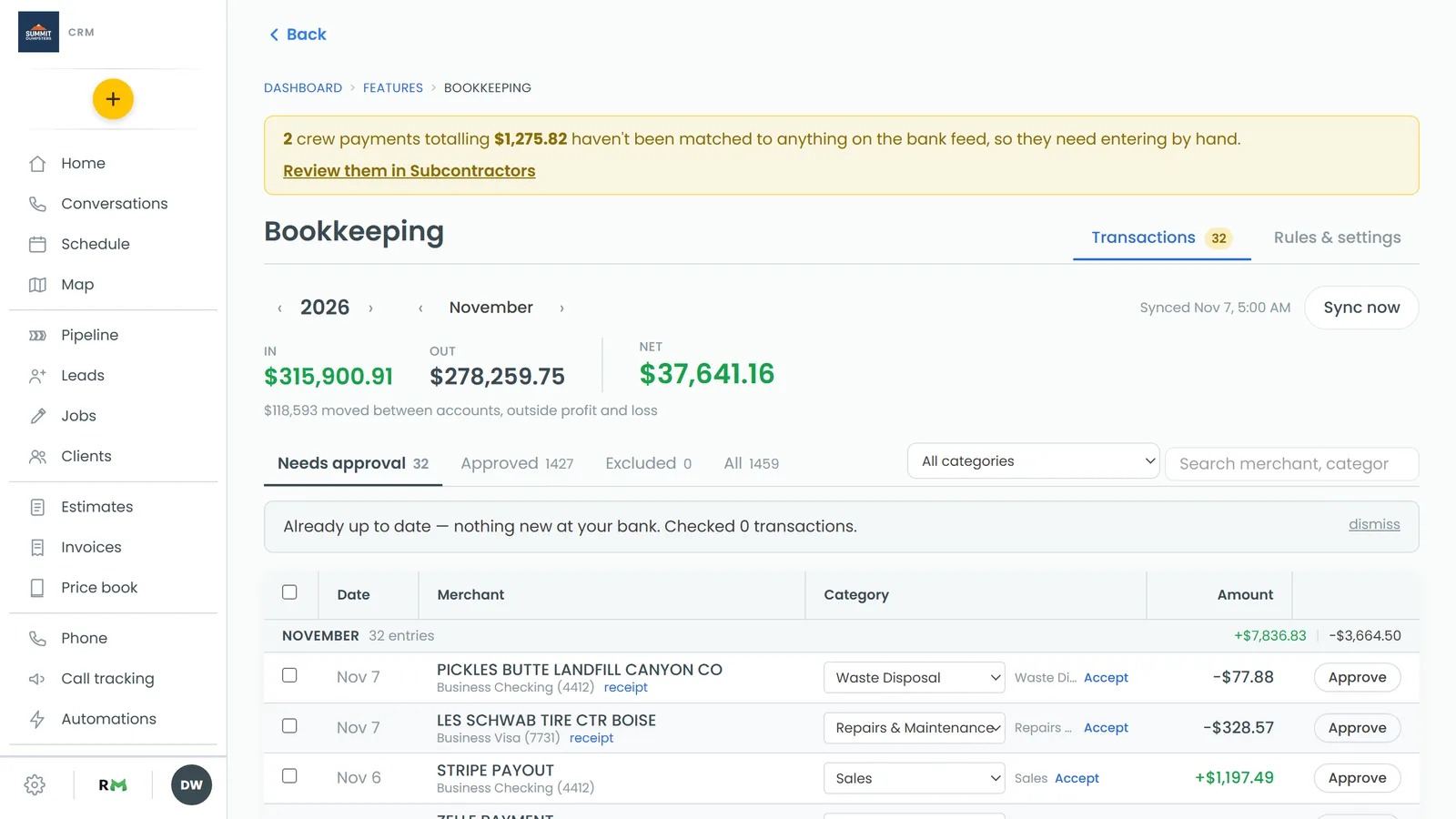
Three figures sit at the top of the tab on a desktop screen:
- In adds up every line filed to an income category.
- Out adds up every line filed to an expense category.
- Net is In minus Out. It's green when positive and dark when negative.
They cover the whole loaded year, not just the month you're looking at, and they count every row that isn't excluded, approved or not. So they move as you categorize. A few rules decide what gets in:
- A line with no category counts by direction. Money out is an expense and money in is income until you file it.
- A refund filed to an expense category reduces that expense. A supplier refund that lands as a deposit in Fuel takes Fuel down instead of adding to In.
- Excluded rows don't count anywhere. They stay visible on the Excluded view, greyed out, but are left out of every total. Click Include on one to bring it back.
- A split transaction counts line by line, each part against its own category.
The footnote under the figures
Under the figures you may see a grey line: "$x moved between accounts, outside profit and loss". That's the total of every line filed to a category that isn't income or expense: transfers between your own accounts, owner money you put in or take out, and loan payments. They're real movements and belong in the ledger, but they never reach In, Out or Net.
The red transfer warning
Transfers move money between accounts you already have in the books, so both sides should be there and they should net to zero. When they don't, the footnote is replaced by a red line: "Transfers are over by $x" or "Transfers are short by $x", followed by a reminder that money from an account that isn't in the books is an owner contribution, not a transfer.
Two things cause it:
- One side is missing. The money left one account but the matching deposit hasn't been filed as a transfer yet, or it came from an account you haven't connected.
- It isn't a transfer. Money you put in from a personal account is an owner contribution. File it to an owner money category and the warning clears.
Month headers
Each month in the ledger starts with a header row: the month name, how many entries it has, and its own figures at the right. Income shows in green with a plus sign and spending with a minus sign. Those are the month's In and Out on the same rules as the figures at the top, so you can read one month without changing the year.
A quick by-category view
To the right of the view tabs is a dropdown that reads All categories. Open it and every category with activity this year is listed with its total, biggest first. Pick one to show only that category's transactions in the current view. Set it back to All categories to see everything again.
Month-end checklist
Before you call a month done, check these four things:
- Needs approval reads zero. The count next to the view tab covers the whole loaded year. Approve what's filed right and categorize the rest. See Categorizing and approving transactions.
- Receipts paid from other accounts are recorded. A yellow banner at the top of the page says how many receipts were paid from a personal card, cash or Venmo and still need a manual entry. Click Review them in Receipts. The list opens filtered to Other accounts, and each receipt has a Needs a bookkeeping entry box to tick once you've entered it.
- Crew payments are recorded. A second yellow banner counts crew payments that haven't been matched to the bank feed. Click Review them in Subcontractors, open the Pay tab, and in the Books column click Needs entry on each one you've entered. It changes to Entered.
- Transfers balance. No red line under the figures.
When all four are clear, the In, Out and Net figures are your numbers for the year so far.
On a phone
The phone app, and the web page when you open it on a phone, show the same Bookkeeping page with the year and month steppers, the views, the category filter, the search box and the ledger. They don't show the In, Out and Net figures, the footnote, the transfer warning or the two yellow banners, and their month headers show the entry count without the month's totals. Read those on a desktop screen.
On a phone the view tabs gain a Reimbursements view instead. It lists the receipts paid from other accounts, and Mark recorded on each one does the same job as the checkbox on the Receipts page. For crew payments, the web's Subcontractors page on a phone has them under the Payments tab with the same Needs entry button.