In this article, you'll learn how to take items out of use and how to turn off or delete item categories in your price book. Clearing out what you don't sell anymore keeps the list short, so your team picks the right thing when they add items to a job or estimate.
To open the price book:
- In the menu, click Price book.
Your price book has two tabs: Items & products and Item categories. Items and categories come out in different ways, so each gets its own section below.
Turning off an item
Items aren't deleted from the price book. You turn them off instead. A turned-off item stays in the book, so you can always find it and switch it back on, but it's no longer offered when someone adds items to a job or an estimate.
- On the Items & products tab, click the item you want to remove. The Edit Item window opens.
- Turn off the Enable item switch.
- Click Save.
The item drops out of your list, because the list only shows active items unless you change the filter.
You can do the same in the phone app: open the price book, tap the item, turn off Enable item and tap Save.
Finding a turned-off item and turning it back on
- On the Items & products tab, click the Show: box above the list.
- Pick Inactive items to see only the items you've turned off, or All items to see everything.
- Click the item, turn Enable item back on and click Save.
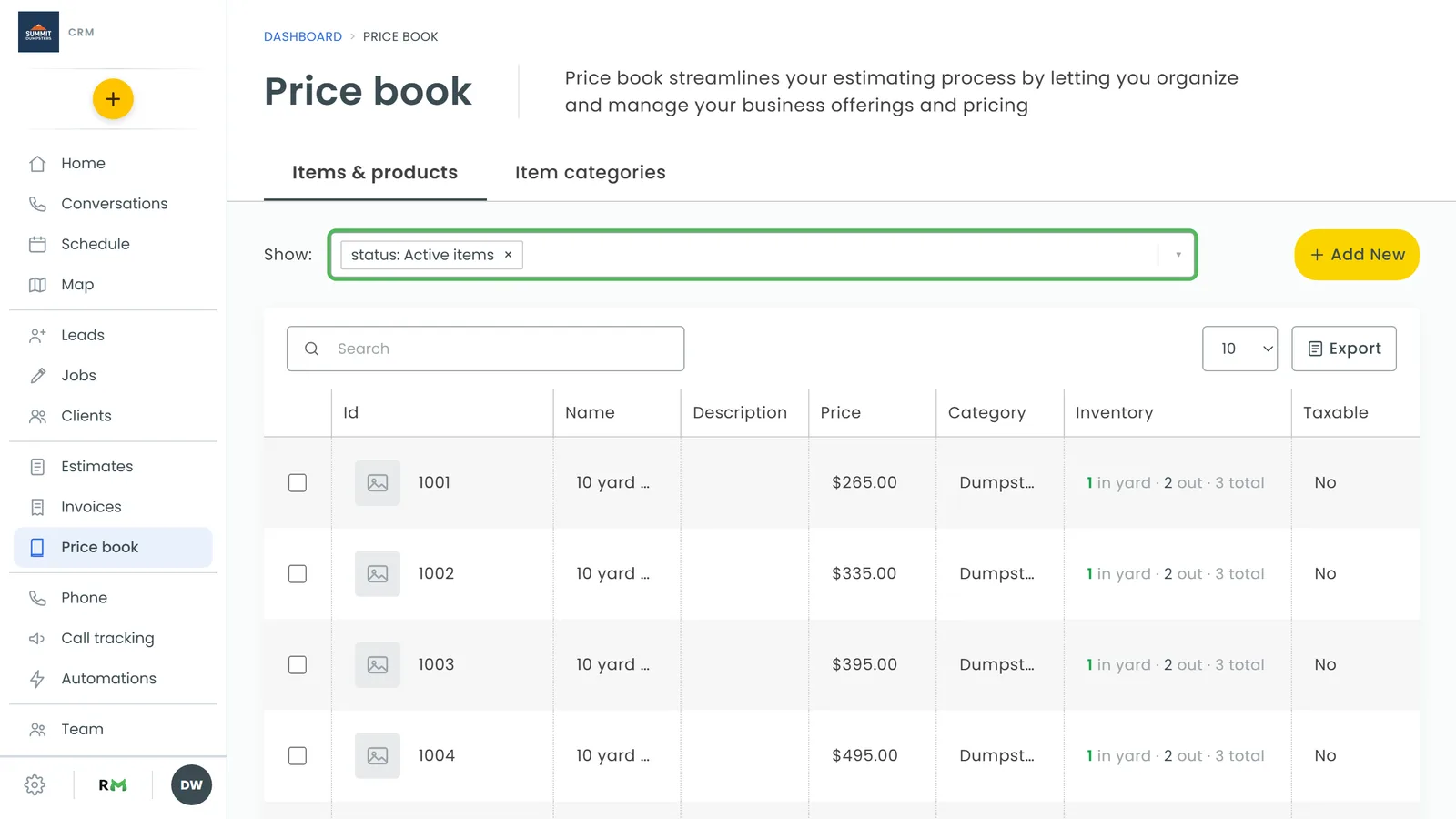
Turning off a category
If you'd rather hide a category than get rid of it:
- Click the Item categories tab.
- Click the category's name (or the pencil icon in the Actions column). The Edit category window opens.
- Turn off Enable category.
- Click Save.
A turned-off category is hidden from the category pickers. Its items keep their own on/off switch, so turning a category off doesn't turn off the items in it, and turning it back on brings it back as it was.
To find a turned-off category again, change the filter above the category list from Active to Inactive or All, then open it and turn Enable category back on.
In the phone app, tap the category on the Item categories tab, turn off Enable category and tap Save.
Deleting a category
Categories can be deleted for good. You'll need the web on a computer for this: the Actions column with the trash icon only shows on the desktop layout, and the phone app doesn't offer it.
- Click the Item categories tab.
- Find the category and click the trash icon in the Actions column.
- Click Yes, delete to confirm.
If the category still has active items in it, the CRM tells you how many before you confirm. If you go ahead, the category is deleted and those items stay in your price book with no category. Any subcategories under it stay too, just without a parent category.