In this article, you'll learn how to read the Items and services report. It gives you a quick count of what you sell most: how many units of each item have gone on your work, and what those lines add up to in dollars.
To open the Items and services report:
- In the menu, click Reports.
- Click the Items and services tile.
Understanding the report
The report is one table with a row for each item name. It has three columns:
- Item: the name on the line.
- Units: the quantity from every line with that name, added up.
- Total: the amounts from every line with that name, added up.
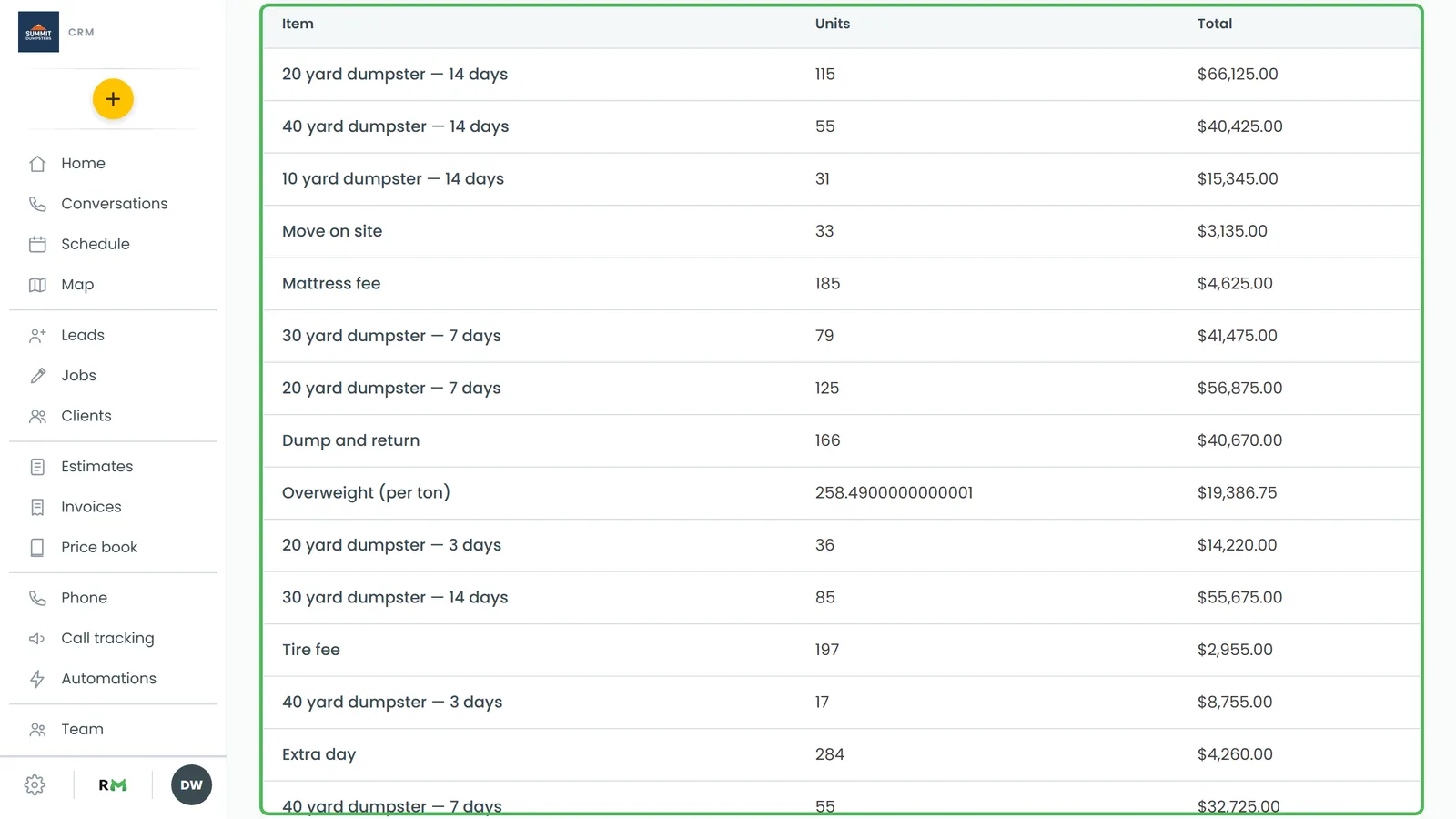
It counts every line item in your CRM: lines on jobs, on estimates and on invoices. There's no date range to pick, so the numbers cover everything you've ever entered. The rows aren't sorted or grouped by category, and you can't filter them.
If nothing has been added to a job, estimate or invoice yet, the table just says No item data.
A few things to keep in mind
Rows go by the name on the line
Lines are grouped by their exact name, not by the price book item behind them. If you rename an item, new lines show up as a separate row, and the old name keeps its own history. Two items with the same name, on the other hand, share one row.
Estimates count too
Lines on estimates are counted whether or not the estimate was ever approved, and optional lines count as well. When you turn an estimate into a job, or copy a job's items onto an estimate, the lines are copied, so the same work can appear twice: once from the estimate and once from the job.
Related articles
- Finding your reports and who can see them
- Tracking payments with the Payments report
- Understanding the Jobs report
- How to create items and services
- Adding items from your price book to jobs and estimates