In this article, you'll learn the answers to the questions people ask most when they set up card payments: what to have ready, what each status on the Stripe card means, and what changes once you're connected. For the connection itself, step by step, see Connecting Stripe to take online payments.
Card payments in the CRM run through your company's own Stripe account. The money goes straight to your bank, and you keep the full Stripe dashboard.
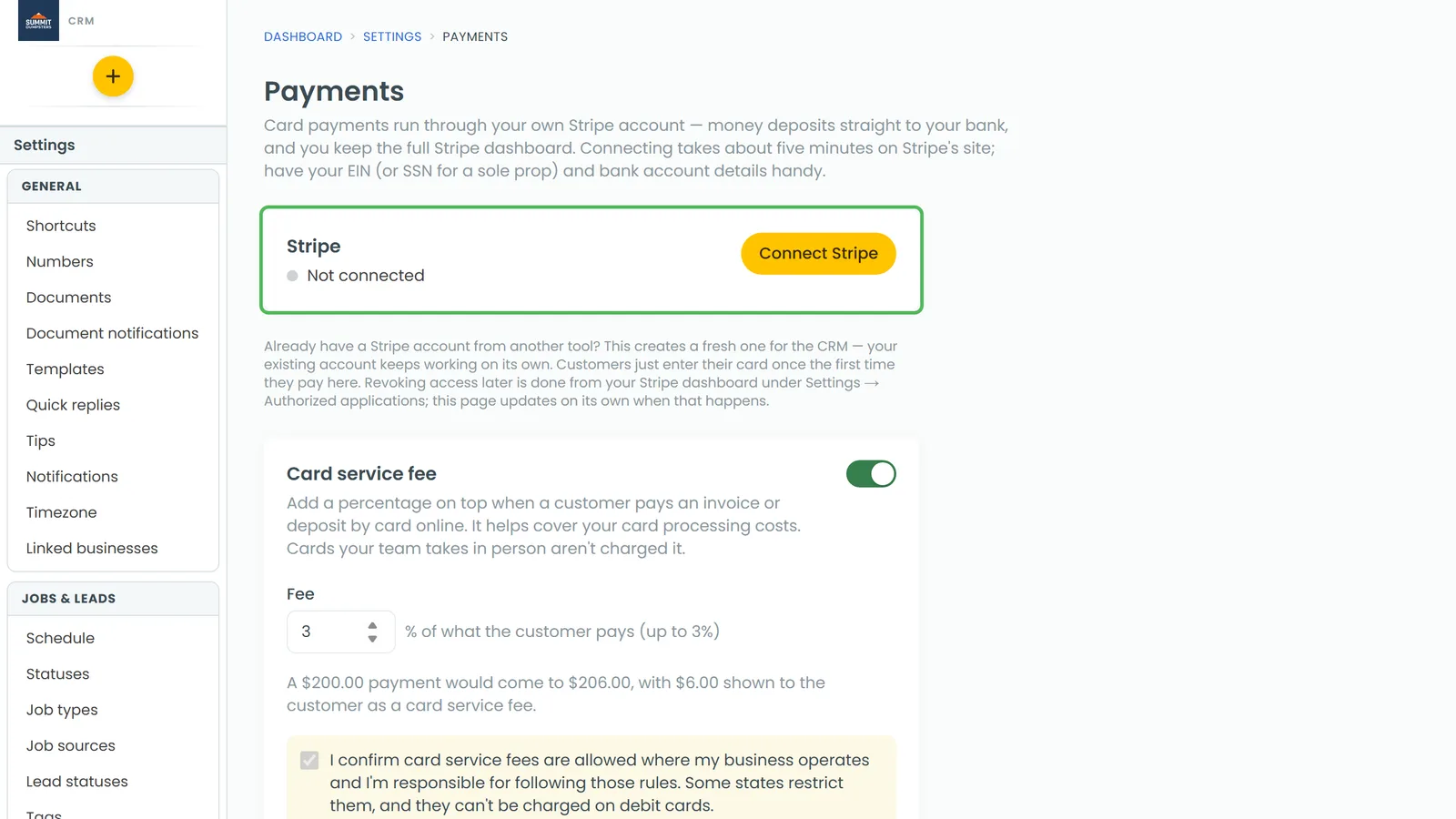
To open the Payments settings:
- At the bottom of the menu, click the gear (Settings).
- Under Money, click Payments.
In the phone app, it's under Settings / Payments. Only an admin can connect Stripe.
Getting ready
What do I need before I start?
Have your EIN handy, or your SSN if you're a sole proprietor, plus your bank account details. The setup itself happens on Stripe's site and takes about five minutes.
What will Stripe ask me?
Whatever Stripe needs to verify you and your business. Those screens belong to Stripe, not the CRM, and Stripe may come back later asking for more. Anything it's still waiting on shows up on the Payments page (see below).
I already have a Stripe account. Can I use it?
Connecting always creates a fresh Stripe account for the CRM. Your existing account keeps working on its own. The only difference your customers notice is that they enter their card once, the first time they pay you through the CRM.
What the Stripe card is telling you
The card shows one of four statuses, each with its own button:
- Not connected (grey dot): nothing's set up yet. Click Connect Stripe to start.
- Setup not finished (yellow dot): you started but didn't finish Stripe's form. Click Continue setup to pick up where you left off.
- Under review by Stripe (yellow dot): you've sent your details and Stripe is checking them. Click Open Stripe form if you need to go back in.
- Connected (green dot): you can take cards. Click Open Stripe dashboard to go to your Stripe account.
Once you're connected, two boxes appear under the status:
- Card payments: Enabled.
- Payouts to your bank: Enabled, or Not yet if Stripe still needs something before it'll send money to your bank.
What does "Stripe still needs:" mean?
If Stripe is missing anything, a grey box lists it under Stripe still needs:, sometimes with a Reason line underneath. Click Finish in Stripe → to go straight to Stripe and fill it in.
What's the message at the top when I come back from Stripe?
When Stripe sends you back, the CRM reads your account again and tells you where things stand. You'll see that Stripe is connected, that your details were received and Stripe is reviewing them, or that setup wasn't finished and you can pick it up whenever you're ready.
How do I see the latest status?
Click Refresh status under the card. The time it last checked shows beside it, after Last checked. In the phone app, the status also re-checks by itself when you close Stripe's page.
Taking payments
What happens if I try to take a card before Stripe is connected?
The card options (Tap to Pay, typing in a card, charging a card on file) point you to the Payments settings page so you can connect first. If a customer opens an invoice in their portal and tries to pay, they see "Online payment isn't set up yet" and are asked to get in touch with you.
Can I still record cash and checks?
Yes. Offline payments don't need Stripe. See Recording cash and other offline payments.
Is there anything else on this page?
Yes. Under the Stripe card you can turn on a card service fee for customers who pay online. See Charging a card service fee. In the phone app, once you're connected, a Tap to Pay card also appears here so you can set up the phone you're holding.
Managing the connection
How do I disconnect the CRM from Stripe?
Do it from your Stripe dashboard, under Settings → Authorized applications. The Payments page notices on its own and goes back to Not connected. Your Stripe account stays yours.
Related articles
- Connecting Stripe to take online payments
- Payouts, your bank account and the Stripe dashboard
- How to charge credit cards
- Using Tap to Pay on iPhone and Android
- Charging a card service fee