In this article, you'll learn how to add a card service fee to online card payments. Stripe charges you a processing fee on every card payment. This setting lets you pass part of that cost on when a customer pays you by card from their link or portal.
The fee is a percentage of what the customer pays, up to 3%. It's only added when a customer pays an invoice or an estimate deposit online by card. Cards you or your crew take never get it.
To open the card service fee setting:
- At the bottom of the menu, click the Settings gear.
- Under Money, click Payments.
- Scroll down past your Stripe connection to the Card service fee box.
On the phone app it's the same. Open the menu, tap the Settings gear, tap Payments under Money, then scroll to the bottom of the page.
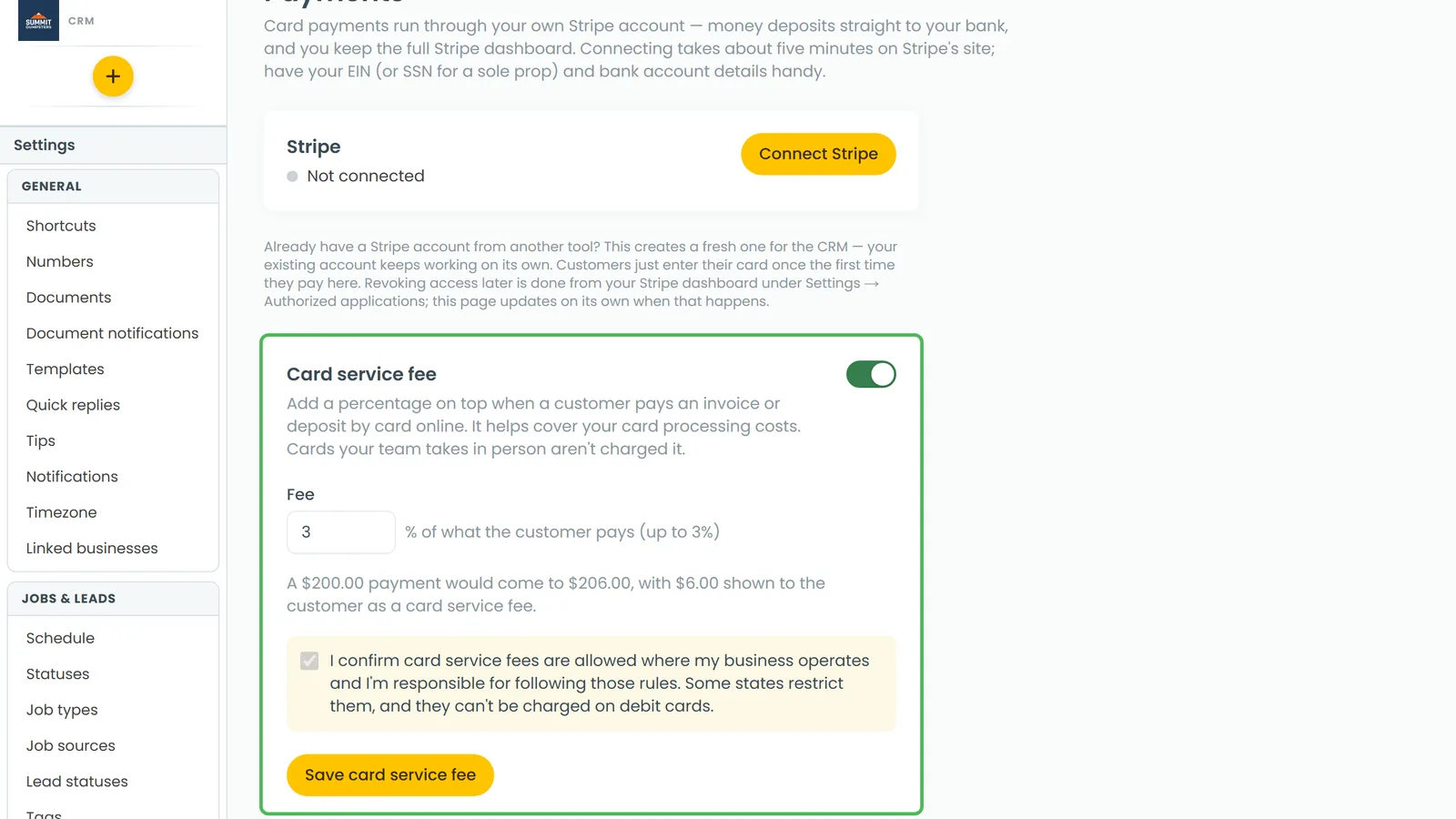
Turning on the card service fee
- In the Card service fee box, turn on the switch.
- In Fee, enter the percentage you want to charge. It starts at 3%, and you can set anything above 0 up to 3%.
- On the web, check the line under the box. It shows what a $200.00 payment would come to with your fee, and how much of that the customer sees as the card service fee.
- Tick the box to confirm card service fees are allowed where your business operates.
- Click Save card service fee. Saved appears next to the button.
The save button stays greyed out until the percentage is above 0 and no more than 3%, and the box is ticked. You only have to tick it once. After you save, it stays ticked and you can't untick it.
Which payments get the fee
The fee is only added when the customer pays online by card:
- An invoice they pay from the link you texted or emailed, or from their customer portal
- An estimate deposit they pay online after approving the estimate
It's never added when your team takes the card:
- Tap to Pay
- A card the office types in
- Charging a card on file
- Automatic charges for recurring billing
- A card your crew takes on the job
The fee is worked out on the full amount being charged, tip included.
What your customers see
At the Make a payment step, Amount due shows the full amount their card will be charged. Next to it there's a note saying what's included, for example "includes $6.00 card service fee". Under that, a line tells them what percentage is added to card payments.
After they pay, the invoice and the receipt show a Card service fee line under the total. The payment amount on the receipt includes the fee.
The fee isn't counted as part of the invoice. A $200.00 invoice paid by card is still recorded as $200.00 paid. The fee is kept separately on the payment, so it never shows up as an overpayment.
Refunds
When you refund a card payment that had a fee on it, the money goes back in this order:
- The invoice amount
- The tip
- The card service fee
That means a partial refund reopens the invoice by exactly the amount you refunded. The fee is the last thing to go back.
Turning the fee off
- Go to Settings, then Payments.
- In the Card service fee box, turn off the switch.
- Click Save card service fee.
Payments your customers start after that won't include a fee.
Related articles
- Connecting Stripe to take online payments
- Stripe setup and card payments FAQ
- How to issue refunds
- Turning off card payments on an invoice or estimate
- How to request deposits on estimates