In this article, you'll learn where your card payments go, how to check that Stripe is paying out to your bank, and where to change your bank account or anything else about payouts. It takes a few minutes to read, and afterwards you'll know which questions the CRM can answer and which ones only Stripe can.
How the money gets to your bank
Card payments in the CRM run through your own Stripe account, the one you connected under Settings › Payments. Whenever a customer pays by card, the money goes to that Stripe account first. That covers invoice links, deposits, saved cards and Tap to Pay. Stripe then pays it out to the bank account you gave it when you set up the account.
Since the Stripe account is yours, Stripe handles everything about payouts:
- when payouts happen and how often
- which bank account they go to
- the name customers see on their card statement
- any faster payout options Stripe offers you
You won't find any of these in the CRM's settings. You change them in your Stripe dashboard.
Checking that payouts are on
To open your payment settings:
- In the menu, click Settings.
- Under Money, click Payments.
When Stripe is connected, the Stripe card says Connected and shows two boxes:
- Card payments: Enabled means you can take cards.
- Payouts to your bank: Enabled means Stripe is sending your money to your bank. Not yet means Stripe needs something from you before it can pay you out.
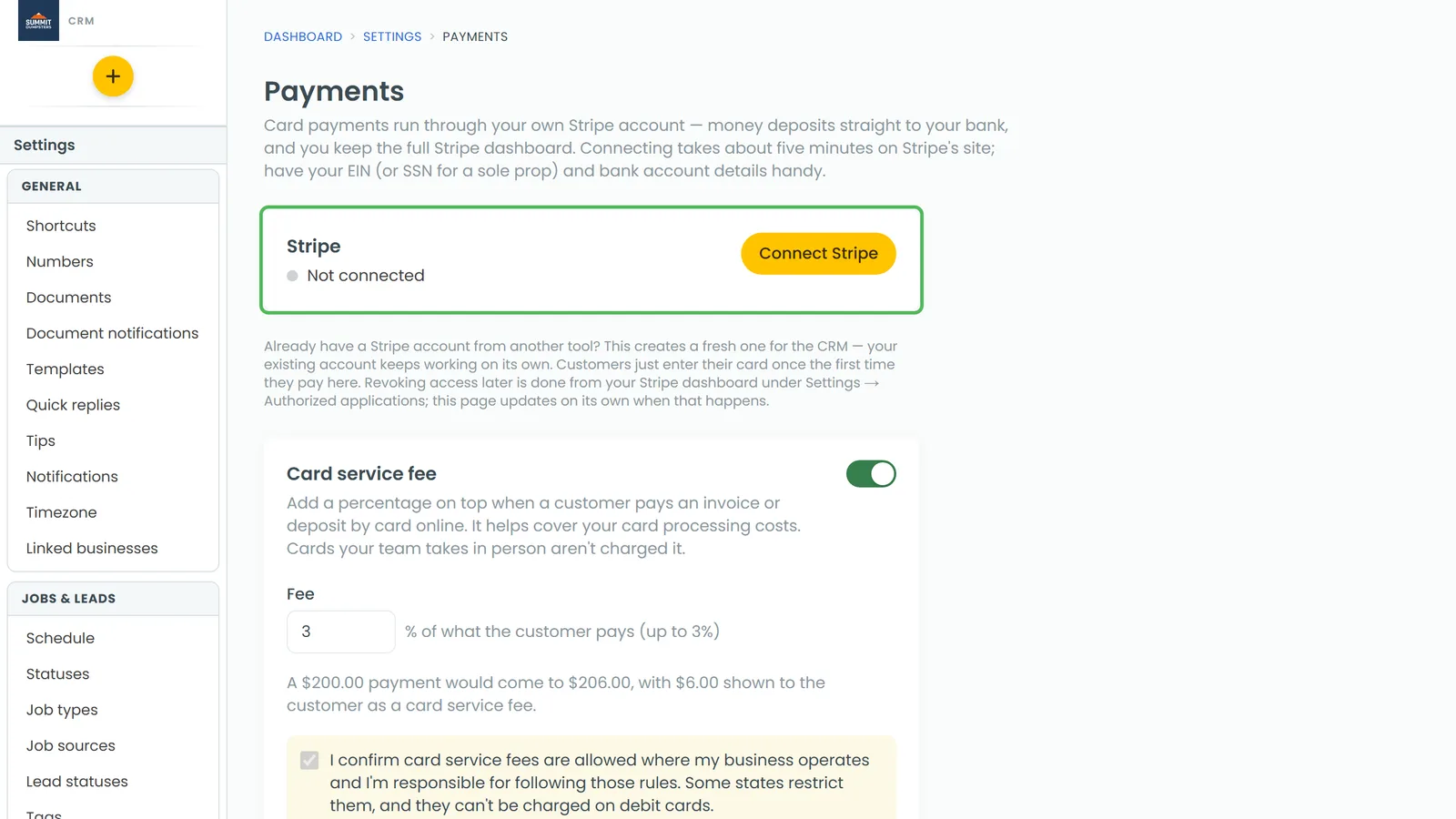
If Stripe is still waiting on details, a Stripe still needs: list shows up on the same card. Click Finish in Stripe → to fill them in. When you're done, click Refresh status to pull the latest from Stripe. Next to that button you'll see when the status was last checked.
Opening the Stripe dashboard
To open your Stripe dashboard:
- Go to Settings › Payments.
- Click Open Stripe dashboard.
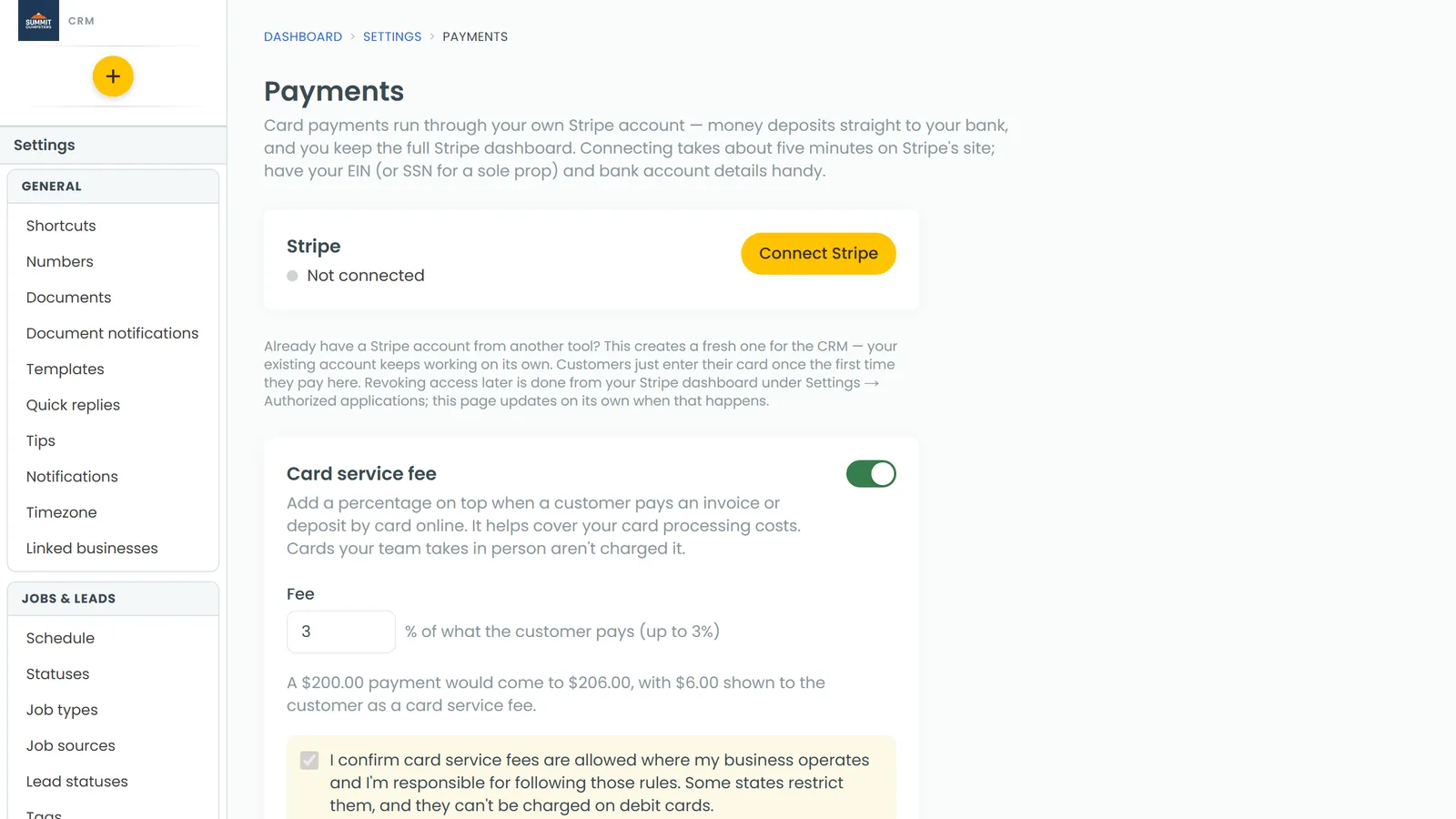
Your Stripe dashboard opens in a new tab. In it you can see your payouts and change the bank account they go to. You can also edit your statement descriptor, which is the name on your customers' card statements, and check any payout options Stripe gives you.
The phone app has the same page. Go to Settings, then Payments, and tap Open Stripe dashboard.
Seeing what Stripe is holding on your Home page
You can add a Stripe block to your Home page. It shows three amounts from your Stripe account: Pending deposit, Available, and the money that's on its way to your bank. If Stripe has a payout scheduled, that third label includes the payout date.
To add the Stripe block:
- On the Home page, click the edit button at the far right of your greeting.
- Click + Add block.
- Pick Stripe.
At full height, the block also has an Open Stripe link that takes you straight to your balance in Stripe. If Stripe isn't connected yet, the block shows a Set up Stripe link instead, which opens Settings › Payments.
Seeing payments in the CRM
Each payment is recorded against the job it paid for.
To see a job's payments:
- Open the job.
- Scroll to Job payments.
On a computer, each payment is a row with Payment, Method, Date, Reference and Amount. Card payments show the last four digits of the card, and the Collected line at the bottom adds everything up. A refunded payment stays in the list with a Refunded tag.
In the phone app, the Tap to Pay page has a Recent card payments list with the Date, Job, Description and Amount of each one.
Related articles
- Connecting Stripe to take online payments
- Stripe setup and card payments FAQ
- Using Tap to Pay on iPhone and Android
- How to issue refunds
- Tracking payments with the Payments report