In this article, you'll learn how to give a job a name and where that name shows up afterward. It helps when a number alone doesn't tell you much, and you want to see at a glance which job is the garage cleanout and which is the estate cleanup.
Every job gets its own number, like JOB-1234. You don't pick it and you can't change it. A job name is an optional label on top of that number. Use it for the kind of work, a project, or anything else that helps your team tell jobs apart.
Naming a new job
To open the new job form:
- In the menu, click Jobs.
- Click Create New.
To name the job:
- Fill in the customer under Client Details and the address under Service Location.
- In the Job Details card, type a name in the Job name field. It's the first field in the card, above Job type.
- Fill in the rest of the form the way you normally would.
- Click Create.
Leads and estimates
The new lead form has the same field in its Lead Details card, but a lead doesn't keep the name. When you convert the lead into a job, the job takes its name from the lead's notes instead.
The new estimate form has the field in its Estimate Details card. There, the name goes on the estimate rather than a job.
On the phone app
- Open Jobs and tap Create New.
- In the Job Details card, type a name in the Job name field.
- Finish the form and tap Create.
Where job names show up
The Jobs list
On a computer, the Jobs list has a Job name column at the far right of the table. Click the Job name header to sort the list by name, and click it again to flip the order. It's a quick way to group jobs that share a name.
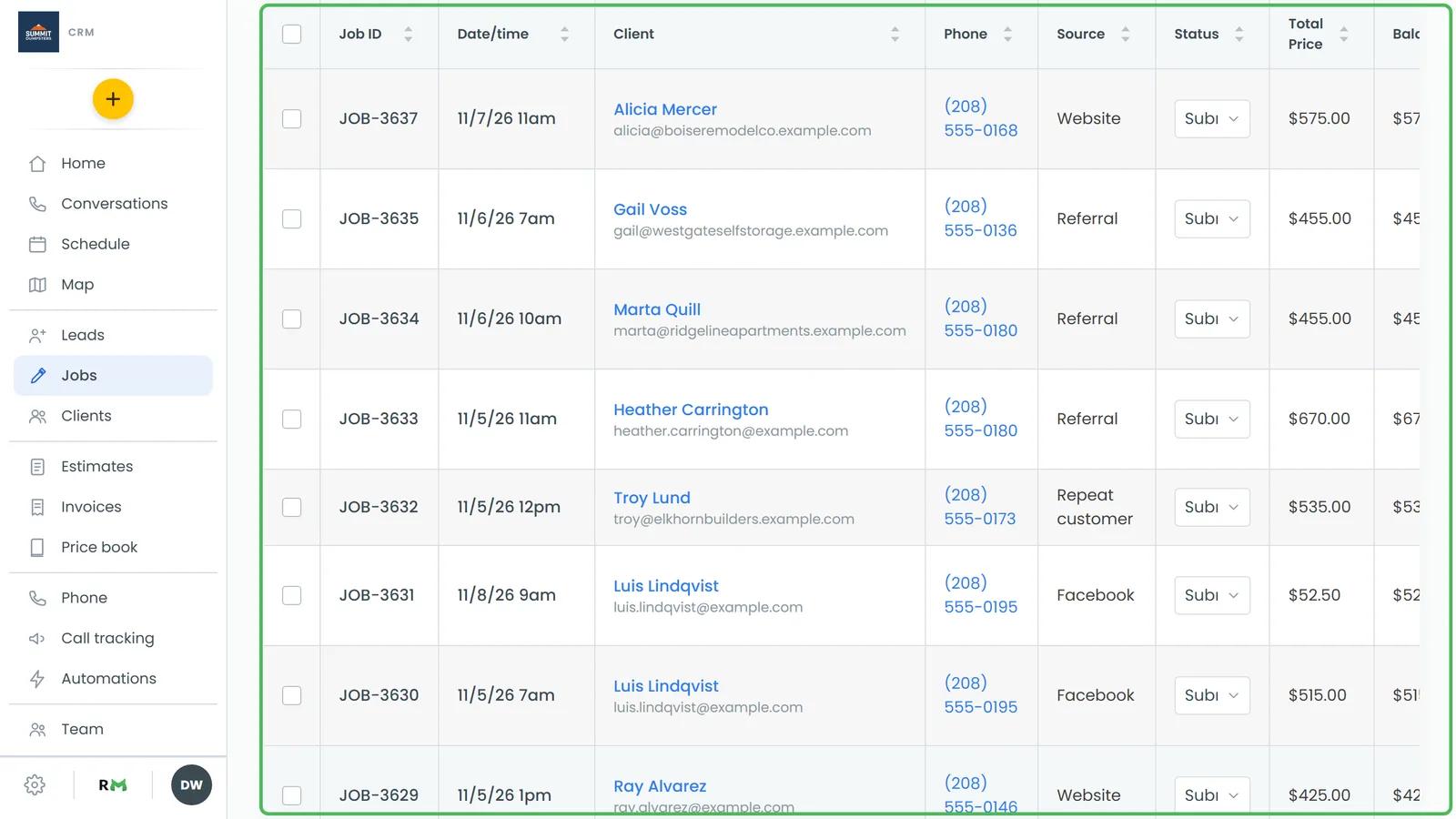
On a phone's browser and on the phone app, the Jobs list shows the job number and the customer, not the name.
Other lists
- A customer's page has a Jobs tab with a Job Name column. The Search box above it matches job names too.
- On a computer, the Invoices list has a Job name column, and its Filter results box matches job names.
Searching
Job names are searchable, so you can find a job by its name as well as by its number:
- On the schedule, click the search icon and type part of the name. The search matches job names along with customer names, numbers and addresses.
- Search everything, in the top bar when you use the CRM in a phone's browser and on the phone app's home screen. A matching job shows its number with the name beside it, like "JOB-1234 — Basement cleanout".
Duplicating a named job
When you duplicate a job, the copy keeps the original's name. It gets its own new job number, so you can still tell the two apart.
Agency accounts
On an agency account, jobs are called appointments. The form is titled New Appointment, the card reads Appointment, and the field reads Appointment name. It works the same way.