In this article, you'll learn how to let your techs collect credit card payments on the job. Card payments run through your own Stripe account, and a role setting decides who on your team can take them.
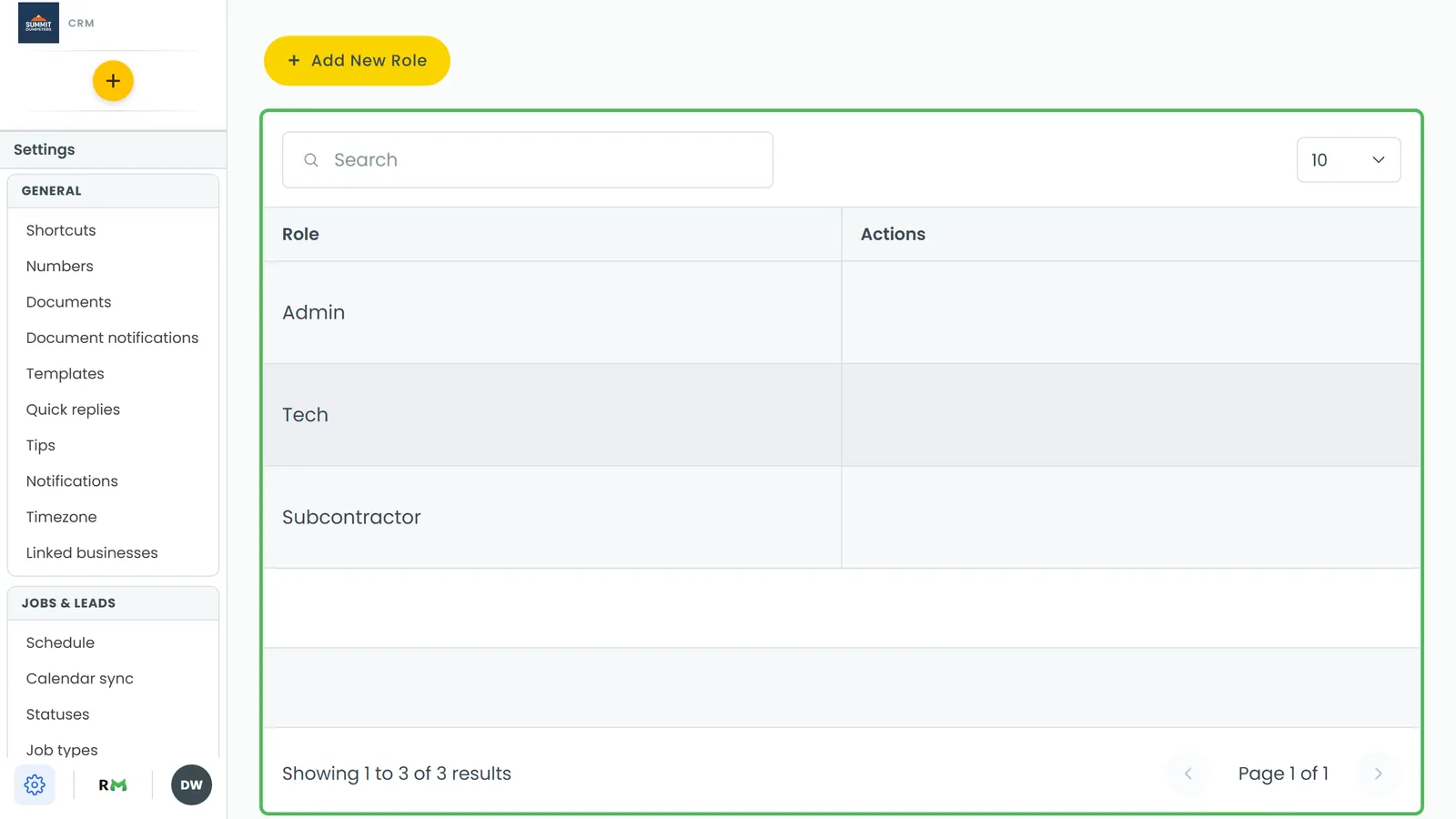
To open Roles & permissions:
- In the left menu, click the gear at the bottom (Settings).
- Under Users & roles, click Roles & permissions.
Connect Stripe first
Nobody can charge a card until your Stripe account is connected. Until then, the Tap to Pay and Type card buttons send you to the Payments settings page instead.
- In Settings, under Money, click Payments.
- Click Connect Stripe and finish the steps on Stripe's site.
- Back on the Payments page, the status should read Connected. Click Refresh status if it hasn't updated yet.
The same Payments screen exists in the phone app's settings, with the same Connect Stripe button. The full walkthrough is in Connecting Stripe to take online payments.
Turning on Charge Credit Cards for a role
The Charge Credit Cards permission ("Add credit charge payments") is already on for the built-in Tech and Subcontractor roles. Admin has every permission and can't be opened. If someone switched it off, or you made a custom role, here's how to turn it on.
- On the Roles & Permissions page, click the role's row, for example Tech.
- The Edit permissions for role tech panel slides in. Type "charge" in the Search box to jump to it.
- Switch Charge Credit Cards on. The switch turns green.
- Click Save. You'll see a Permissions saved message.
Permissions that go with it
Three other switches on the same panel affect money on jobs:
- Financial Data ("Can view prices, totals and costs on jobs and invoices.") is on for Tech by default. Without it, a tech can't see what a customer owes.
- Change Payment Options On Invoices And Estimates lets a user edit which payment types the customer is offered. It's off for Tech by default.
- Delete Job Payments ("Can delete and refund job payments") is on for Tech and off for Subcontractor by default. Leave it off for anyone who shouldn't be refunding.
Giving someone the role
When you add a team member on the web, the Permission level dropdown on the add form is where you pick their role. To change it later, open Team in the left menu, click the person, and under Roles and permissions change the Role dropdown, then click Save. On the phone app, open the person under Team and change the Role field on their Profile tab.
What your tech sees
On the phone app, a tech with the permission opens a job, taps Add payment and sees Charge card ending #### (when a card is on file), Tap to Pay on iPhone (or Tap to Pay on Android) and Type card manually. Without the permission those buttons are gone, and Send payment link is what's left.
For the step by step, see How to charge credit cards and Collecting payments on the phone app.
Subcontractors
A subcontractor you set up under Subcontractors doesn't get a CRM login. They work from the crew portal, where the job's Payments tab takes cash, a check or a card, and the Roles page has no say over it. If you gave a subcontractor a CRM login with the built-in Subcontractor role instead, Charge Credit Cards is on for them by default.