In this article, you'll learn how to use the Scheduler to turn a customer's calls and texts into a job on your schedule. It reads the conversation for you, call transcripts included, and fills in the customer's details, the date and time, and what the work is. You check it, fix anything it got wrong, and book it. It does its reading after the call, not while you're still talking.
To switch on the Scheduler:
- In the menu, click Features.
- Under Customer messages, find Scheduler and click its switch so it reads Active.
After that, Scheduler shows up in the menu under Features. On the phone app it gets a shortcut on your Home screen too.
To open the Scheduler:
- In the menu, under Features, click Scheduler.
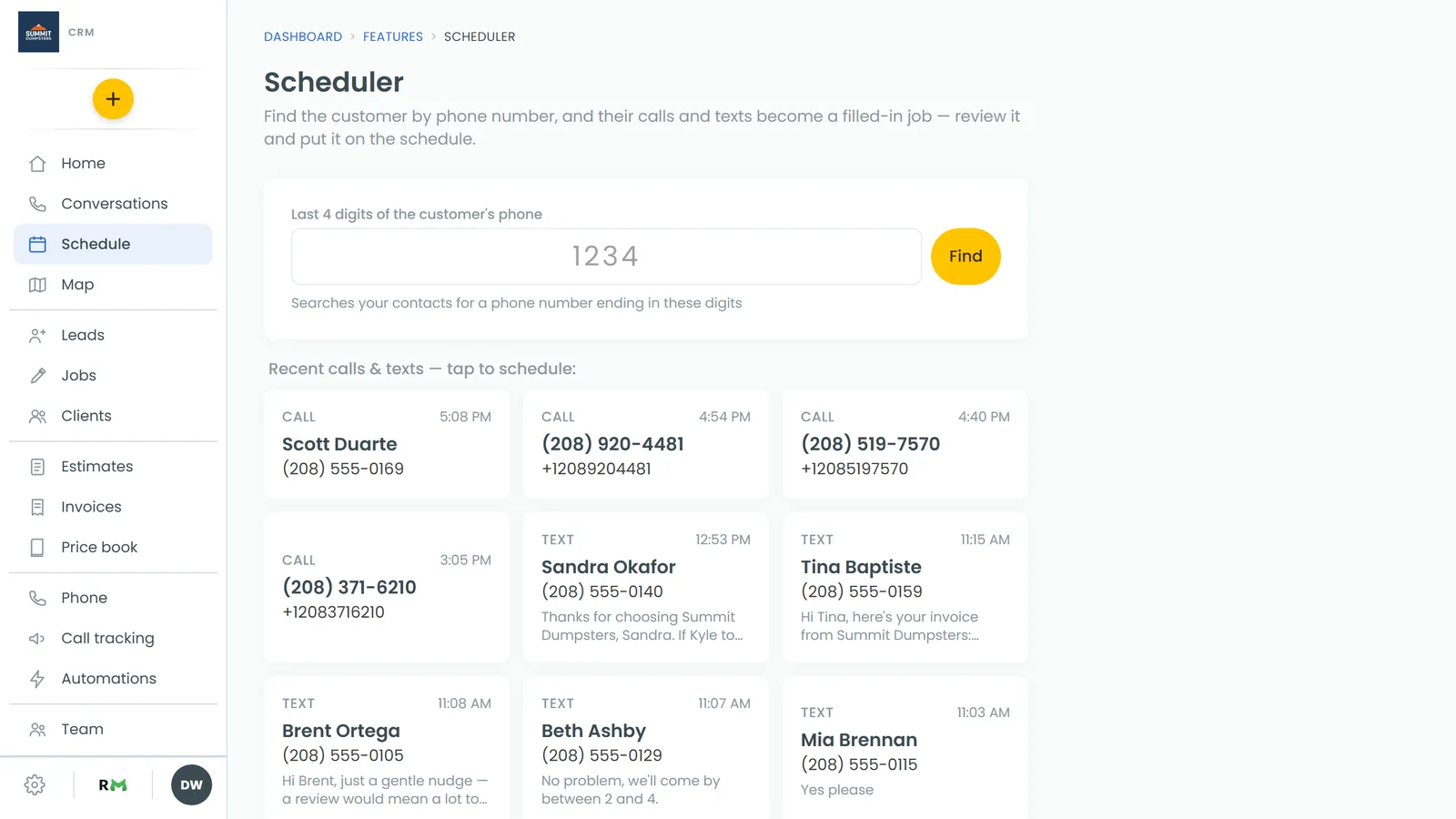
Finding the customer
There are two ways to pull up the customer you want.
Search by phone number
- In Last 4 digits of the customer's phone, type the last four digits.
- Click Find.
- If more than one customer matches, pick the right one from the list.
If nobody matches, you'll see "No contact found with a phone ending in those digits".
Pick from recent calls and texts
Under Recent calls & texts — tap to schedule, each tile shows whether it was a call or a text, when it happened, the customer's name and number, and a bit of the message.
- Click the tile for the customer you want.
Either way, the tile or row shows Reading conversation… while it goes through their texts and call transcripts. Then the job form opens, already filled in.
Checking the details
The form has two cards. Look over both and change whatever needs it.
Customer
First name, Last name, Phone, Email, Street address, City, State and Zip.
The address gets checked against map data as soon as the form opens. You'll see Checking the address…, then one of these:
- A green note when the street, city, state and zip all match. If only the zip was off, it's fixed for you.
- A red note, "Not sure this address is right — look it up before scheduling." From there you can click Open in Google Maps, or a Use link to switch to the city and state the map found.
If you change the address yourself, click Check this address to check it again.
Schedule
- Job date and Start time. Times are in your business timezone. Pick a date with no time and the start time is set to when you open that day.
- How long, from 1 hour to 4 hours in half-hour steps. It starts at 2 hours.
- Job type, from your own list. It picks the type that fits the work talked about, if one does.
- Job description, a write-up of the work.
Photos and the conversation
If the customer texted in photos that go with this job, they show under Photos from the conversation. They get attached to the job, so remove any that don't belong.
To see exactly what the Scheduler read, click Show on Conversation (n items). Texts are marked Customer or You, and calls show as Call transcript.
If it found nothing to read, you'll see "No texts or call transcripts found for this contact — fill in the details by hand."
Putting it on the schedule
- Click Put it on the schedule. It stays greyed out until there's a job date, a start time and a phone number.
- You'll see Job scheduled, with the job number, the customer and the time.
- Click Open the job to go to it, or Schedule another to start fresh.
To throw the form away and go back to the search, click Start over.
When you open it right after a call
If the customer's latest call hasn't been transcribed yet, the Scheduler waits for it instead of filling the form without it. You'll see a progress bar with four steps (Call, Recording, Transcript and Job details) and a line saying where it's up to, such as "Transcribing the call".
- Click Fill in without this call to go ahead with what's already there.
- Click Cancel to stop waiting.
It only waits a few minutes for a recording or transcript. If one never arrives, it goes ahead without it.
On the phone app
The phone app's Scheduler works the same way, with a few small differences:
- Type exactly four digits and tap Search.
- Recent calls and texts are listed under Recent conversations.
- The form is split into Customer, Address and Job cards.
- The skip button while it waits reads Fill in without it.
- When it's booked you'll see "(job number) is on the schedule", with Open the job and Schedule another.
Related articles
- How to create jobs
- Scheduling a job from a live call
- Transcribing and summarizing your calls
- How to turn on call recording
- Choosing your shortcuts and features