In this article, you'll find short answers to the questions people ask most about invoices. Each one explains what the CRM is doing and what to do about it.
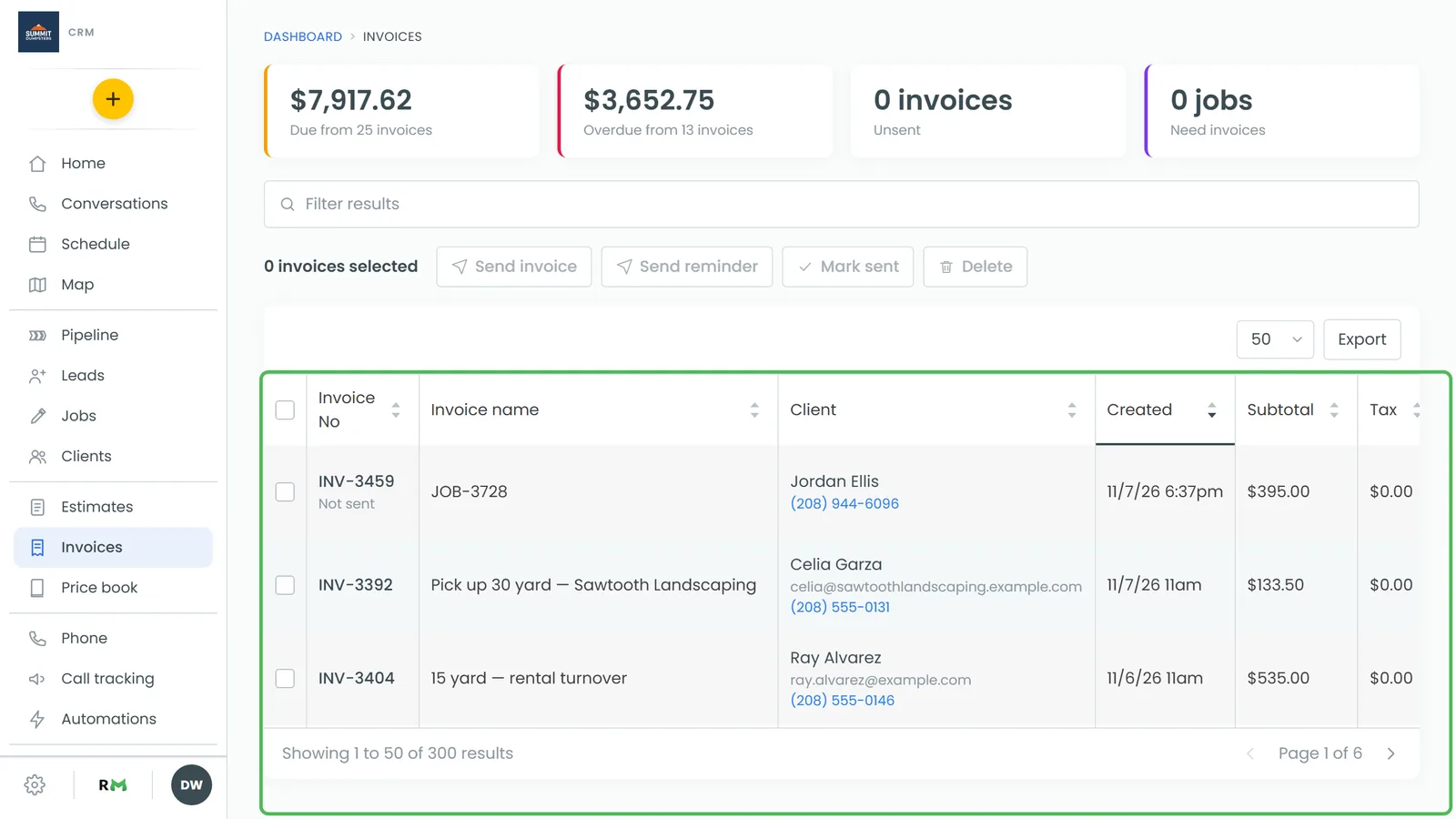
To open an invoice:
- In the menu, click Invoices.
- Click an invoice number to open that invoice's own page.
Why does editing the items on an invoice change the job?
An invoice made from a job doesn't keep its own copy of the items. On the web, the Job Items and Job payments sections on the invoice page are the job's own sections, shown live. Add, edit or remove a line there and you're editing the job, and the invoice total moves with it.
That's on purpose. A job keeps one open invoice that always bills what the job is worth, instead of a new invoice number every time a price changes.
A few things to know:
- Only an open invoice follows the job: one that's a draft, due, partly paid or past due. Once an invoice is paid, refunded or voided, later item edits on the job leave it alone.
- An invoice with no job behind it, like a recurring billing cycle, shows its items read-only under Items. You record money on it with Add payment.
- On the phone app, and on the web from a phone, the Items section is read-only. Change the items from the job itself.
Why is the due date different from what I expected?
The due date counts from the day the invoice is first sent, not from the job date or the day you created it. The CRM takes the day of the first send and adds the client's payment terms.
Before an invoice goes out, the Due on date on its page is only a placeholder. The first send sets the real one, whether that's a text, an email, or Mark sent from the Invoices list. Clicking Send invoice again later never moves it.
The terms live on the client's record under Billing terms, in the Payment terms drop-down: Due on service date, Net 30, Net 60, or Other with your own number of days. The first option means the invoice is due the day it's sent. Billing terms show on the phone app and on the web from a phone. See Setting a client's billing terms.
Can I change the customer on an invoice?
No. An invoice bills the customer on its job, and there's no way to move it to someone else afterwards. Fixing a typo in the customer's name on their record is fine, and the invoice page picks that up. Swapping in a different person isn't possible.
If an invoice went to the wrong customer, delete it while it's unpaid, then create a new one from the right job. See Creating estimates and invoices from jobs.
Why is the invoice addressed to a company instead of the person?
If the client has a company on their record, every estimate, invoice and receipt is addressed to the company, not the person. The person's name stays on the record and still fills the greeting in the text or email that carries the invoice.
To bill the person instead (web):
- Open the client's record and click the ⋮ next to their name.
- Click edit.
- Clear the Company field and click Save.
On the phone app, the same field is called Client company name.
Why is there an invoice on a job I didn't create?
When a job with a total is marked Done, the CRM raises an invoice for it if the job doesn't already have one open. That way every payment has an invoice to sit against. The invoice is never sent on its own, and it can't go past due until someone sends it. A canceled job never gets one.
Why can't I delete an invoice?
An invoice with a payment on it can't be deleted. You'll see the message "This invoice has payments on it. Refund or remove them first." Refund the card payment or remove the hand-recorded one, then delete.
A deleted invoice keeps its number on record. The next invoice gets a new number, so there's never a gap filled in later. See Deleting an invoice.
How do I send a reminder?
There are two ways, and you can use both.
To send a reminder by hand (web only):
- In the menu, click Invoices.
- Tick the box next to each invoice you want to remind.
- Click Send reminder.
The reminder goes by text, email or both, depending on what the client has on file. It uses the Invoice reminders wording under Invoices in Settings › Templates, and it doesn't change the due date.
To let the CRM remind them for you:
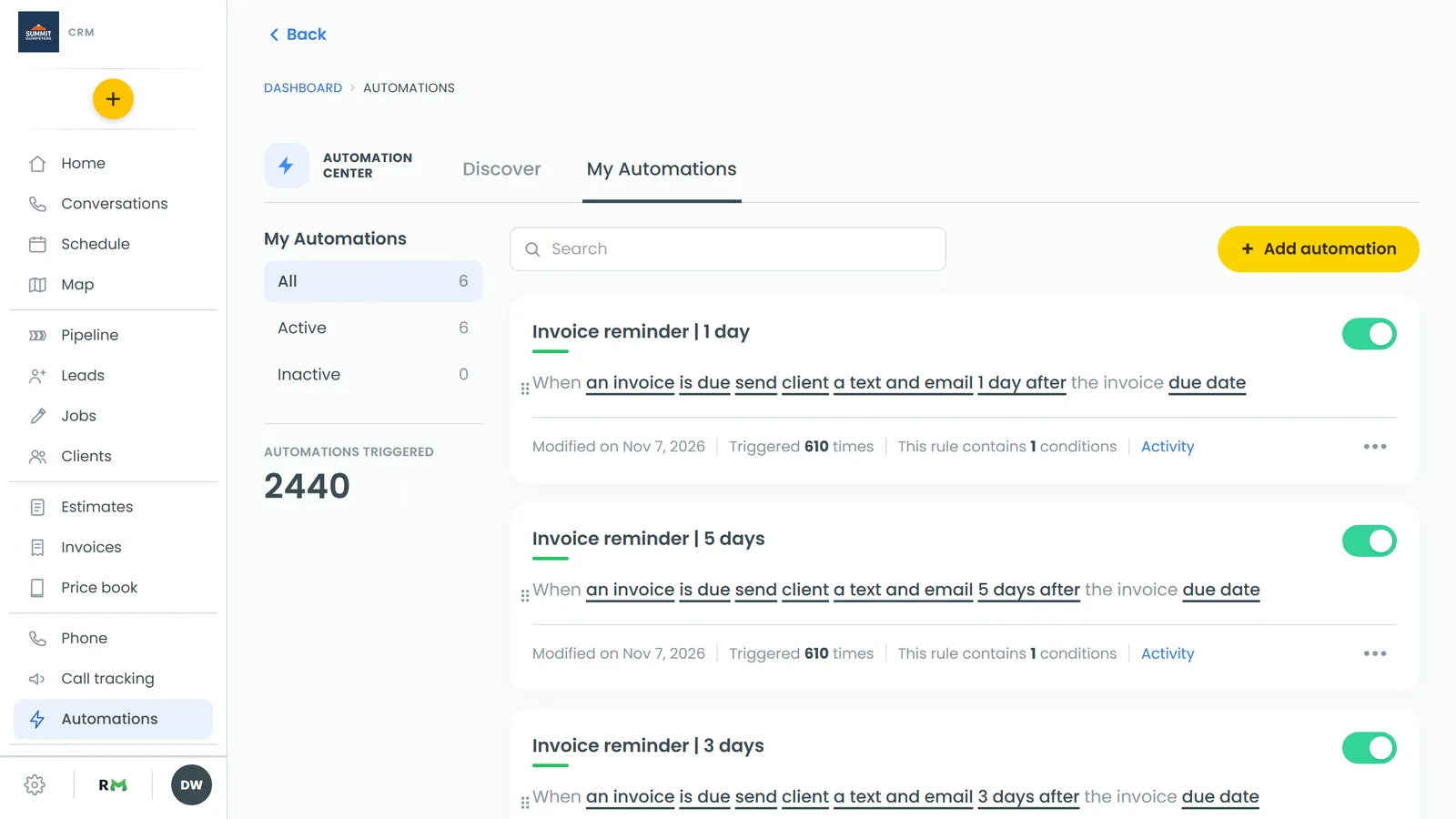
- In the menu, click Automations.
- Find the rules named Invoice reminder | 1 day, Invoice reminder | 3 days and Invoice reminder | 5 days. Every company starts with them, switched off.
- Flip the switch on each rule you want running.
Those three text and email the client 1, 3 and 5 days after the due date passes with a balance owing. A fourth rule, Invoice reminder | 6 days — tell the office, emails your team that nothing has come in. The same rules and switches are on the phone app under Automations. See Sending automatic reminders for overdue invoices.