In this article, you'll learn how to get a PDF of an invoice. That's handy when you want a copy on your computer, want to attach it to an email you're writing yourself, or need to hand it to your bookkeeper.
The invoice page itself doesn't have a download button. The PDF comes from the customer's copy of the invoice, the same page your customer sees in their portal. So you open that copy, then download from there.
To open an invoice:
- In the menu, click Invoices.
- Click the invoice number.
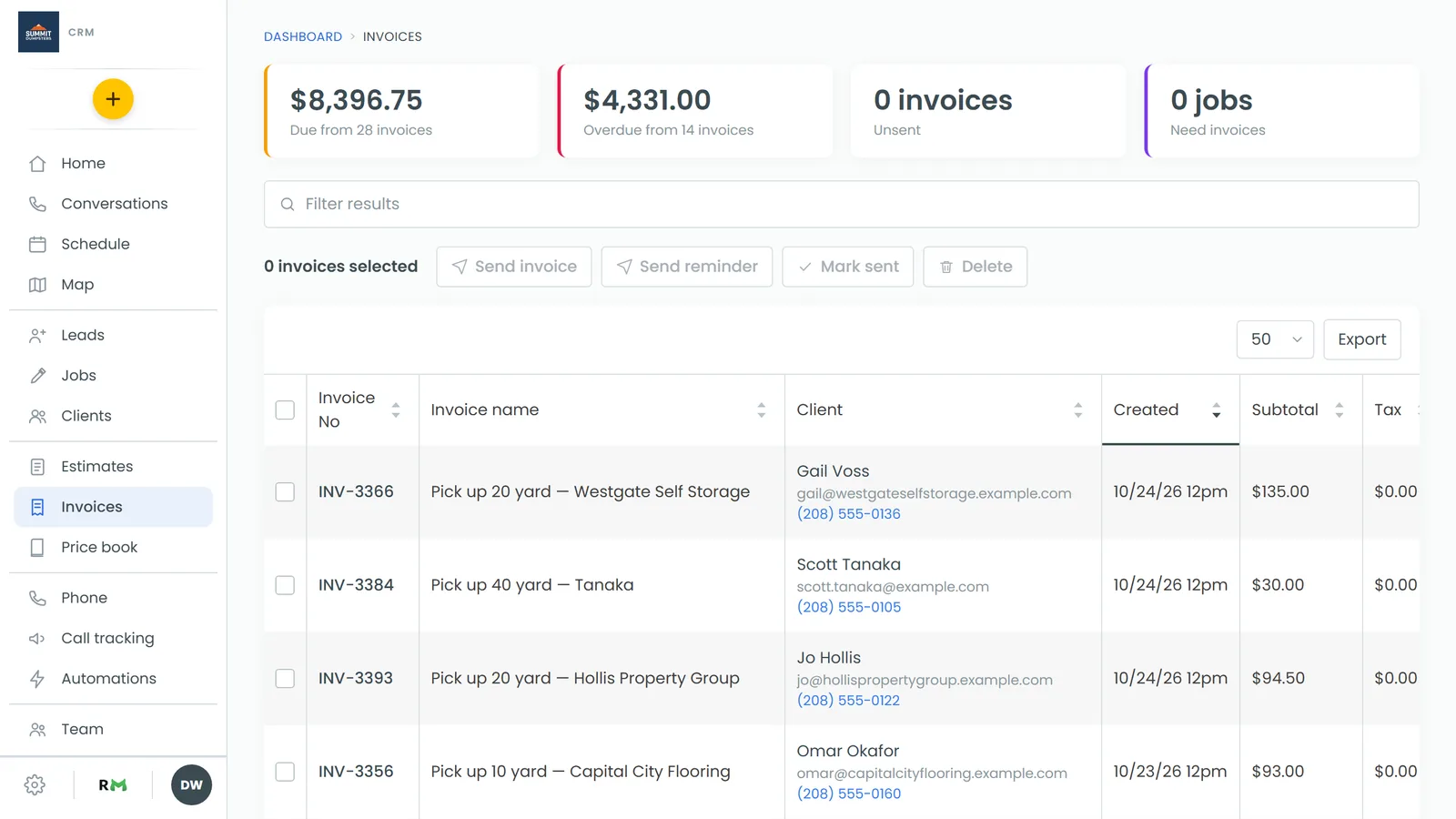
Downloading an invoice on the web
- Open the invoice.
- In the row under Send invoice, click Preview. The customer's copy opens in a new tab.
- At the top right of the invoice, click the ⋮ menu.
- Click Download as PDF. The PDF opens in its own tab, where you can save it to your computer.
If you'd rather print it, click Print in the same menu. The PDF opens and your browser's print window comes up.
If the invoice is paid
Once an invoice is paid in full, the customer's copy becomes a receipt. Download as PDF then gives you the receipt rather than the invoice, and a Download receipt button sits beside the menu. On an invoice that's partly paid, you'll see Receipt so far for what's been paid to date, while Download as PDF still gives you the invoice.
Downloading an invoice on the phone app
- Tap the menu, then Invoices.
- Tap the invoice.
- Tap the ⋮ at the top of the page.
- Tap View as client. The customer's copy opens in your phone's browser.
- Tap Download PDF at the top of the page.
- On a phone, the PDF is emailed rather than downloaded. In the Email the PDF box, type the address you want it sent to and tap Send.
If the app says "This invoice has no customer to view it as," add a customer to the invoice first.
What the PDF looks like
The PDF is built from your Invoice template, so your logo, layout and wording carry over. A paid invoice's receipt uses your Payment Receipt template. To change how either one looks, see Customizing estimate, invoice and receipt templates.