In this article, you'll learn how to duplicate a document template. A copy starts with the layout, wording and settings of a template you've already built. You only change what's different, so you never start from a blank page.
To open your document templates:
- At the bottom of the menu, click the Settings gear.
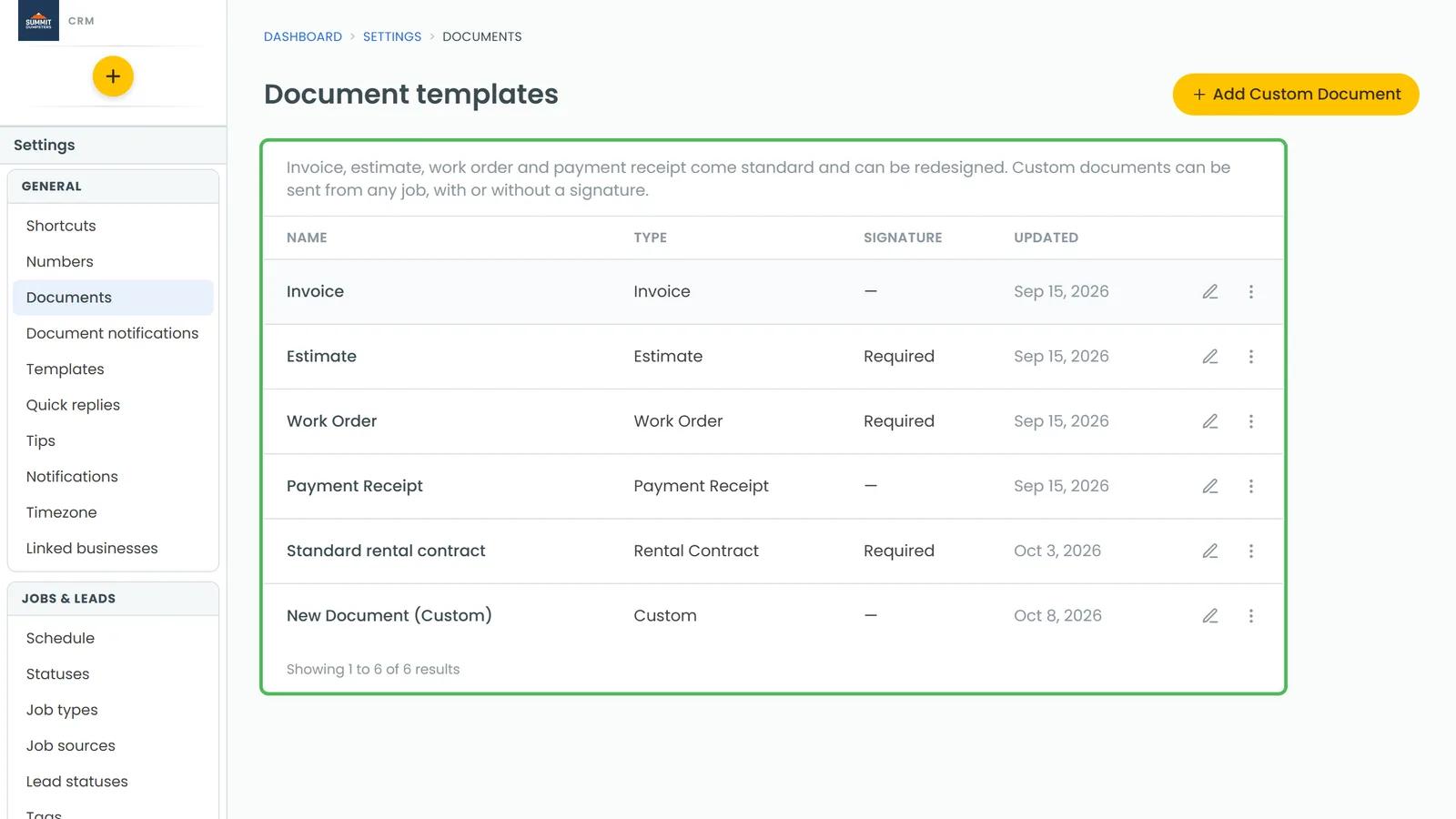
- Under General, click Documents.
This opens the Document templates list. Invoice, Estimate, Work Order and Payment Receipt are always there, and any custom documents you've made are listed after them.
Duplicate a template from the designer
- On the Document templates list, click the name of the template you want to copy. It opens in the template designer.
- In the bar at the top, click Duplicate.
The copy is made straight away and opens in the designer, ready for you to work on.
Duplicate a template from the list
You don't have to open the template first.
- On the Document templates list, click the three-dot button at the end of the template's row.
- Click Duplicate.
This time you stay on the list, and the copy appears at the bottom of it.
What you get
- The copy has the original's name with (Copy) on the end, like Estimate (Copy). On the list it also shows (Custom) after the name, and its Type column says Custom.
- It has the same rows, text, tables and signature box as the original, plus the same document settings.
- A copy is always a custom document, even when you copy one of the four standard templates.
Rename the copy
- Open the copy in the designer.
- Type the new name in the Document name box at the top left.
- Click Save.
You can't rename the four standard templates, but you can rename any copy.
Delete a copy you don't need
- In the designer, click Delete template, then confirm. You'll go back to the list.
- Or, on the list, click the three-dot button on the row and click Delete, then confirm.
Only custom documents can be deleted. The four standard templates can't.
On the phone app
In the app, open Settings and tap Documents. Each template has a Duplicate link, and the copy shows up in the list. The app can't rename or edit templates, because the designer only works on a computer. To rename or change the copy, open Settings › Documents on the web.
Related articles
- Customizing estimate, invoice and receipt templates
- How to create a custom document from scratch
- Generating and sending custom documents
- Editing the messages sent with estimates and invoices
- Sending custom documents from the phone app