In this article, you'll learn how to turn an estimate into a job, and how to get from there to an invoice. When the customer says yes, copying the estimate means you don't type the work in again, and the job keeps the prices you quoted.
There's no button that turns an estimate straight into an invoice. You copy the estimate to a job, then create the invoice on that job.
To open an estimate:
- In the menu, click Estimates.
- Click the estimate's number to open it.
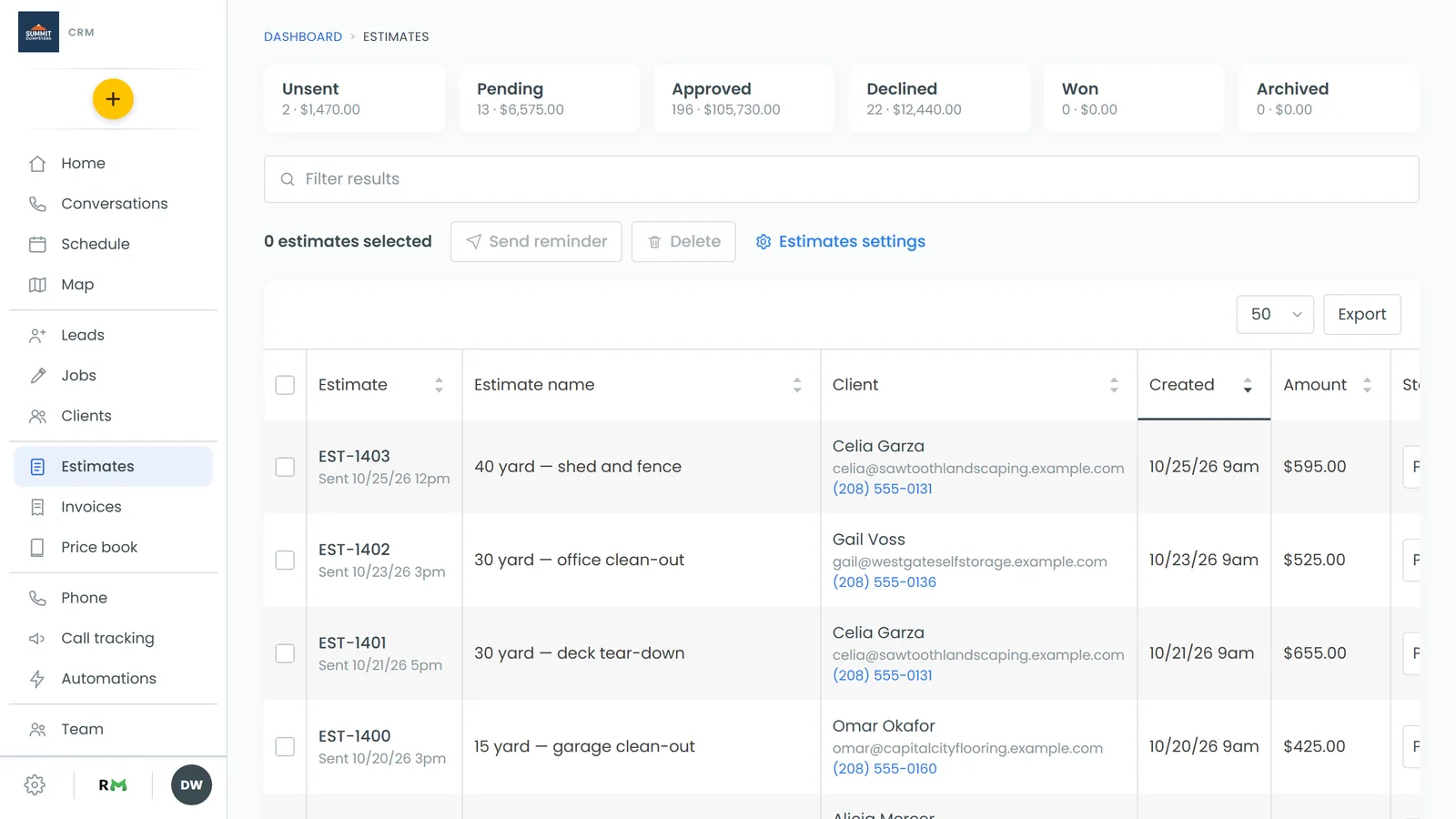
Copy an estimate to a job on the web
- On the estimate's page, click Actions at the top right.
- Click Copy to job.
- A box asks you to confirm. If every line is a regular priced item, it says the estimate's items and customer come across. If the estimate has optional items, it tells you how many priced items come across and that the optional ones don't.
- Click OK. The new job opens straight away.
The job is created unscheduled. Set a date and time on it the same way you would for any other job.
Copy an estimate to a job on the phone app
- Open the estimate.
- Tap ⋮ at the top right, then tap Copy to job. You can also tap Schedule at the bottom of the estimate.
- A sheet asks you to confirm. If there are optional items, it tells you they won't come across.
- Under Schedule it for, pick a date and a start time.
- Tap Schedule and create job to put it on the calendar for two hours from that start time, or Create it unscheduled to place it later.
The new job opens when it's done.
What comes across to the job
- The customer, the service address, and the estimate's name as the job name.
- The priced items, with their quantities and prices.
- The discount and tax rate.
- The estimate's notes, which become the job's comments.
- The job type and source from the job the estimate was quoted on. If it wasn't quoted on a job, the source comes from the customer.
- Any deposit invoice and the payments on it, so the job's balance only shows what's still owed.
If the estimate came from a lead, that lead is marked Won.
What happens to the estimate
The estimate keeps its own number, and the job gets a new one. Under the estimate's status you'll see Became followed by the job number, which links to the job. The items, notes, discount, tax, deposit and status are now read-only, and Send and Copy to job are gone. You can't copy the same estimate twice.
Copying doesn't change the estimate's status. If the customer hasn't approved yet, they can still open their link, sign and pay the deposit.
Create the invoice from the job
- On the new job, click Create Invoice at the top right. On a phone, open the job's Finance tab and tap Create invoice.
- Collect payment or send the invoice from there.
Related articles
- How to create and send estimates
- How to update estimate statuses
- Adding optional items to estimates
- Locking approved estimates
- Creating estimates and invoices from jobs