In this article, you'll learn how to lock estimates once they're approved. With the lock on, the price your customer agreed to stays exactly as they saw it. Nobody on your team can tweak an item or the deposit afterwards by accident, and you've always got a clean record of what was agreed.
The lock is off until you turn it on. Only an admin can change it.
Turning the lock on or off
To open your estimate settings:
- In the menu, click Settings.
- Under Jobs & leads, click Estimates.
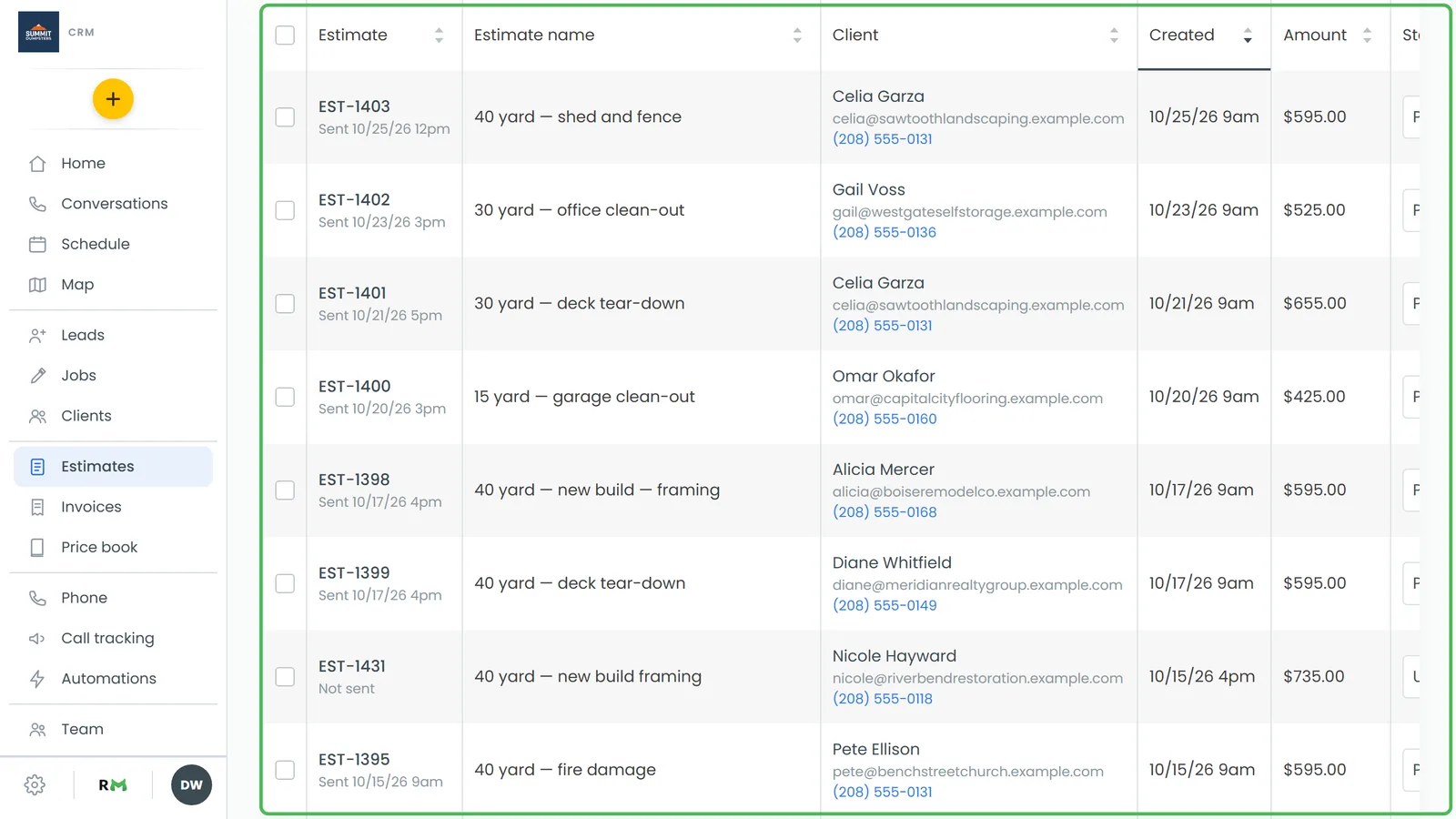
You can also get there from the Estimates list. Click Estimates settings above the table.
To change the setting:
- Find Lock approved estimates. Under it you'll see "Decide if approved estimates can be edited."
- Click the switch. It turns green when it's on.
The switch saves the moment you click it, so there's no Save button.
- On: once an estimate is approved, its details can't be changed.
- Off: your team can keep editing approved estimates. That's handy if your jobs often change after the customer says yes.
On the phone app, it's the same switch. Open Settings, then Estimates.
What a locked estimate looks like
When you open an approved estimate with the lock on, the page goes read-only. It looks the same as an estimate that's already been turned into a job.
- The items can't be opened, and the Add item, Price book and remove buttons are gone.
- Discount, Tax rate, Deposit, Status and Notes are greyed out.
- Photos can't be added, removed or recaptioned.
- The Send button and Copy to job in the Actions menu don't show.
This isn't just the screen. The CRM itself refuses changes to a locked estimate's items, prices and photos, so they can't slip through from another device either. The phone app greys out the same fields.
The lock covers estimates your team marked approved and estimates the customer approved and signed in their portal.
Changing a locked estimate
If the customer asks for a change after approving, set the estimate back to an unapproved status first.
- In the menu, click Estimates.
- Find the estimate in the list.
- In its Status column, choose Pending (or Unsent).
The estimate opens up for editing again. Make your changes, then send it so the customer can approve the new version.
Related articles
- How to update estimate statuses
- How to create and send estimates
- How to request deposits on estimates
- Creating a job from an estimate
- Estimates FAQ